Manage Company Solutions and User Access
Every dealer company in HQ gets a set of solutions: Website, CRM, Invoicing, Dealer Inventory, Email Marketing and so on. The Solutions app shows, for each company, which solutions are switched on, whether each one really works, and what each user of the company may use.
This guide is for the people who look after dealer companies: fix what is broken, give users access, and set up a new company.
Before you start
Section titled “Before you start”- You need Solutions / Manager access. Everyone who may change user rights (Administration / Access Rights) has it.
- The Set up buttons are shown only to administrators with Administration / Settings access.
- In the company switcher at the top right, select all the companies you want to manage. The Solutions app shows only the selected companies.
The Solutions app
Section titled “The Solutions app”Open Solutions from the main menu. It has three pages:
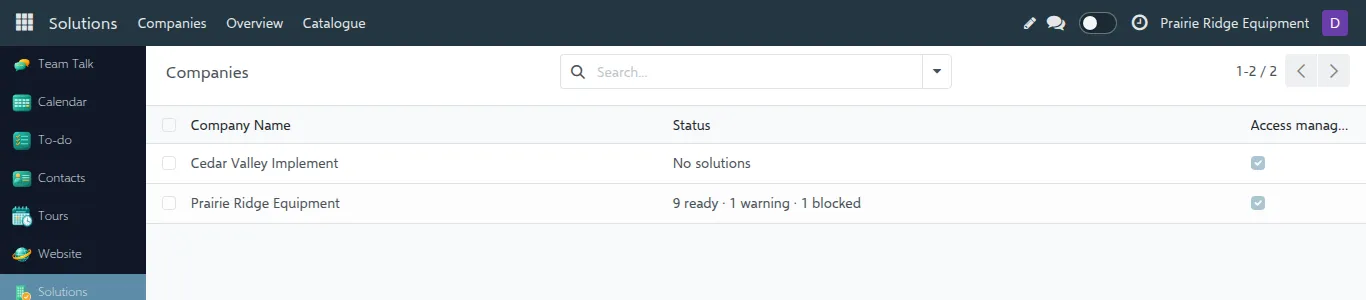
- Companies: one line per company with a short status, for example 9 ready · 1 warning · 1 blocked. Open a company to work on it.
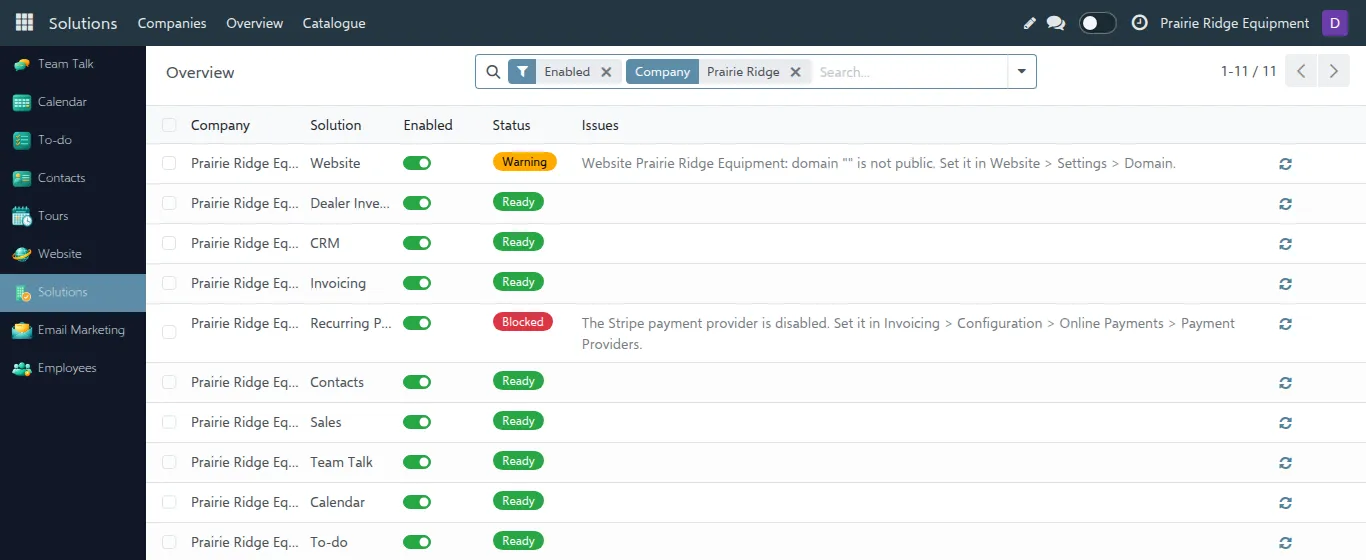
- Overview: every company and solution in one list. Use the Blocked or Warning filter to see what is broken where.
- Catalogue: the list of all solutions with their access levels. Read only.
What the statuses mean
Section titled “What the statuses mean”| Status | Meaning | What happens to users |
|---|---|---|
| Ready | The solution works for this company. | Users with a level get it. |
| Warning | It works, but something is missing, for example the website domain is not set. | Users with a level get it. Fix it when you can. |
| Blocked | It cannot work, for example Recurring Payments without a Stripe account. | Nobody gets it until it is fixed. |
| Disabled | The company does not use this solution. | Nobody gets it. |
| Module missing | The solution is not installed in HQ. | It cannot be switched on. Ask the HQ team. |
The Issues column says, in plain words, what is wrong and where to fix it.
Work on an existing company
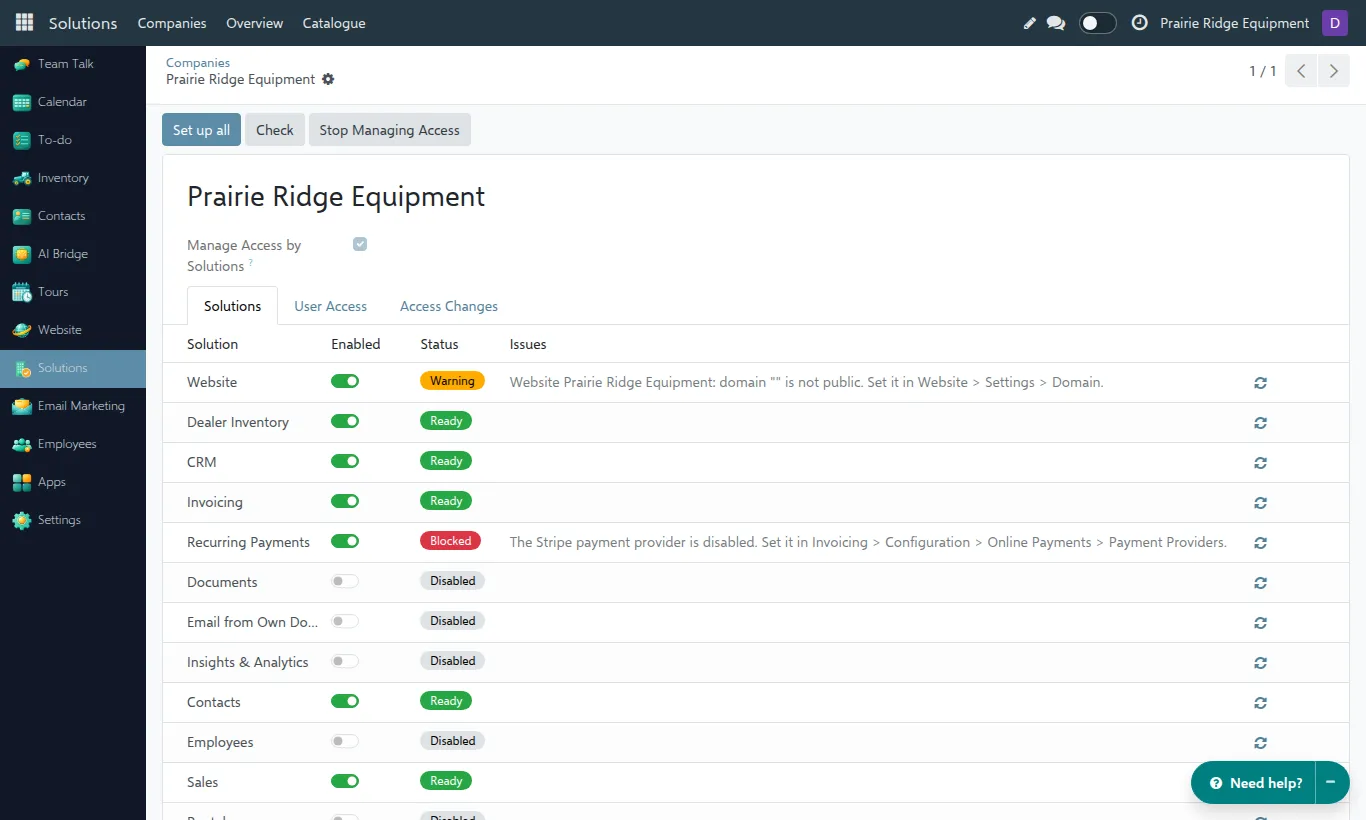
Section titled “Work on an existing company”Open Solutions → Companies and click the company.
Switch a solution on or off
Section titled “Switch a solution on or off”- On the Solutions tab, click the toggle in the Enabled column.
- Click the save icon at the top.
The status is updated right away. When you switch a solution off, the company’s users lose that app.
Fix what is broken
Section titled “Fix what is broken”- Check (at the top) runs all checks again. The round arrow on a line checks only that solution. Use it after you have fixed something by hand. It also adds the lines that are missing on the User Access tab, for example for a solution that was installed after the company was set up. A new line is pre-filled with the level that matches the user’s current rights, and the solution is switched on for the company if a level is found.
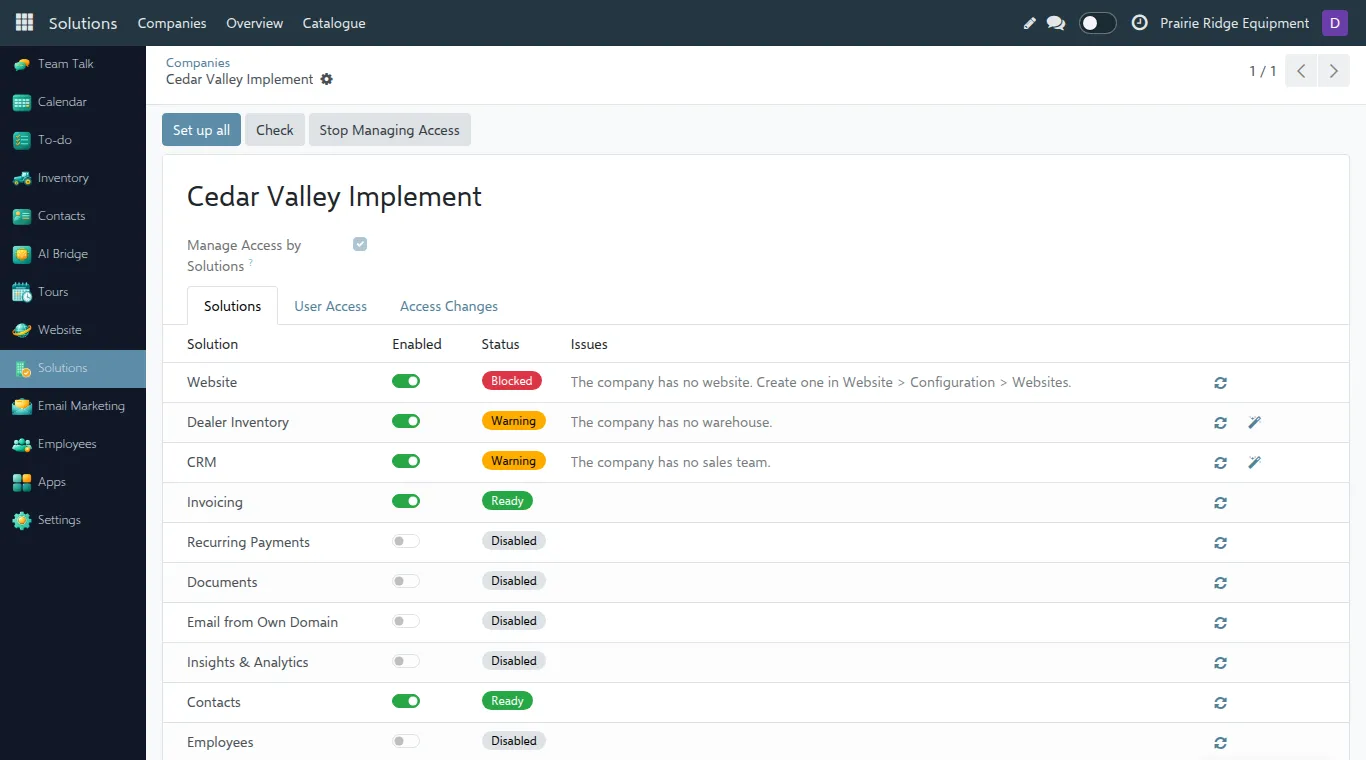
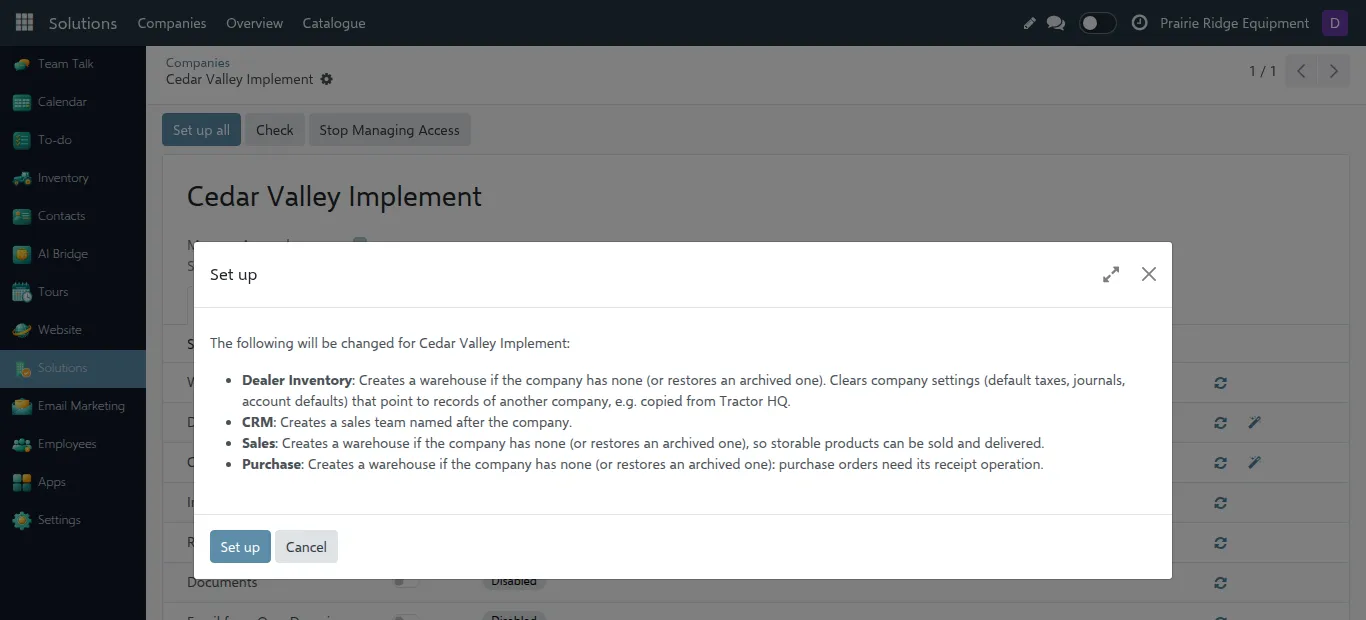
- The magic wand on a line, or Set up all at the top, fixes what HQ can fix by itself: it creates a warehouse, a sales team, loads the chart of accounts, and so on. A window first lists exactly what will be changed; Cancel changes nothing.
- The wand is shown only when there is something HQ can fix. Some issues need a person, for example entering the Stripe keys or the website domain. The issue text says where to do it.
Give a user access
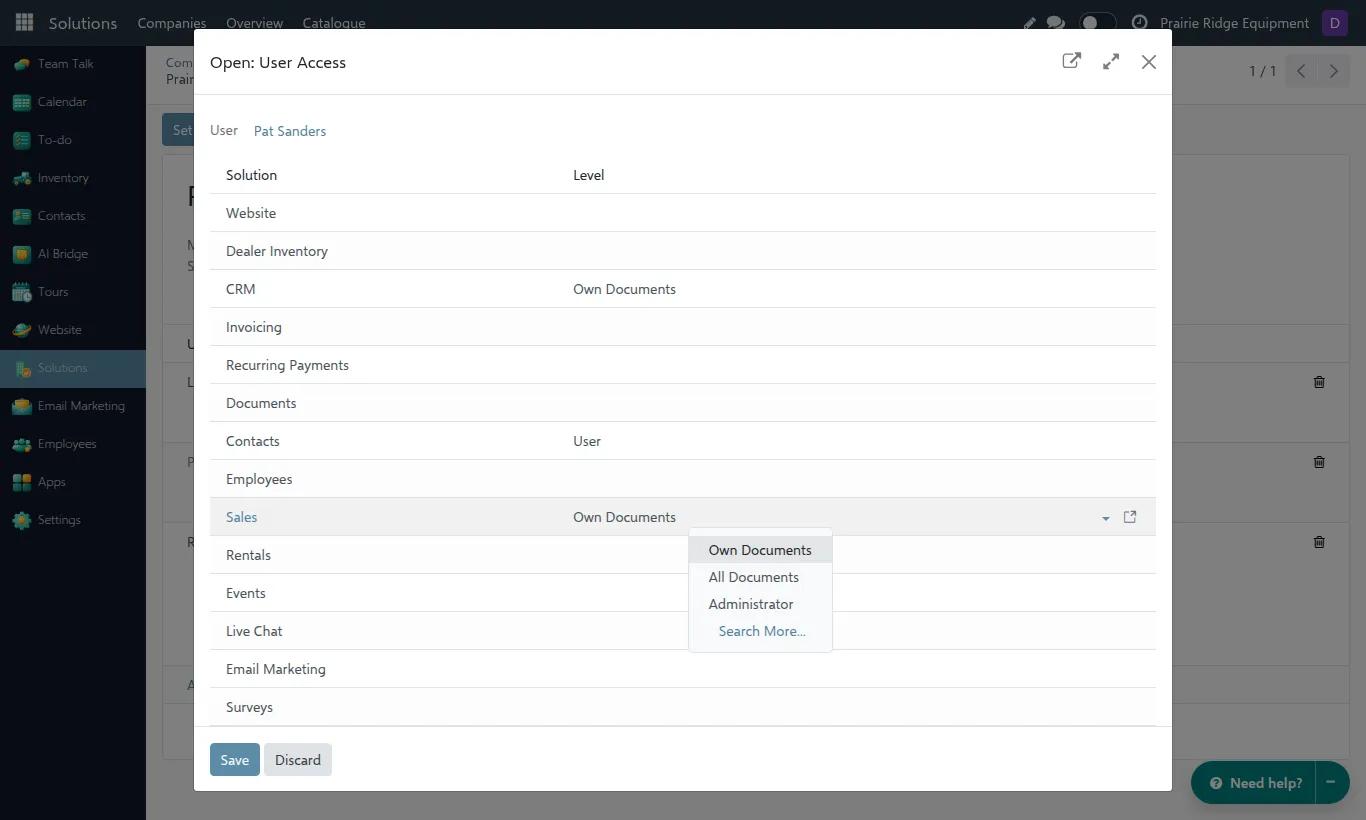
Section titled “Give a user access”Users get access through levels. Each solution has its own levels, for example Own Documents, All Documents and Administrator in CRM. An empty level means no access to that solution.
-
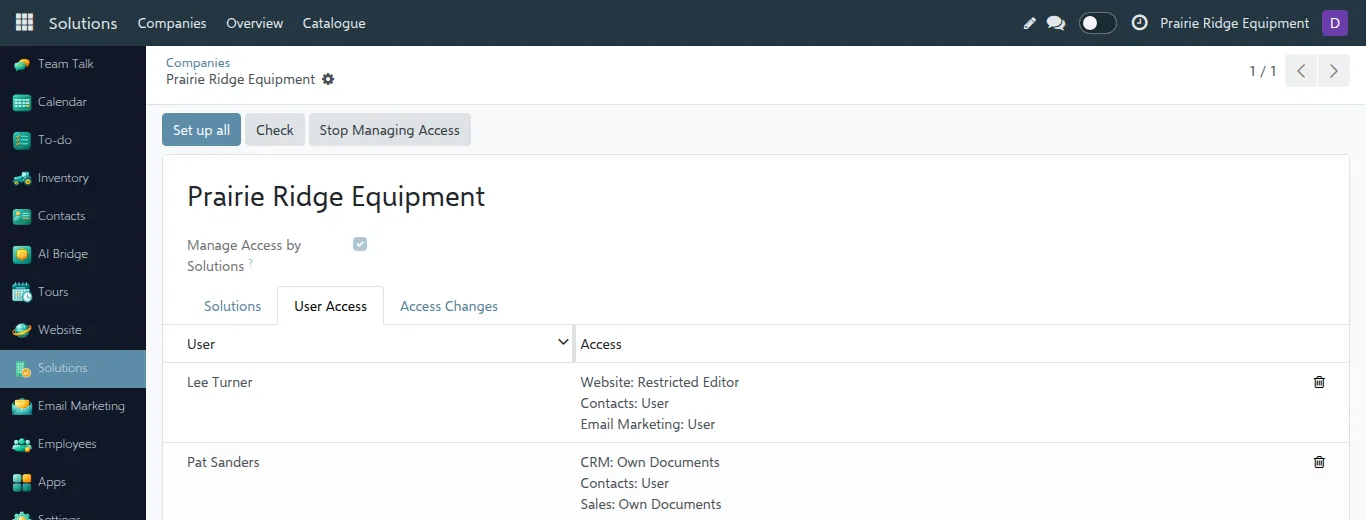
Open the User Access tab. Each line is one user with a summary of their levels.
-
Click the user. A window opens with one line per solution.
-
Click the Level of a solution and pick a level from the list. Clear the field to take the access away.
-
Click Save in the window, then the save icon of the company.
To add a user who is not on the list yet, click Add a line on the User Access tab. Only users whose main company is this company can be added. Create the user first in Settings → Users with this company as their only company.
The new rights apply right away; the user may need to reload the page.
Manage access by solutions
Section titled “Manage access by solutions”The Manage Access by Solutions checkbox under the company name decides what a level does:
| Off (older companies) | On (new companies) | |
|---|---|---|
| Levels on User Access | Only a plan. Nothing is applied. | Applied right away. |
| User rights | Unchanged. Users keep what they already have. | Exactly the rights of their levels. Everything else is removed. |
| Apps the user sees | As before. | Only the apps of their solutions. |
Check, Set up and the statuses work the same in both modes. A level you set while the checkbox is Off gives the user nothing until you switch it On, or until an administrator adds the user to the matching group in Settings. Switching it On changes the rights of every user of the company, and rights or roles it removes do not come back when you stop managing access.
When Manage Access by Solutions is on (the checkbox under the company name), each user of the company has only the rights of their levels, and sees only the apps of their solutions. Any other rights are removed. New companies have it on. Older companies may still have it off; then their users keep the rights they already had and the levels are only a plan.
Before you switch it on, open the Access Changes tab. It shows which rights each user would gain (Add) or lose (Remove).
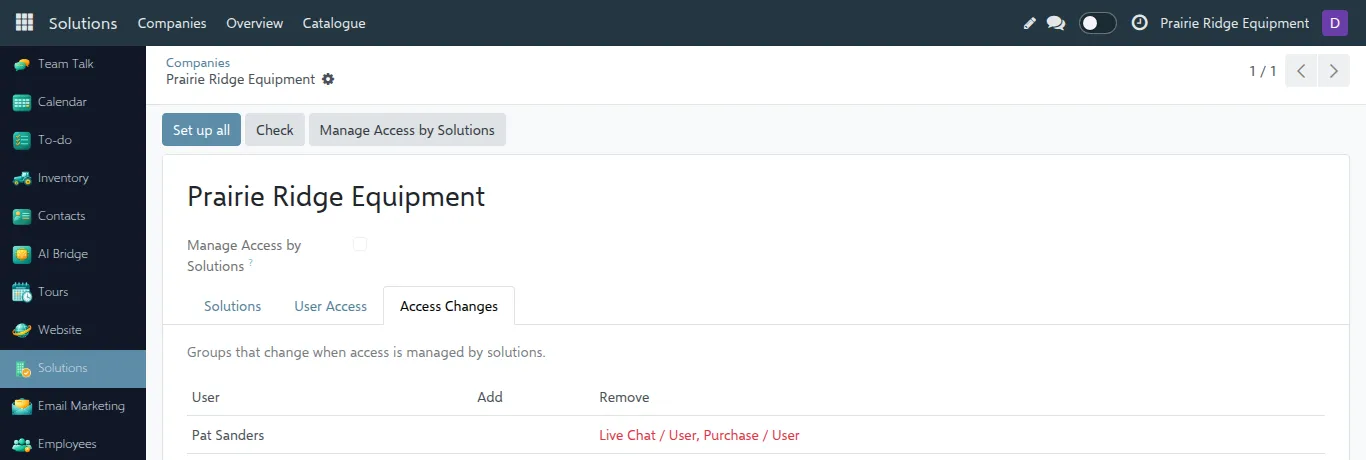
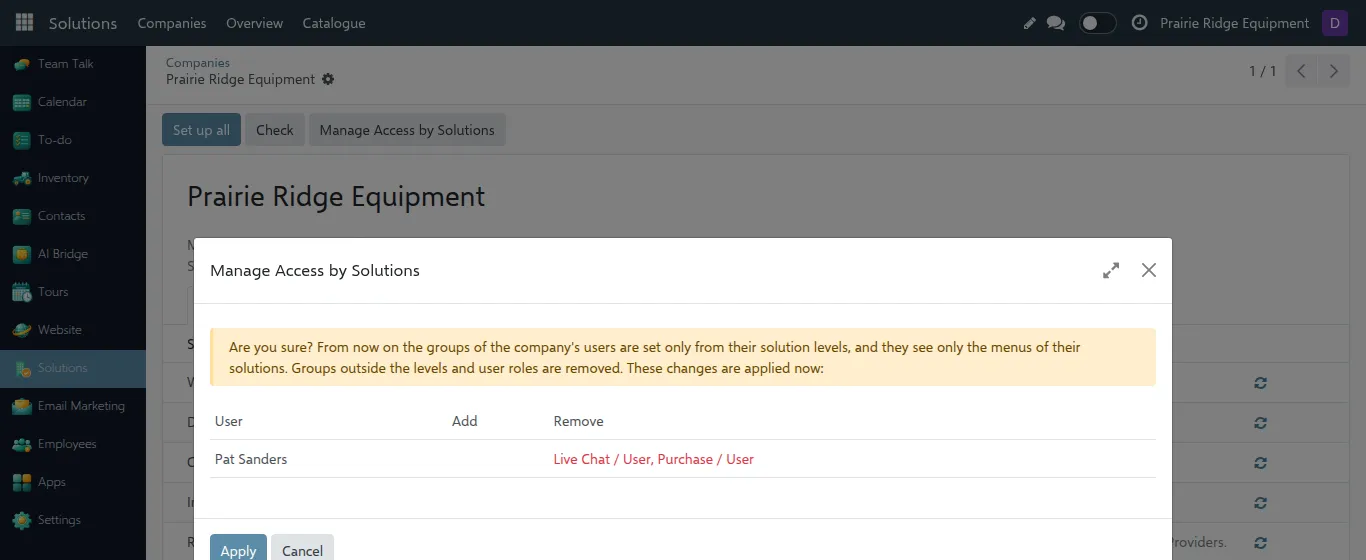
If a user would lose something they need, give them the right level first. Then click Manage Access by Solutions at the top. The window lists the changes again; click Apply to make them, or Cancel.
Stop Managing Access switches it off. Nobody’s rights change at that moment; users simply keep what they have.
Access by solutions never touches:
- users who work in several companies (for example Tractor Tuesday staff);
- administrators with Access Rights or Settings rights.
Let a dealer enter its own Stripe keys
Section titled “Let a dealer enter its own Stripe keys”The Online Payments solution has one level, Payment Provider Manager. A user with it can open the Stripe payment provider of their own company, enter the keys and generate the webhook, without Settings rights. The level also gives full Invoicing Administrator rights. They cannot delete the provider or see another company’s. The dealer’s steps are in the Stripe payment provider setup guide; the roles and limits are in Payment provider access.
- Open the company and the Solutions tab. Switch Invoicing and Online Payments on.
- Click the magic wand on the Invoicing line and then on the Online Payments line, read the list of changes and confirm. This loads the chart of accounts and creates a disabled Stripe provider. The wand needs Settings rights; ask an HQ administrator if you do not see it. Set up all would run the setup of every enabled solution, so use the wands here. The chart of accounts is loaded on the top parent company of the company and cannot be undone with a button, so do it only when that company has no accounting entries of its own.
- Click Check. Invoicing and Online Payments must both be Ready or Warning. Online Payments stays Blocked until Invoicing works, and nobody gets the level while it is blocked.
- On the User Access tab, set Online Payments to Payment Provider Manager for the user and save.
- If Manage Access by Solutions is Off for the company, the level is not applied yet. Either click Manage Access by Solutions at the top and Apply (read Access Changes first, see above: it changes every user of the company), or, to give the right to one user only, ask an HQ administrator to add the user to the Payment Provider Manager group in Settings → Users & Companies → Groups.
- Ask the user to reload the page.
The user keeps the provider Disabled until the TractorHQ representative approves activation.
Set up a new company
Section titled “Set up a new company”-
Create the company as usual in Settings → Companies and add it to your companies in the company switcher.
-
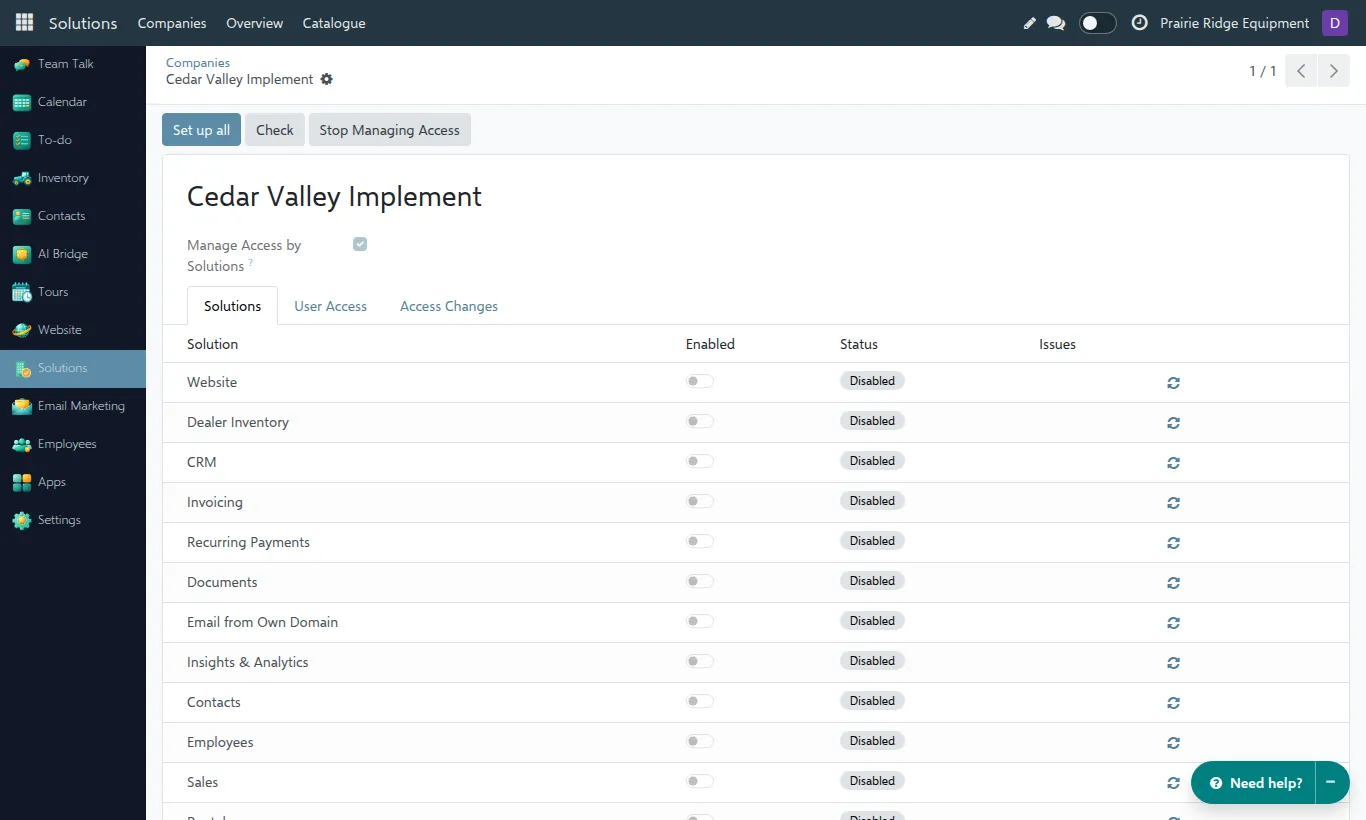
Open Solutions → Companies and click the new company. All solutions are Disabled.
-
Switch on the solutions the dealer pays for and click the save icon. The checks run and show what is missing.
-
Click Set up all. Read the list of changes and click Set up.
-
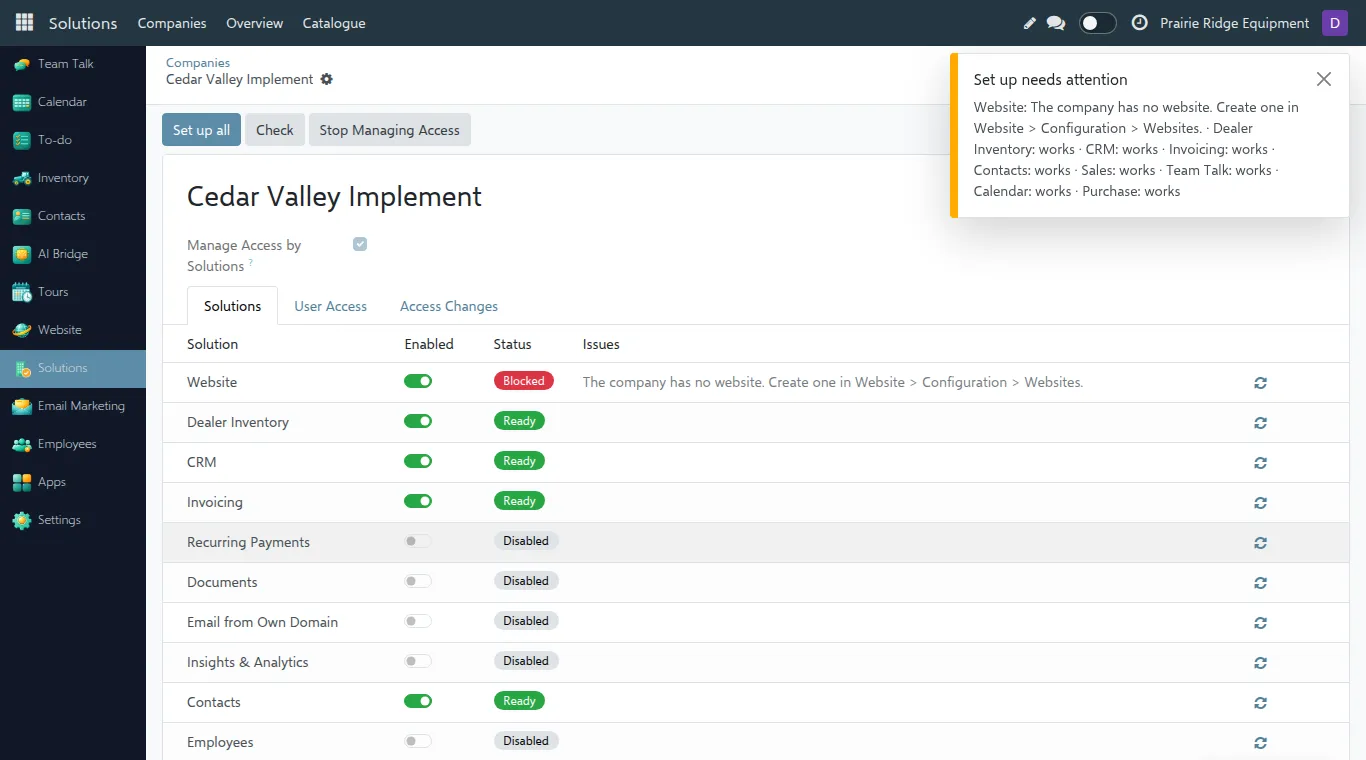
A message tells per solution whether it works now or what is still missing. Fix the remaining issues by hand, for example create the website, and click Check.
-
Create the users of the company (Settings → Users, with this company as their only company), then give them levels on the User Access tab.
Manage Access by Solutions is already on for a new company, so its users get exactly the apps of their levels from the start.
Common problems
Section titled “Common problems”“A user does not see an app.” Check, in this order: the solution is Enabled for the company; its status is not Blocked; the user has a level in it on the User Access tab. Then ask the user to reload the page.
“A user lost rights after we switched on Manage Access by Solutions.” They had rights outside their levels. Give them the right level on the User Access tab. Next time, look at Access Changes before switching it on.
“I changed a level but nothing happened.” Manage Access by Solutions is off for this company, so levels are not applied yet. Or the user works in several companies: such users are never managed.
“A solution has no line on the User Access tab.” The solution was installed after the user was added. Click Check at the top of the company; the missing lines are added.
“A user has the Payment Provider Manager level but gets an access error on Payment Providers.” Either Manage Access by Solutions is Off for the company, so the level is not applied (see step 5 of Let a dealer enter its own Stripe keys), or Online Payments is Blocked or Disabled, so nobody gets the level. The user may also work in several companies: such users are never managed.
“I can’t switch a solution on.” Its status is Module missing: the solution is not installed in HQ. Ask the HQ team.
“There is no Set up button or magic wand.” Either there is nothing HQ can fix by itself (the issue needs a person, read the issue text), or you do not have Settings rights.
“Recurring Payments stays Blocked after Set up.” Set up creates the Stripe payment provider, but the dealer’s Stripe keys must be entered by hand in Invoicing → Configuration → Online Payments → Payment Providers. A user with the Payment Provider Manager level in Online Payments can do it without Settings rights (see Let a dealer enter its own Stripe keys). Then click Check.
“A dealer must enter its own Stripe keys, but has no Settings rights.” Follow Let a dealer enter its own Stripe keys. The dealer’s own steps are in the Stripe payment provider setup guide.
“Website shows a Warning about the domain.” The website has no public address yet. Set it in Website → Configuration → Settings → Domain.
“I don’t see a company in the Solutions app.” Select it in the company switcher at the top right.