HQ Schedule User Guide
Use Schedule to publish dated activities on your HQ website. Create a one-off item or a weekly series, skip individual dates, and show visitors the title, description, local time, and a link for more information.
This guide covers tt_schedule and tt_schedule_website. Schedule is separate from Tour: creating a schedule item does not change tour dates or podcast episodes.
Before you start
Section titled “Before you start”- Your HQ administrator must install both Schedule modules and give you Schedule Manager access.
- Select the company that owns the website you want to update.
- Assign the item to the intended Website. This field is shown only to users with multi-website access; if it is missing, ask your administrator to confirm the assignment. The default website is the first website belonging to the selected company. Do not leave the website empty when you intend an item for one specific site.
- Have the date, public description, and optional information link ready. Enter times as local event times; the public page formats them in a 12-hour format.
Create a schedule item
Section titled “Create a schedule item”- Open Schedule → Schedule Items and click New.
- Enter the Title and Date. The title is the public name, not an internal reference.
- Optionally enter a Description, such as the venue or a short explanation of the activity.
- To show a time, enable Start Time and enter the time. Enable End Time if you also want to show when the activity finishes. Leave the checkboxes off for an activity without a stated time.
- Set the Status: Draft, Confirmed, or Private. A new item starts as Draft and is never shown on the website; set it to Confirmed (shown normally) or Private (shown with a Private Event label) before publishing.
- Optionally enter an Info URL. Visitors receive a View Details button whenever this field is populated, regardless of status.
- Confirm the Website. Enable Display On Homepage if the item should be eligible for an Upcoming Schedule block.
- Use Notes only for internal information. Notes are not displayed on the public schedule.
- Click the save icon. The new item remains Unpublished until you publish it.
Important: Draft stays hidden from /schedule and the homepage block even if Published and Display On Homepage are enabled. Private is a public label, not an access restriction. A published private item still appears on the website with a Private Event label. Use Draft or Unpublished to keep an item off public lists.
Repeat weekly and skip dates
Section titled “Repeat weekly and skip dates”- Create or open an item and enable Weekly.
- Set Date to the first occurrence. Its weekday determines the repeating weekday.
- Optionally set Repeat Until to the last allowed day. An occurrence on that day is included unless it is excluded.
- Under Excluded Dates, click Add a line and enter a date to skip. Add another line for each additional skipped week.
- Save the item.
Each excluded date must use the same weekday as Date. You cannot exclude the same date twice, and Repeat Until cannot be before Date.
When Repeat Until is empty, the public List and Upcoming Schedule block use a rolling horizon through 84 days from today, rather than listing an unlimited series. The visitor Calendar expands the selected month instead, so navigating to a later allowed month still shows an open-ended series. A series that started in the past can still show its future occurrences. Weekly occurrences are calculated for display: HQ does not create a separate schedule item for each week.
Worked example: a Tuesday activity with one skipped week
Section titled “Worked example: a Tuesday activity with one skipped week”The following example was created and checked through the HQ interface on a neutralized QA database. It is a demonstration, not a real customer event. The QA banner and neutralization ribbon in the screenshots identify the test environment.
Use these values:
- Title: Weekly Equipment Walkthrough — QA Example
- Date: October 20, 2026
- Weekly: enabled
- Repeat Until: November 10, 2026
- Start Time: 18:00
- End Time: 19:00
- Excluded Dates: October 27, 2026
- Description: A weekly equipment walkthrough at the demonstration yard.
- Info URL:
https://docs.tractorhq.com/— a demonstration information link, not a ticketing or booking integration. - Display On Homepage: enabled
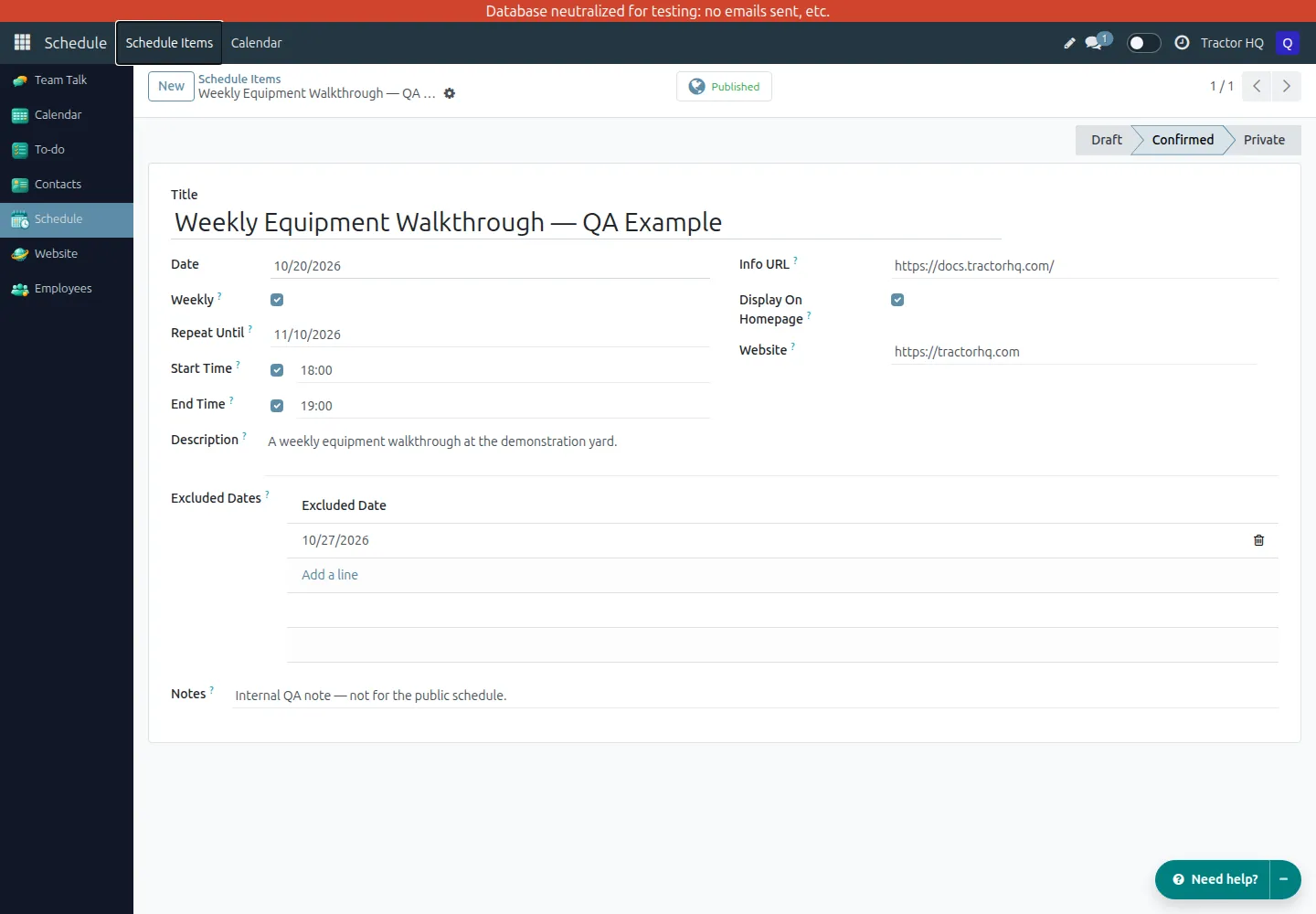
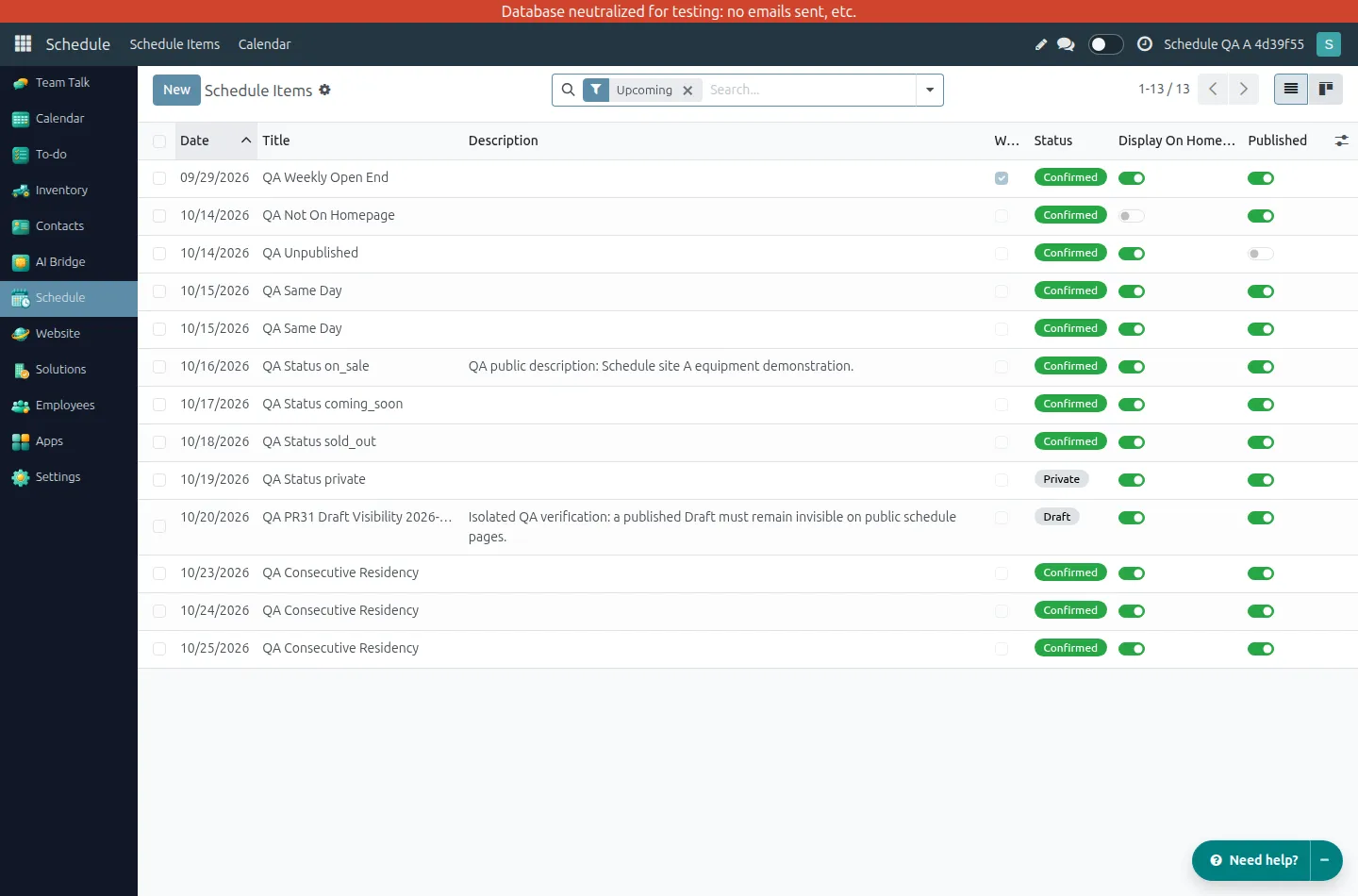
A weekly series has one source item, even though the website can show multiple occurrences. The list below contains separate QA fixtures, including a published Draft with Display On Homepage enabled; its presence in the backend does not make it public. Upcoming is the default list filter.
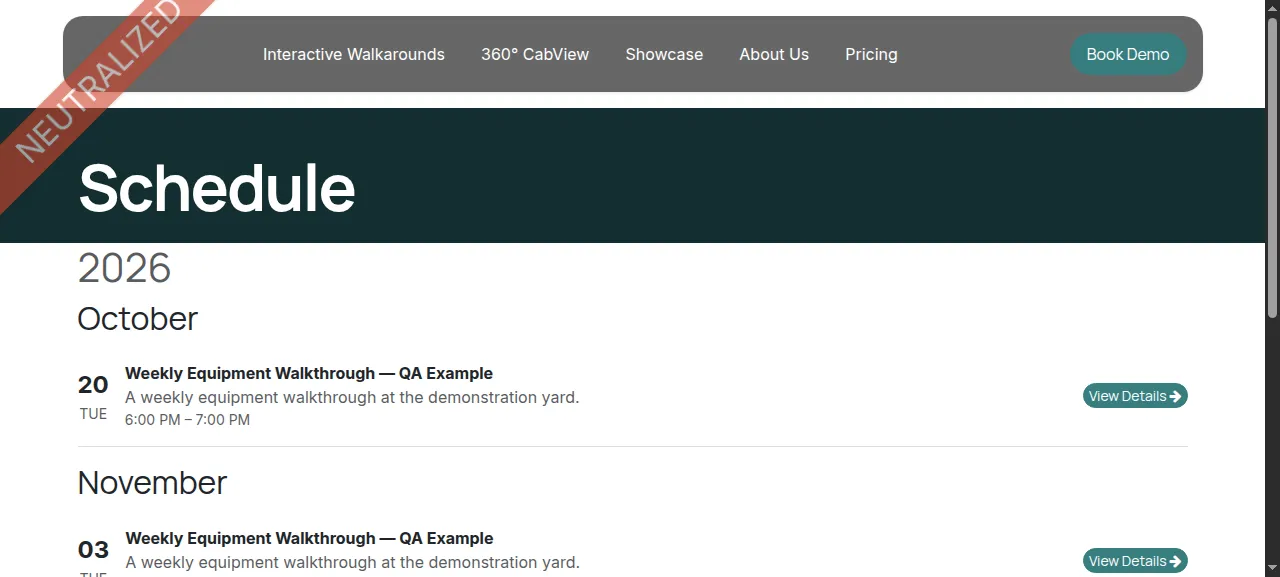
After publishing, the public List at /schedule?view=list shows exactly these three dates:
- October 20, 2026 — the first Tuesday.
- November 3, 2026 — the next Tuesday after the excluded week.
- November 10, 2026 — the inclusive final occurrence.
There is no October 27 row. Each row shows 6:00 PM – 7:00 PM, the description, and View Details. The internal note does not appear.
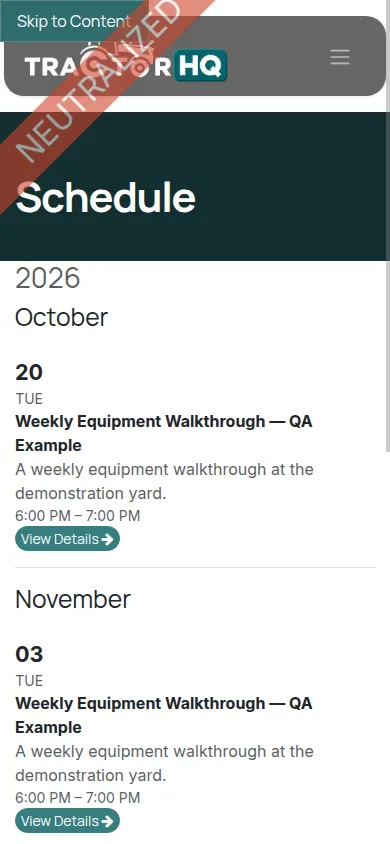
The same schedule is readable on a narrow mobile screen, with details and the button wrapping below the date.
What happens if an excluded date is invalid?
Section titled “What happens if an excluded date is invalid?”Trying to add October 28 to this Tuesday series produces the error 2026-10-28 is not a Tuesday, the weekday this item repeats on. The invalid change is not saved. Choose Stay here to correct the date or Discard changes to return to the saved record.
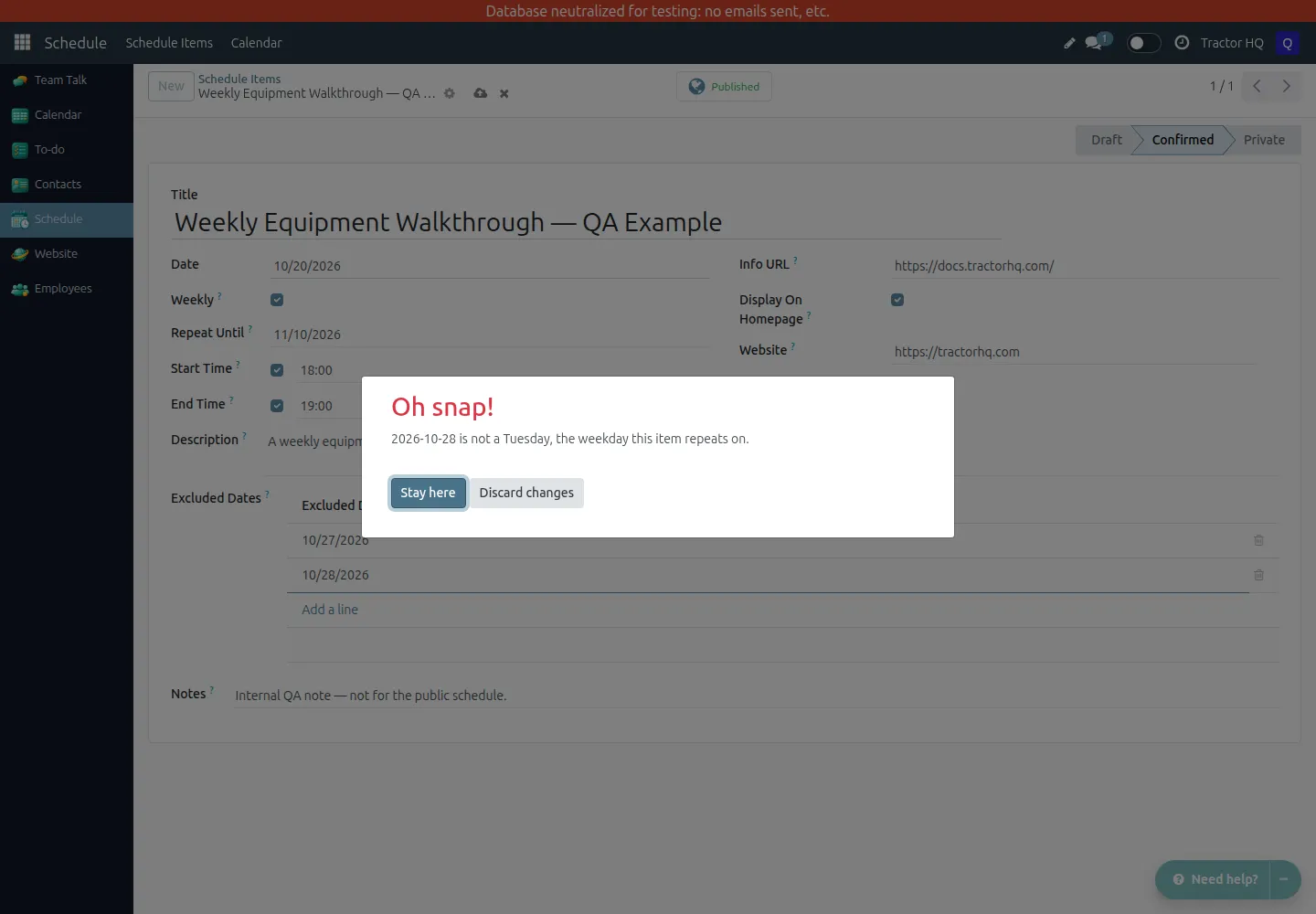
In the same QA check, attempting to set Repeat Until to October 19 was rejected with Repeat Until cannot be before the Date. After discarding both invalid changes, the saved record still had November 10 as its end date and October 27 as its only exclusion.
Publish and check the website
Section titled “Publish and check the website”- Save the item, then click Unpublished to change it to Published. You can also use the Published toggle in the list.
- Open
/scheduleon the website assigned to the item. Calendar opens by default; navigate to the item’s month or choose List (/schedule?view=list) to check upcoming occurrences across months. Check it as a visitor, not just in the backend. - Confirm the title, description, dates, time, status, and View Details link.
- For a weekly series, confirm that excluded dates are absent and that the final occurrence is included when it falls on the repeating weekday.
- To hide the item, click Published to return it to Unpublished.
The public List at /schedule?view=list groups upcoming occurrences by year and month. Past occurrences disappear from List automatically; you do not need to delete the source item every week. Unpublished and archived items are not shown. Changing the status does not by itself unpublish an item.
Add Upcoming Schedule to a page
Section titled “Add Upcoming Schedule to a page”Display mode defaults to Calendar, including existing blocks without a saved mode. Select List in Customize to retain the compact grouped list. The mode is saved per block, independently of the full page’s List/Calendar switch.
Calendar reuses the visitor calendar’s month grid, event links, local times and labels. It shows the next occurrences, split into month panels; Rows displayed limits individual occurrences (not complete months). In narrow columns and on phones it becomes a day-by-day agenda. It does not browse months: use View All Dates for the full calendar. One line per date only affects List; Calendar always keeps occurrences separate. Weekly horizons and eligibility remain the same as for the existing block.
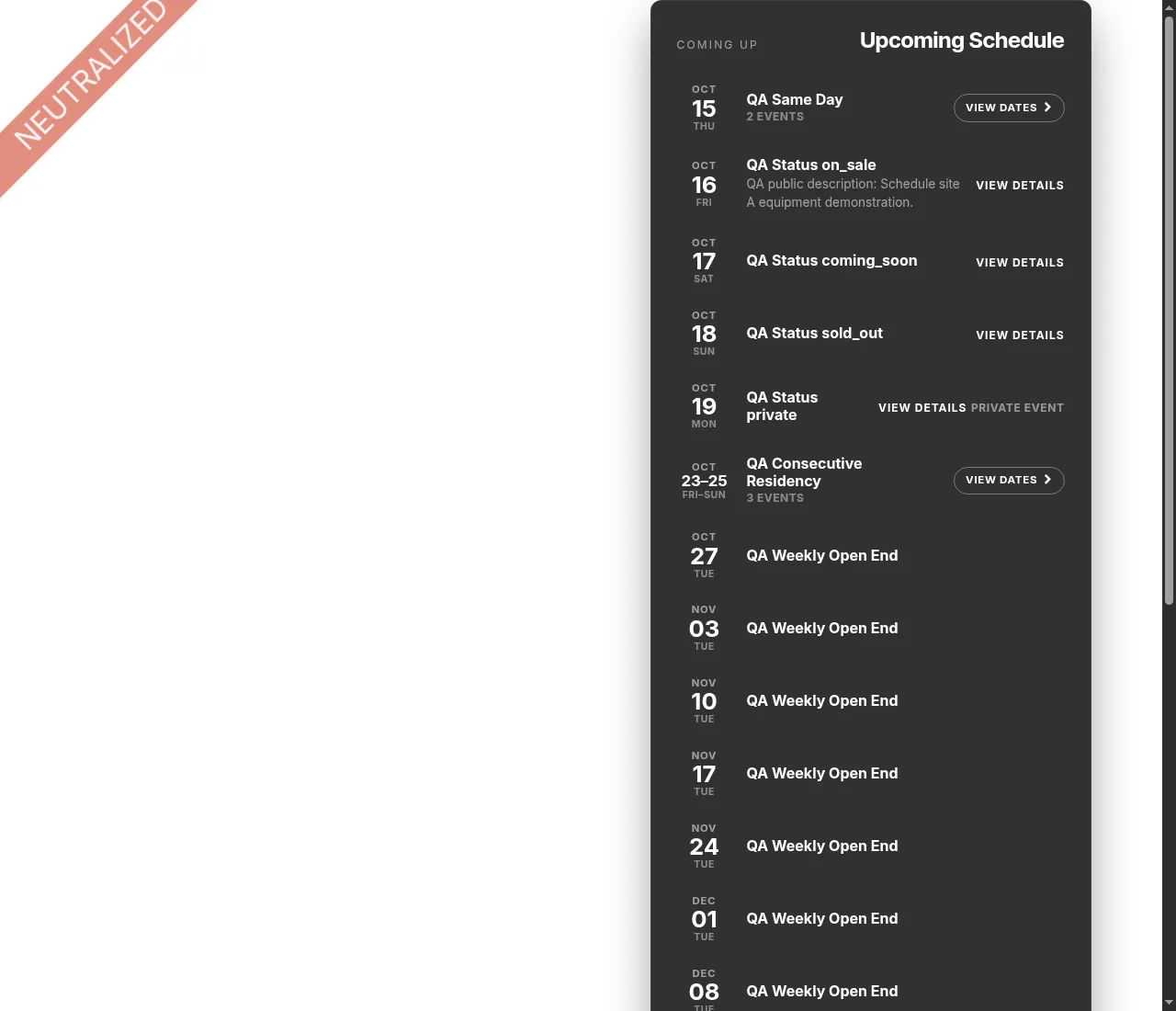
The deployment of commit 598093224bba2abdc4faf66ad8bd63d59f88534d was reported successful in run 38688649896. A subsequent read-only live Chromium recheck on October 15, 2026 succeeded at desktop (1440 px) and mobile (390 px) widths. On schedule-a.qa.tractorhq.com, /schedule opened Calendar by default, ?view=list opened List, ?view=calendar remained compatible, and both view-switch links worked. The existing homepage block had no saved display mode and dynamically rendered Calendar: its saved limit of 16 produced 16 separate occurrences across October, November, and December panels, without interactive month navigation. On mobile it rendered a day-by-day agenda with no horizontal page overflow. The initial server HTML contained no calendar panels; the loaded browser DOM contained three, confirming dynamic rendering. No runtime exceptions or browser log entries were captured during these checks. The main qa.tractorhq.com homepage loaded but contained no Upcoming Schedule block, so it did not provide a second block acceptance case. The editor display-mode control, explicitly selected List block mode, and saving configuration were not exercised. No saved page or block configuration was changed. The screenshots and QA results below document the earlier List block only; choose List to follow them. The sample activities are test data, not customer events.
- Open the intended website page in Website Builder and click Edit.
- In Blocks, find Upcoming Schedule under Inner content and drag it onto the page.
- Click the inserted block to open Customize.
- Choose Display mode: Calendar (default) or List. Set Rows displayed, then click Save.
- Open the published page as a visitor and check the actual rows, links, and dates.
Only published, non-Draft upcoming items belonging to that website and marked Display On Homepage are eligible. Enabling that checkbox alone does not add a block to the homepage. The QA example confirmed that an otherwise published item with this checkbox off appears on /schedule, but not in the block.
Grouped dates and weekly rows
Section titled “Grouped dates and weekly rows”Consecutive one-off items with the same title can be grouped into one row. In the QA example, QA Consecutive Residency on October 23, 24, and 25 appears once, with 23–25, 3 events, and View Dates linking to /schedule.
Weekly occurrences remain separate rows; they are not collapsed into a date range. QA Weekly Open End shows individual weekly dates, with October 20 omitted because it is excluded.
For a single occurrence with Info URL, the button reads View Details and uses that URL. A grouped row uses View Dates instead, so visitors can inspect the individual occurrences on /schedule. View All Dates at the bottom of the block also opens /schedule.
Limit the displayed rows
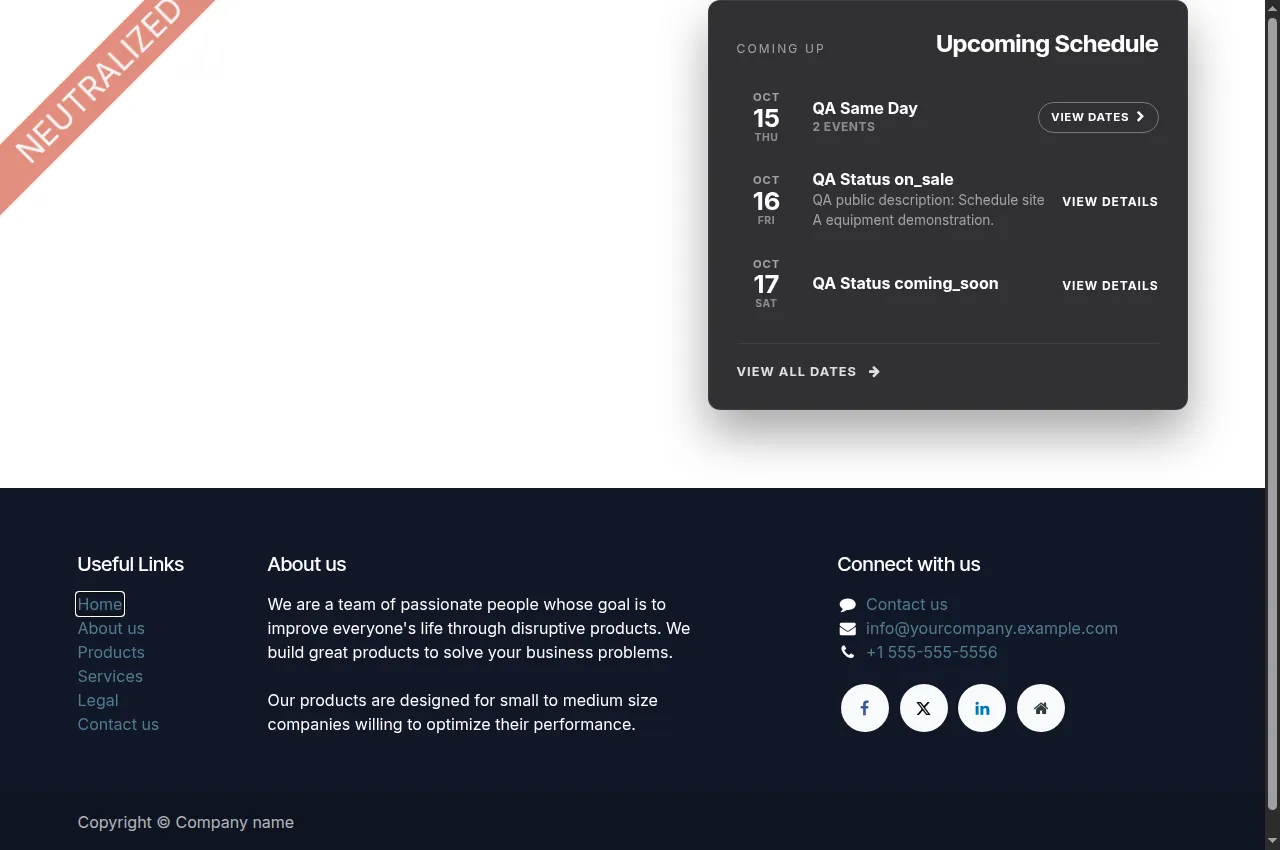
Section titled “Limit the displayed rows”Rows displayed limits rendered rows, not source items. The QA check saved limits of 3 and 16 and confirmed exactly those row counts in an anonymous browser.
With a limit of 3, the screenshot shows QA Same Day on October 15 (2 events, View Dates), QA Status on_sale on October 16 (View Details), and QA Status coming_soon on October 17 (View Details). The legacy status words here are fixture titles, not current status labels; both latter items are Confirmed. The group consumes one displayed row even though it represents two backend items.
Companies, websites, and access
Section titled “Companies, websites, and access”- A newly created item defaults to the first website of the selected company. Confirm the intended website before publishing; ask an administrator if the Website field is not available to your user.
- Published items without a website do not appear on any public schedule or in the homepage block.
- An item assigned to website A is not shown on website B.
- Backend searches are limited to websites belonging to the user’s active allowed companies. In the QA check, the company A user could not find company B’s known test item, even by its exact title.
- An administrator with access to both companies can use the company switcher to change the list: company A shows A’s items, company B shows B’s items, and selecting both makes both companies’ records available. The single-company switch was exercised in the UI; the combined-company result was verified through the same record rules without elevated access.
- Changing a status, including Private, does not change these website or company boundaries.
Troubleshooting
Section titled “Troubleshooting”/schedule returns 404
Section titled “/schedule returns 404”The current Schedule implementation does not expose the page for a website with no published non-Draft schedule items, and does not include that route in the website’s sitemap. Publish a Confirmed or Private item assigned to the intended website before checking the route. A website with only past published items can still expose the page, but its upcoming list is empty.
/schedule is missing from the sitemap
Section titled “/schedule is missing from the sitemap”The QA check confirmed that a website with no published schedule items returns 404 for /schedule and omits the route from /sitemap.xml. However, the served sitemaps on the QA websites with published items also omitted /schedule, while their public schedule pages returned 200. Automatic sitemap inclusion for a website with items is therefore not verified and should not be relied on in this release. The cause of this discrepancy has not been established; no sitemap fix was included in the documentation update.
The item is missing from /schedule
Section titled “The item is missing from /schedule”- Confirm Published is enabled, the item is not archived, and Status is not Draft.
- Check that Website matches the website you are visiting.
- In Calendar, navigate to the occurrence’s month; in List, check that there is an upcoming occurrence. For a weekly item, review Repeat Until and Excluded Dates.
- In List and the homepage block, open-ended series only show occurrences within the rolling horizon. In Calendar, check the selected month instead.
The item is missing from the homepage block
Section titled “The item is missing from the homepage block”- Perform the publication and website checks above.
- Enable Display On Homepage.
- Confirm the page actually contains an Upcoming Schedule block.
- Increase Rows displayed if earlier items fill the available rows.
The time is missing or looks different
Section titled “The time is missing or looks different”- Enable Start Time before entering the time, including midnight.
- Enable End Time only when a start time is set.
- The backend example uses
18:00; the public page displays6:00 PM. - An end time earlier than the start time is allowed for activities that continue past midnight.
Saving an exclusion fails
Section titled “Saving an exclusion fails”- Use the repeating weekday shown by Date.
- Remove duplicate excluded dates.
- Correct the invalid line, or discard unsaved changes and reopen the record.
Technical notes for administrators
Section titled “Technical notes for administrators”- The backend models are
schedule.itemandschedule.item.exclusion; weekly occurrences are display objects, not additional database records. - Public List and the snippet are bounded to 84 days from the display date for open-ended series. A series with an end date also has a protective list/snippet display cap of 730 days from the display date. The visitor Calendar expands occurrences within the selected month, including open-ended weekly series beyond that 84-day horizon, within its ±12-month navigation range. The backend calendar instead expands open-ended series through today + 365 days and uses an explicit Repeat Until without that public cap.
- Editing
/schedulein Website Builder can create a website-specific copy oftt_schedule_website.schedule_page. Module upgrades do not rewrite such copies; inspect inherited and website-specific views if the page no longer matches the updated template. - In custom templates, each
tdis an occurrence. Uset-esc, nott-field, for occurrence values such astd.name,td.description,td.info_url,td.date, andtd.show_time_display.
Backend Calendar
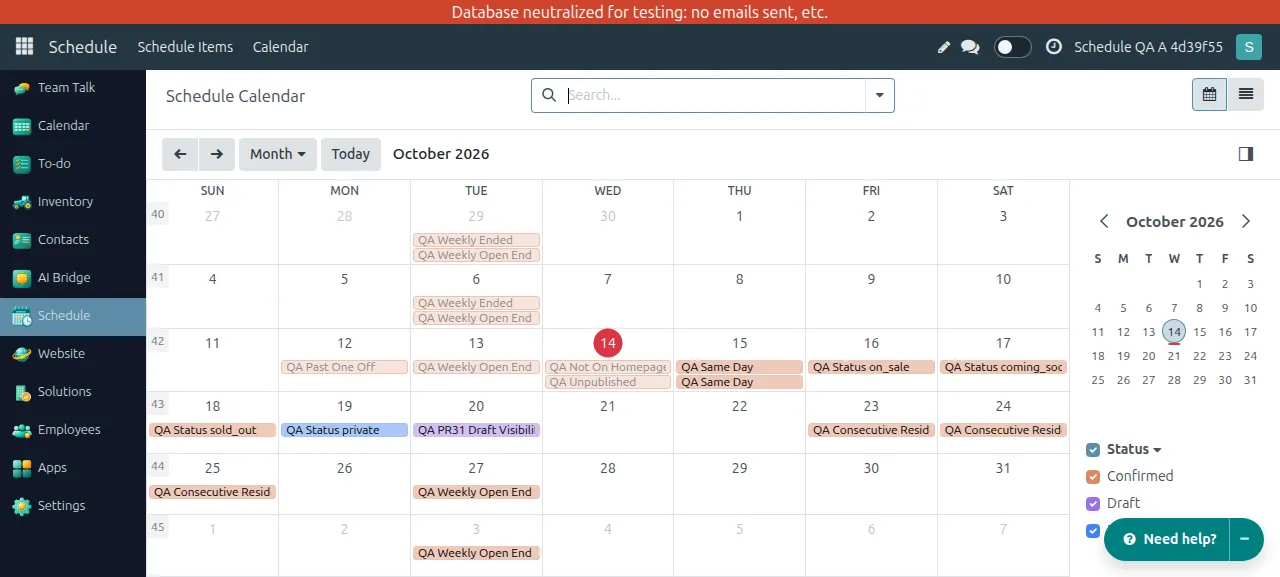
Section titled “Backend Calendar”Open Schedule → Calendar to see dated occurrences in the backend month view. It includes active items of all three statuses (Draft, Confirmed, and Private), whether published or unpublished, within your website/company access. Archived items are omitted. This is an internal planning view, not a preview of public eligibility.
Weekly items appear once per occurrence, with excluded dates omitted. Open-ended series expand from their first date through today + 365 days; the public List and snippet instead use today + 84 days for open-ended series, while the visitor Calendar expands the selected month. A series with Repeat Until uses that inclusive end date in the calendar.
Use the status checkboxes on the right to hide or show statuses. In the October QA screenshot, the Draft fixture appears on October 20, the Private fixture on October 19, and QA Weekly Open End appears on October 13 and 27 but not its excluded October 20.
The occurrence form provides Open Item to open its source item, according to the view and action definitions. That button’s navigation was not exercised in this QA check.
One line per date
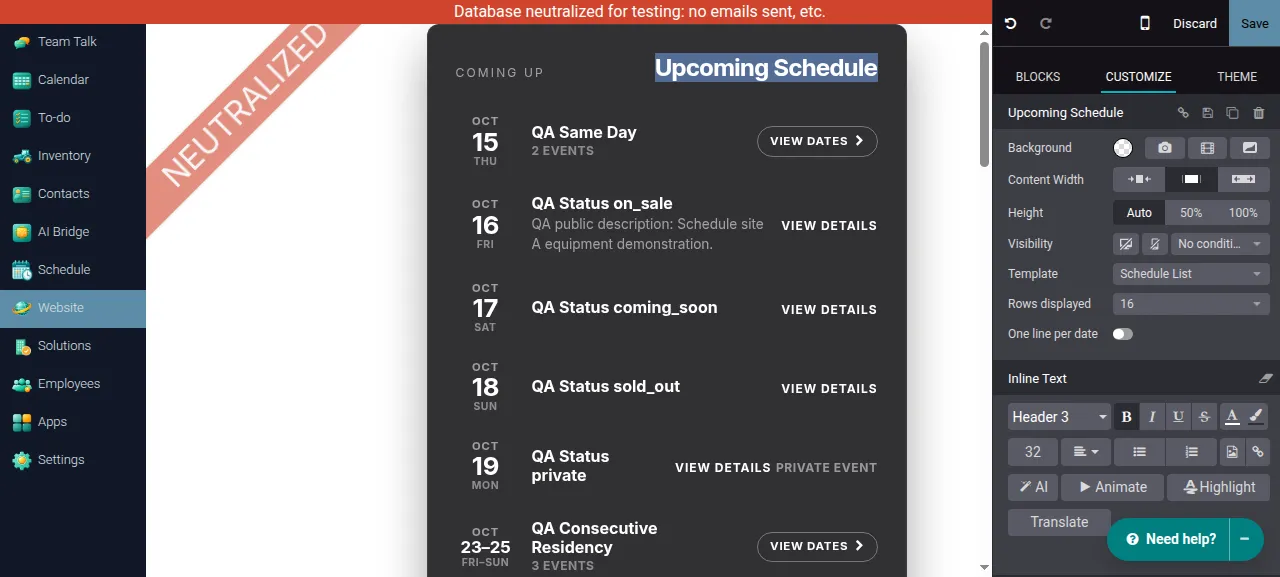
Section titled “One line per date”- In Website Builder, select an Upcoming Schedule block and open Customize.
- Choose Display mode → List, then enable One line per date to render each occurrence separately, including multiple events on the same day. This does not create new backend records.
- Leave it off (the default) to group consecutive one-off items with the same title, including same-day events. Weekly occurrences remain separate in either mode.
- Click Save and check the published page as a visitor. Rows displayed still limits rendered rows, so enabling this option can push later dates beyond the limit.
With the option on, the two QA Same Day events on October 15 appear separately with 6:00 PM – 7:30 PM and 9:00 PM – 11:00 PM.
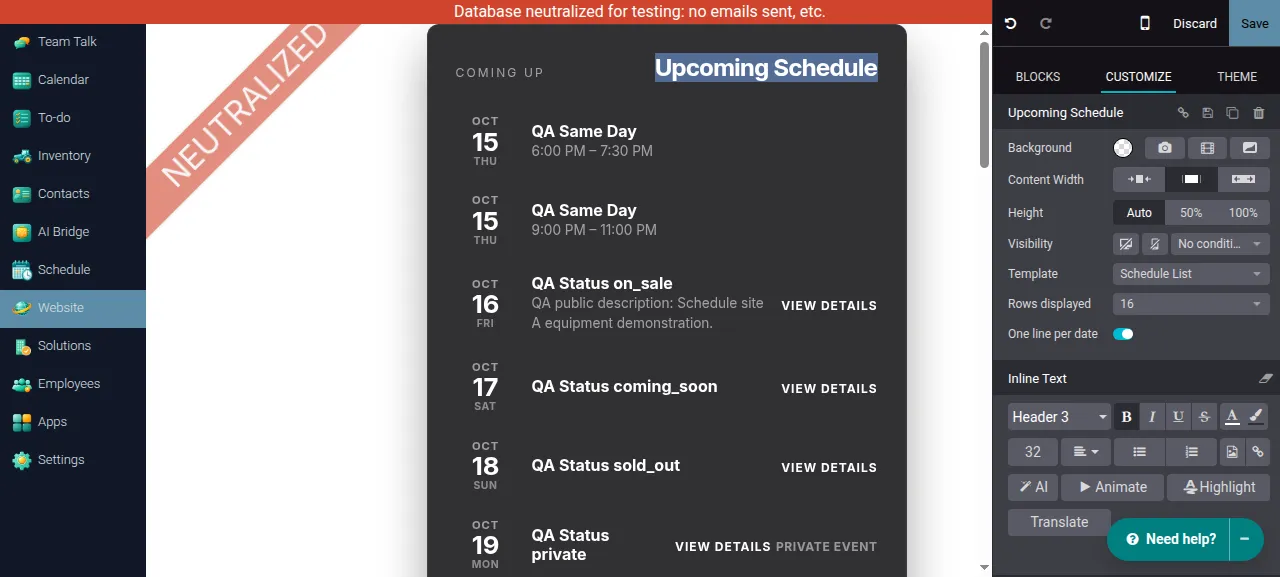
With the option off, October 15 occupies one row with 2 events and View Dates, and QA Consecutive Residency occupies an October 23–25 row with 3 events. Both saved modes were checked on the published QA homepage anonymously; these screenshots show the editor controls and previews.
Status migration and wording
Section titled “Status migration and wording”Items that were On Sale, Coming Soon, or Sold Out before the status change became Confirmed. Some QA fixture titles retain those old words; they are names, not status labels. Current statuses are Draft, Confirmed, and Private. Repeated dates are described as events (for example 3 events, Early Event, Late Event, Event 1).
Calendar view for visitors
Section titled “Calendar view for visitors”Open /schedule as a visitor. Calendar is the default and opens the current month. Choose List under the title to open /schedule?view=list for upcoming occurrences across months; choose Calendar to return. Explicit /schedule?view=calendar links remain supported. Unknown view values fall back to Calendar. This public view is separate from Schedule → Calendar in the backend: it never exposes Draft or unpublished items.
Browse months and open event details
Section titled “Browse months and open event details”- Use the previous/next arrows to move one month at a time. Today returns to the current month from another month; the current date is highlighted.
- Navigation covers 12 months before and 12 months after the current month, not 12 months from whichever month you are viewing. At each boundary, the arrow beyond that boundary is absent. Calendar can show past occurrences, unlike the upcoming List.
- Events show their titles and enabled local times. An event with an Info URL is a link to that URL; an event without one remains readable without a details link. Descriptions are available in the event’s hover title, rather than as full list-style descriptions.
- Only published, active Confirmed or Private items assigned to the current website are eligible. Private Event is a public label, not privacy protection. Draft is hidden even if Published is enabled.
- Weekly occurrences respect Excluded Dates and the inclusive Repeat Until. An open-ended series is expanded for each selected month, not cut off by List’s 84-day horizon. A month without events shows an empty-state message; it does not mean the website has no schedule page.
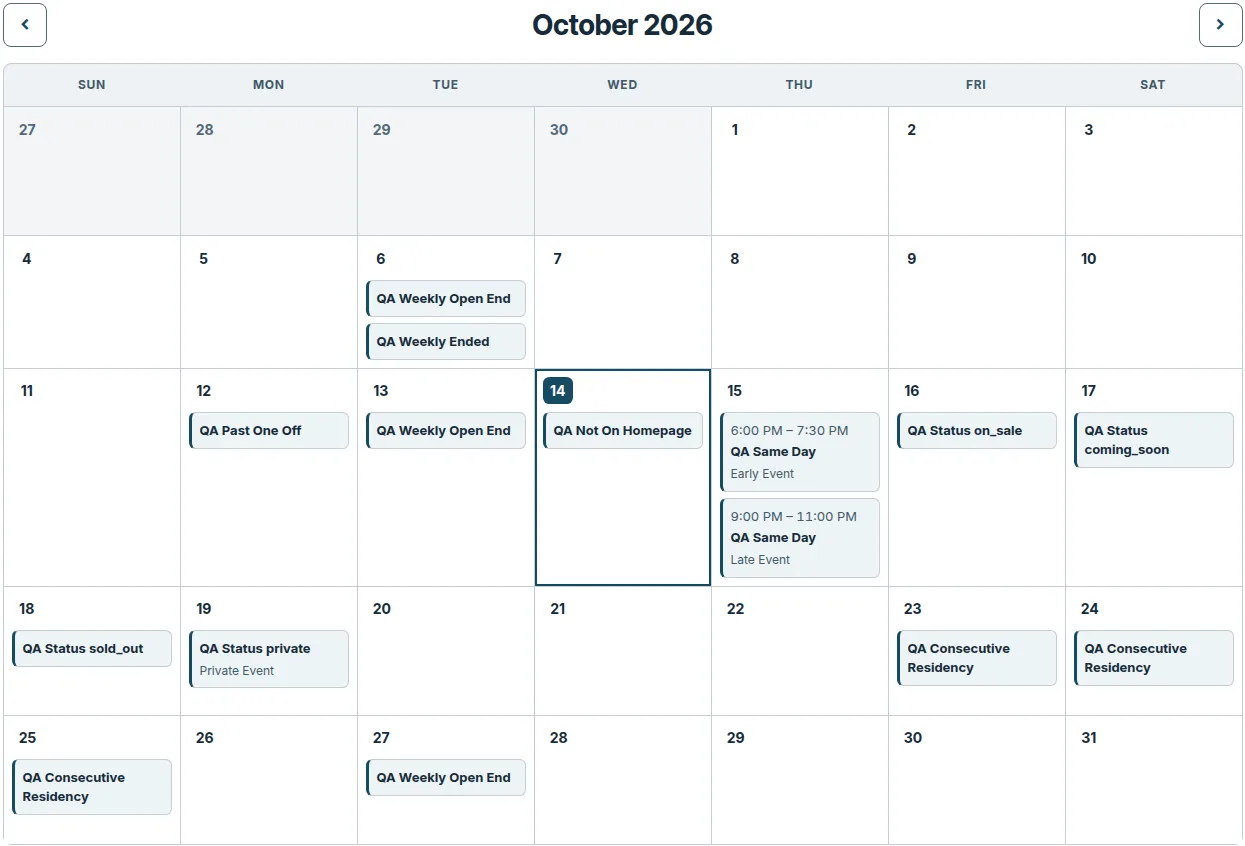
This cropped, real anonymous QA browser capture shows QA Weekly Open End on October 6, 13, and 27, 2026, with October 20 excluded. QA Weekly Ended appears only on October 6. The two October 15 activities retain their separate times and Early Event / Late Event labels. Legacy status words in fixture titles are names, not current statuses.
On a phone
Section titled “On a phone”Calendar becomes a vertical day-by-day list containing only days with events, rather than squeezing seven columns onto the screen. Titles and times wrap inside the cards. Empty days, including an excluded weekly date, have no day card; the highlighted current date can also be absent when it has no events.
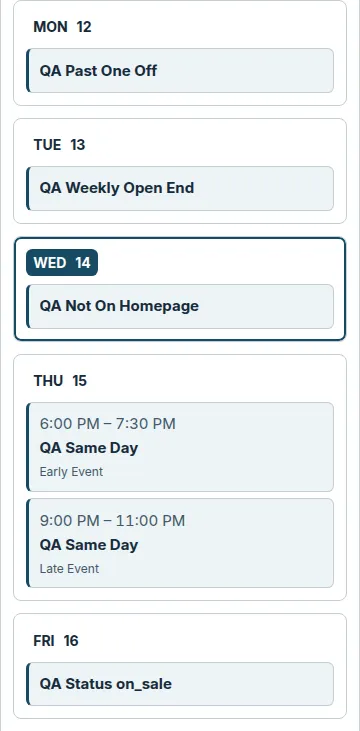
The mobile image is an excerpt from a real 390-pixel-wide QA browser capture. Both new images are cropped to keep the QA environment ribbon away from event labels; event content and colors are unmodified.
Verification scope and administrator checks
Section titled “Verification scope and administrator checks”The PR34 design recheck used anonymous browsers on two isolated QA websites and the main QA website at 1440, 768, 390, and 320 CSS pixels. It found no horizontal document overflow or measured text overflow in the schedule/calendar components, and measured a minimum text contrast above 5.37:1, including tested navigation interaction states. Website isolation, Draft exclusion, the public Private label, and previous/next navigation passed. Earlier functional acceptance on site A also checked Today, the ±12-month boundaries, and malformed parameters: invalid months fall back to the current month, out-of-range valid months clamp to the nearest boundary, and the then-current unknown-view fallback. The default and unknown-view fallback now use Calendar; this routing change has not been rechecked on QA. External information-link destinations were not opened or validated. These are QA results, not production verification.
A website that has its own copy of tt_schedule_website.schedule_page (created by editing it in Website Builder) does not receive the switch automatically, because module updates never rewrite such copies. Ask an administrator to inspect that website-specific view, then reset it to the default or add the switch and the schedule_calendar template call while preserving intended customizations. The main QA site had a working switch in this check; that does not remove the caveat for other customized websites.
The visitor Calendar does not establish sitemap inclusion. The existing sitemap caveat still applies.