Manage your menu, designs, and prices
The brand supplies the shared catalog. Your store controls its local availability and, when permitted by the brand, its own prices. Creating a local Decorated Dozen box is a separate task from creating a new design in the brand catalog.
Products and options
Section titled “Products and options”Open Franchise → Products → Products to browse the menu. Product choices such as flavors, sizes, frosting colors, and sprinkles come from the brand’s configured products and options.
The brand maintains shared products, designs, flavors, and sizes. Ask the brand administrator to add a new shared flavor or design. Your franchise can add its own frosting colors and sprinkles using the steps below.
Add your own colors and sprinkles
Section titled “Add your own colors and sprinkles”- Check your active company, then open Franchise → Products → Colors & Sprinkles.
- Add a row. In Attribute, choose the existing frosting-color or sprinkles attribute for the option you are adding.
- Enter a clear Name and choose the color swatch where appropriate. The option belongs to your active franchise; a standard shared option has no franchise owner.
- Turn Offered on and save the row.
- On the website, select your store and open Frosted Dozen or Sprinkled Dozen to check the new choice.
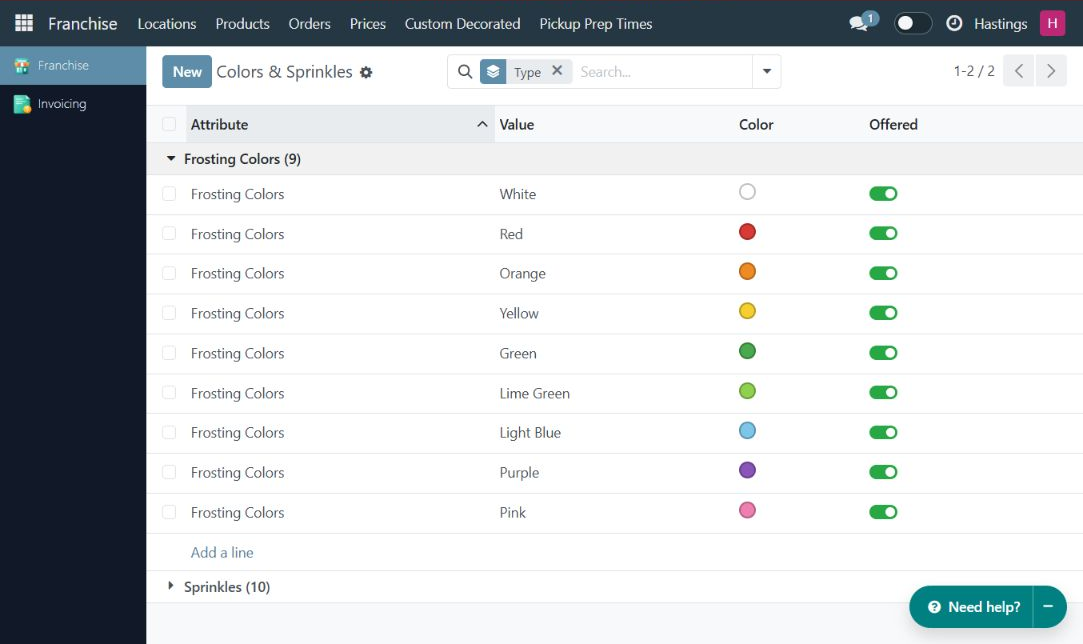
Use My Own to find franchise-owned options and Standard to find shared ones. You can edit or remove your own options. An option already used in an order is archived when removed, preserving the order history. Standard options keep their shared name and swatch: turn Offered off to stop offering one in your franchise, and on to restore it. Your changes do not rename or remove the brand’s option for other franchises.
Offered applies to the active franchise. For an exception at a particular location, use its Colors and Sprinkles Switched Off field:
- Open Franchise → Locations → your store.
- Find Colors & Sprinkles → Colors and Sprinkles Switched Off.
- Select the existing values that should not be offered at this location. Remove a value from that field when it becomes available again.
- Save, then choose the same store on the public website and check the relevant product’s choices.
Check the effect of your options
Section titled “Check the effect of your options”After saving, select your store on the website and inspect the relevant product page. Confirm that an option with Offered on is visible and that a switched-off option is absent. A franchise-owned color or sprinkle should appear for your franchise, alongside its offered standard values.
| Product | What the owner should check |
|---|---|
| Standard Dozen (3”) | The brand’s offered cookie flavors |
| Frosted Dozen / Sprinkled Dozen (3”) | Standard and franchise-owned colors or sprinkles; from one to four choices per dozen |
| Single Cookie (4”) | Plain flavors and the three frosted choices: Frosted Sugar, Frosted Chocolate Chip, and Frosted Lemon |
The frosted 4-inch choices are flavors themselves, rather than a separate “add frosting” option. They are separate from the 3-inch dozen menu. Required choices start unselected; a fixed size such as 4 inches is already set. An all-flavor image can appear before a flavor is selected.
Cookie Trays: one flavor for each dozen
Section titled “Cookie Trays: one flavor for each dozen”A Cookie Tray (3”) contains 1 to 7 dozen cookies: 12 to 84 cookies in one tray. The brand supplies the tray product and its supported flavors. Your franchise maintains its permitted tray prices; it does not need a separate product or price for every flavor mix.
Set tray prices
Section titled “Set tray prices”- Open Franchise → Prices → Cookie Trays.
- Find the rows for 1 dozen through 7 dozen.
- When your franchise is allowed to set prices, enter the whole tray total for each count you want to override. Setting the one-dozen price does not automatically set the other six totals.
- Keep Brand Price on for a count that should follow the brand, or turn it back on to restore that policy.
- Save. Select your store on the website, open Cookie Tray, and check the total displayed for each changed dozen count. The per-dozen amount is calculated from that total: a three-dozen tray priced at USD 30 displays USD 10 per dozen.
Verify the flavor mix your store will receive
Section titled “Verify the flavor mix your store will receive”On the tray page, each numbered slot represents one dozen of one flavor. Selecting a slot and a flavor assigns that dozen; repeated flavors are grouped in the summary. Assorted means the bakery chooses the mix instead. Filling slots is a useful preview check of your store’s offering and does not require placing an order.
For example, two dozen Chocolate Chip and one dozen Lemon means 24 Chocolate Chip + 12 Lemon = 36 cookies, 1 tray. The order summary shows 2× Chocolate Chip, 1× Lemon. Staff should use that mix when preparing the tray; quantity one refers to one complete tray.
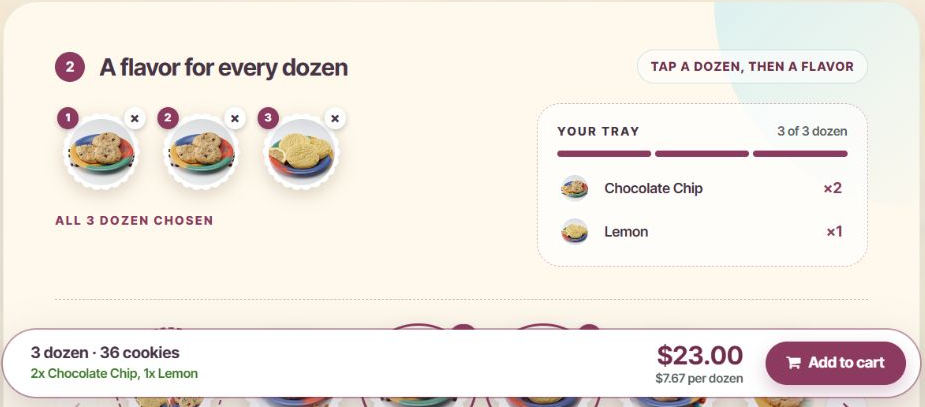
Changing the flavor mix within a dozen count does not add a surcharge. Trays use the plain flavors offered by their picker; the frosted 4-inch single-cookie flavors are not tray choices. For processing a placed tray order, see Orders and the staff order board.
Review and change prices
Section titled “Review and change prices”- Open Franchise → Prices. Check that the price sheet names your store’s menu price list.
- On Prices, review the Cookies, Cookie Trays, and Custom Designs sections. Compare Brand’s Price, your Price, and the Brand Price toggle.
- If editing is allowed, enter your store’s price. Turning Brand Price on returns that row to the brand’s current price and follows later brand changes.
- Save and verify the price on the website with your store selected.
An independently entered price stops following future brand changes. Each menu item or custom size has its own row; changing one does not change every other row.
If the sheet is read-only, check Sets Own Prices on your location. The brand administrator controls that permission. In the QA example Hastings follows the brand’s price policy; an owner cannot enable this permission themselves.
What the ten base prices cover
Section titled “What the ten base prices cover”The core menu uses these ten prices. Cookie Trays and Decorated Dozen Prices are additional sections with their own rows.
| Price | Covers | Unit |
|---|---|---|
| Standard Dozen (3”) | The standard dozen’s offered flavors | One dozen / 12 cookies |
| Frosted Dozen (3”) | The frosted dozen with its offered frosting-color choices | One dozen / 12 cookies |
| Sprinkled Dozen (3”) | The sprinkled dozen with its offered sprinkle choices | One dozen / 12 cookies |
| 4” Single Cookie | A plain single cookie in any offered plain flavor | One cookie |
| 4” Frosted Cookie | Frosted Sugar, Frosted Chocolate Chip, and Frosted Lemon single cookies | One cookie, total price including frosting |
| Custom 3” | Eligible custom designs in the 3-inch size | One cookie |
| Custom 6” | Eligible custom designs in the 6-inch size | One cookie |
| Custom 12” | Eligible custom designs in the 12-inch size | One cookie |
| Custom 14” | Eligible custom designs in the 14-inch size | One cookie |
| Custom 16” | Eligible custom designs in the 16-inch size | One cookie |
For example, changing Standard Dozen changes the price of that item across its offered flavors; you do not enter a separate price for Chocolate Chip and Lemon. Likewise, offered colors, sprinkles, and Enter Custom Name have no independent price. The frosted single is a separate priced item: enter its full selling price, not just the difference from the plain single. Do not add the two displayed single-cookie prices together.
Prices for brand Decorated Dozens
Section titled “Prices for brand Decorated Dozens”Use the Decorated Dozen Prices tab to add a brand box and set its store price, if your franchise may set prices. A brand box without a local price row uses the brand’s price. Removing a local row returns it to the brand’s price. The price of a box you own is entered on the box itself.
Designs and local availability
Section titled “Designs and local availability”- Open Franchise → Custom Decorated → Designs.
- Find the design by name or design number and open it.
- Under Location Availability → Not Available At, choose Configure. Designs are available everywhere by default.
- Search for your store and add it to the excluded locations to stop offering the design. Remove your store from this list to offer it again. Change only your own location.
- Choose Save, then check the website with your store selected.
If a design in a box is unavailable at your store, that box can also disappear from the storefront. The box form’s Hidden At information and Fix availability control help locate the cause.
The brand controls a design’s artwork, supported sizes, and restricted status. A design eligible for a Decorated Dozen must be published, offered in the small size, and not restricted. If a design is missing from the box picker, ask the brand to check these settings rather than creating a duplicate.
Check Custom Designs by size
Section titled “Check Custom Designs by size”After changing design availability or custom-size prices, check the result with your own store selected on the website:
- Open Custom Designs from the ordering menu and select a size.
- Confirm the collection includes the designs your store offers in that size. A design can support some sizes and not others.
- Find a design by category or search, then inspect its preview, selected size, and price. Use Your size · change anytime to check another size against its corresponding price row.
- If the design permits personalization at that size, confirm Enter Custom Name appears. It accepts up to 15 characters. A design or size without personalization should not show the field.
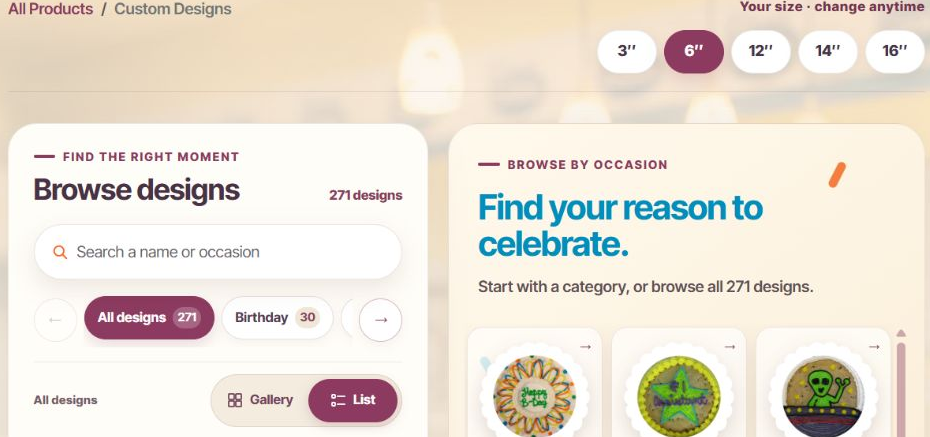
The brand controls a design’s supported sizes and personalization permission. Ask the brand administrator to correct those settings when necessary. The 15-character rule applies wherever the short name is entered. It has no separate price. For longer wording or another decoration request, the page directs customers to call the store; agree those requests through the store’s normal process.
Open the store-only catalog
Section titled “Open the store-only catalog”- Open Custom Designs on the Eileen’s website and choose your store using Find a store / Change store.
- Open the occasion category you want to browse.
- Find Store staff? Show in-store designs and open the panel.
- Enter the store’s In-Store Catalog Password, then choose Show designs.
- Confirm the page says In-store designs are showing on this screen.
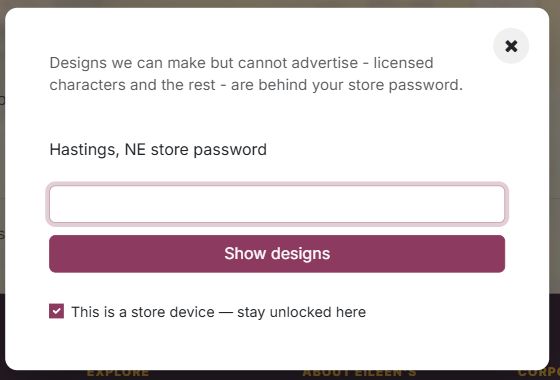
The staff view expands the same catalog to include in-store designs; it does not require a separate customer account. Restricted artwork must stay within the intended staff workflow and is not offered in the ready-box picker.
Use This is a store device — stay unlocked here only on a device controlled by your store. Use Exit staff view before leaving a shared or customer-facing device unattended. The same password also unlocks the staff order board.