Getting started with the admin panel
Sign in
Section titled “Sign in”- Open the admin panel and enter your user name (your email address) and password.
- The panel asks you to enter the one-time code (OTP) sent to your email address. Enter the digits only. The code is valid for 10 minutes.
- If the code does not arrive, wait for the countdown (“Resend OTP in 1:00”) to finish and click Resend OTP.
On your very first sign-in with the default password, the panel forces you to set a new password before continuing.
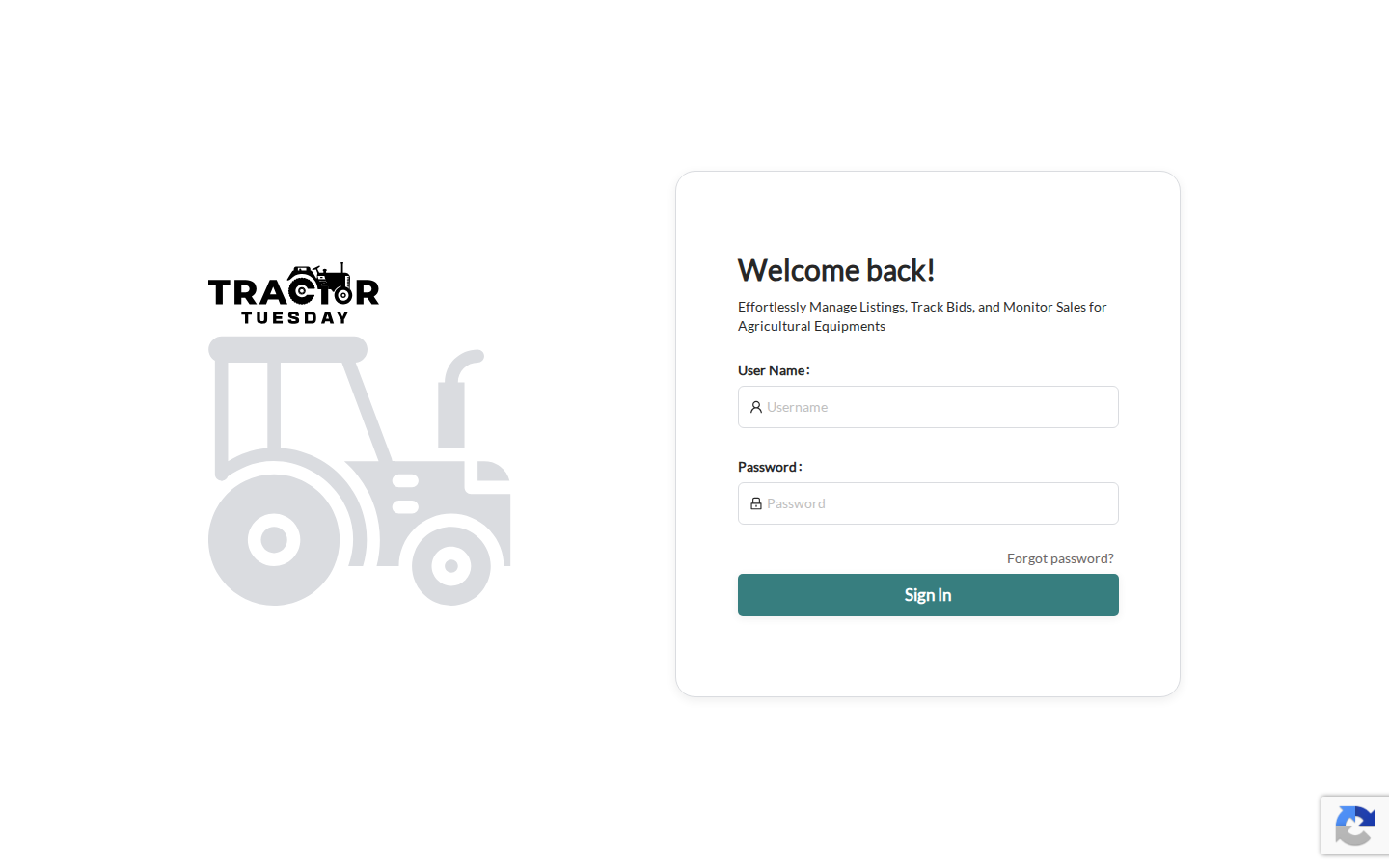
If you see “Captcha error, Please login again.”, reload the page and retry.
- Super admin has access to every screen and bypasses privilege checks.
- Admin sees only the screens allowed by the privileges assigned to the account.
Privileges for site management
Section titled “Privileges for site management”| Screen | Path | Privilege |
|---|---|---|
| Websites | /control-panel/websites | Platform management |
| Websites Publishing | /control-panel/websites-publishing | Auction management |
Each privilege has a read and a write level. Without write access, the pages open read-only: Edit becomes View, and Save, Publish and similar buttons are hidden.
The site selector
Section titled “The site selector”Screens that show per-site data have a site selector. Choose the site first; the lists and settings below it then refer to that site only. The site list is readable with read access to Auction management, Content management or Platform management. Without any of them, the selector is hidden.
The selector is a Site dropdown.
See Sites overview for what is shared and what is per site.