Websites Publishing
Open Websites Publishing (/control-panel/websites-publishing). You need the Auction management privilege; without write access the page is read-only. Choose a site in the Site dropdown; the three tabs work on that site. Inactive sites are shown as “(inactive)”.
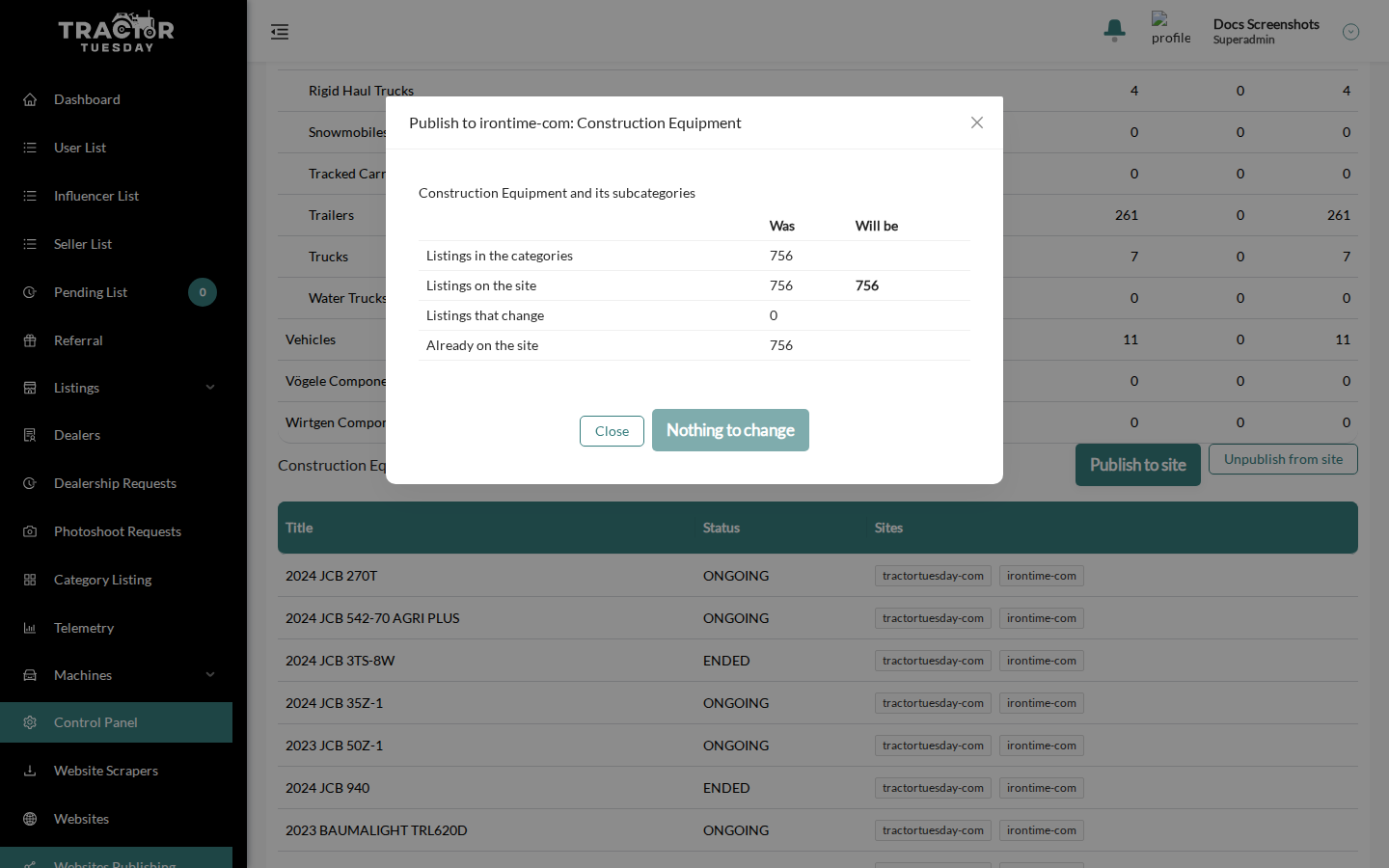
Dialog titles use the site key, for example “Publish to irontime-com: Construction Equipment”.
While you have unsaved changes, the dropdown is locked: “Save or reset the changes to switch the site.”
Categories tab
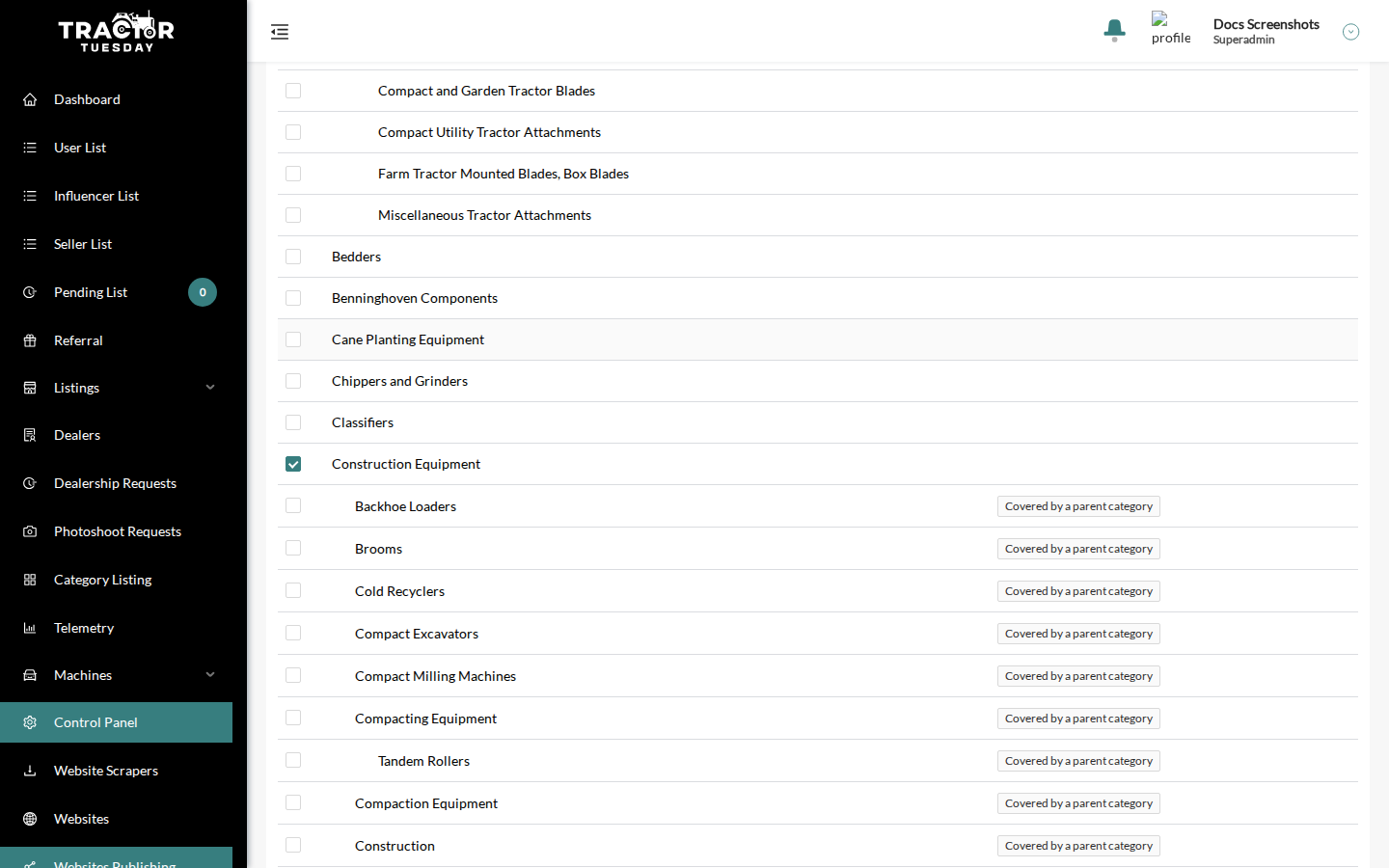
Section titled “Categories tab”Tick the categories that belong on the site. A ticked category also covers all of its subcategories; these rows show “Covered by a parent category”. Reset and Save appear only after you change something.
Save never changes listings. It stores the category selection and shows the toast “Categories saved”. If anything could change, the dialog Categories saved: listings opens. It has up to two blocks:
- Unpublish the listings of the removed categories, when removed categories are not covered by a ticked parent.
- Publish the listings of the site categories, whenever a category is ticked.
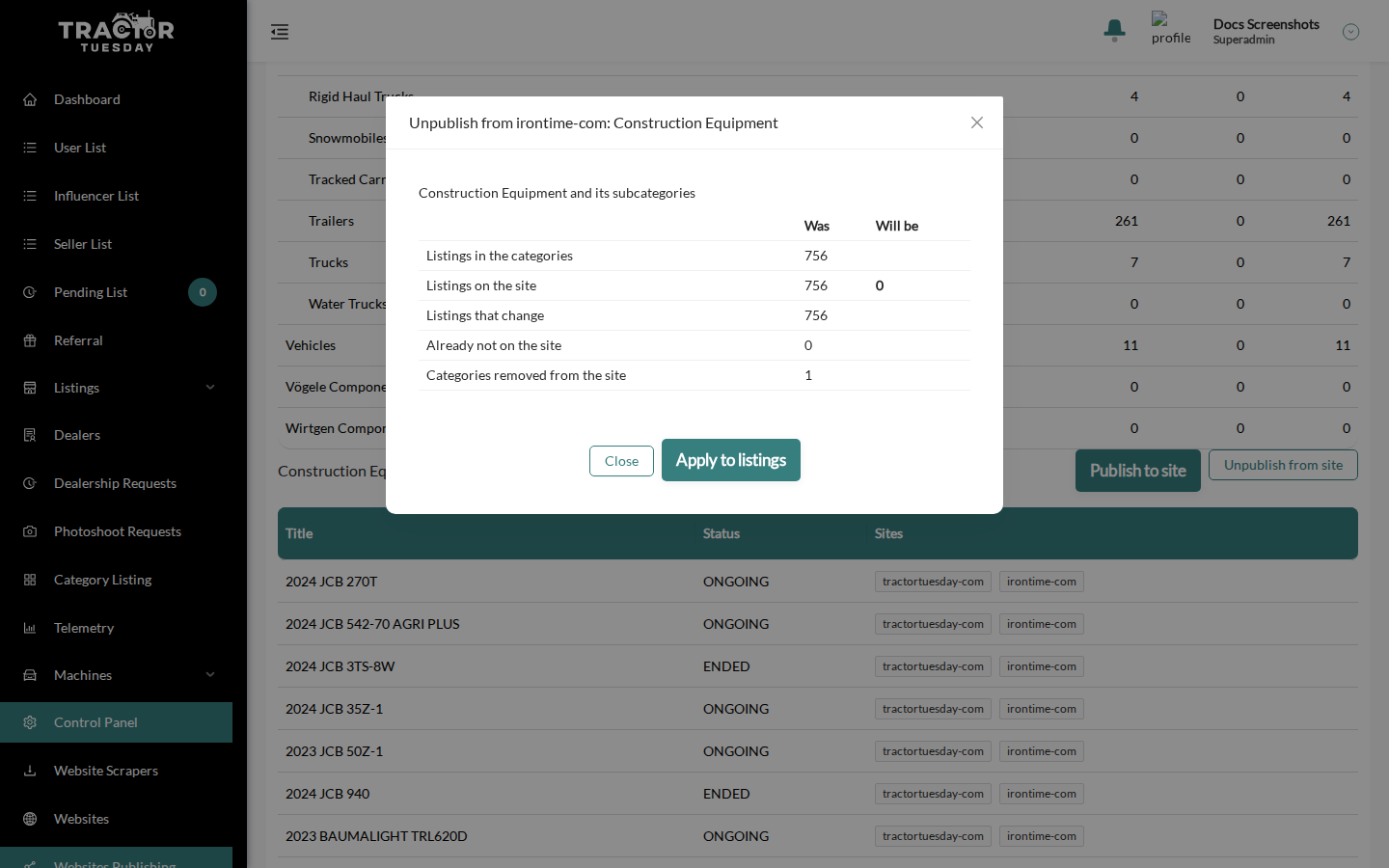
Each block is a table:
| Row | Was | Will be |
|---|---|---|
| Listings in the categories | count | |
| Listings on the site | before | after |
| Listings that change | count | |
| Already on the site | count |
Rows “Categories added to the site” and “Categories removed from the site” appear when the run changes the category list. Click Apply to listings to run the changes; the button then turns into a disabled Nothing to change. Close leaves listings as they are.
An orange warning may appear: “X is no longer ticked, but its listings outside the kept subcategories stay on the site. Unpublish them from the Listings tab if needed.”
Listings tab
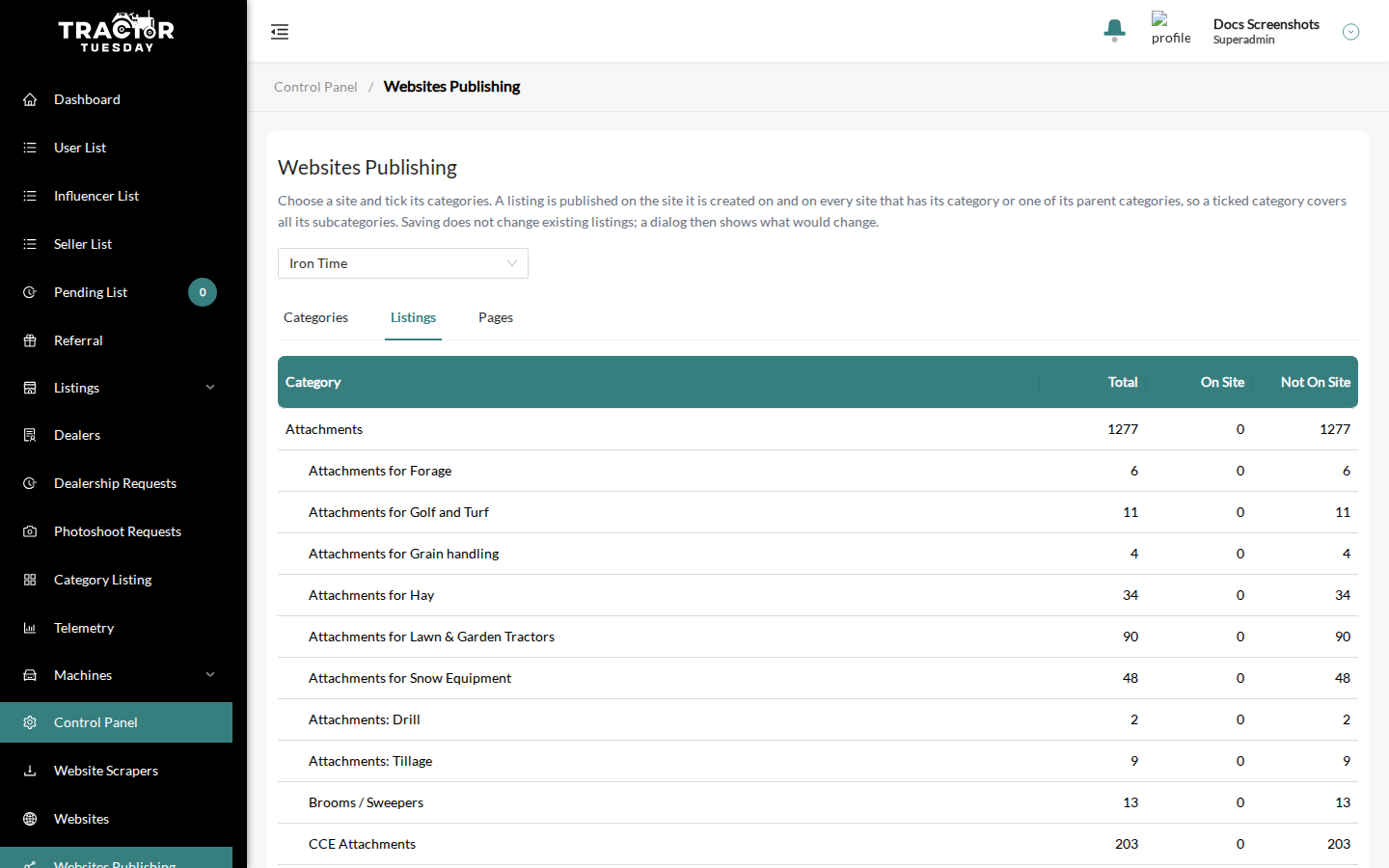
Section titled “Listings tab”A table with columns Category, Total, On site and Not on site. A ticked category is marked “On the site’s category list”. Click a category to see its listings (with subcategories) and filter them with All, On site or Not on site.
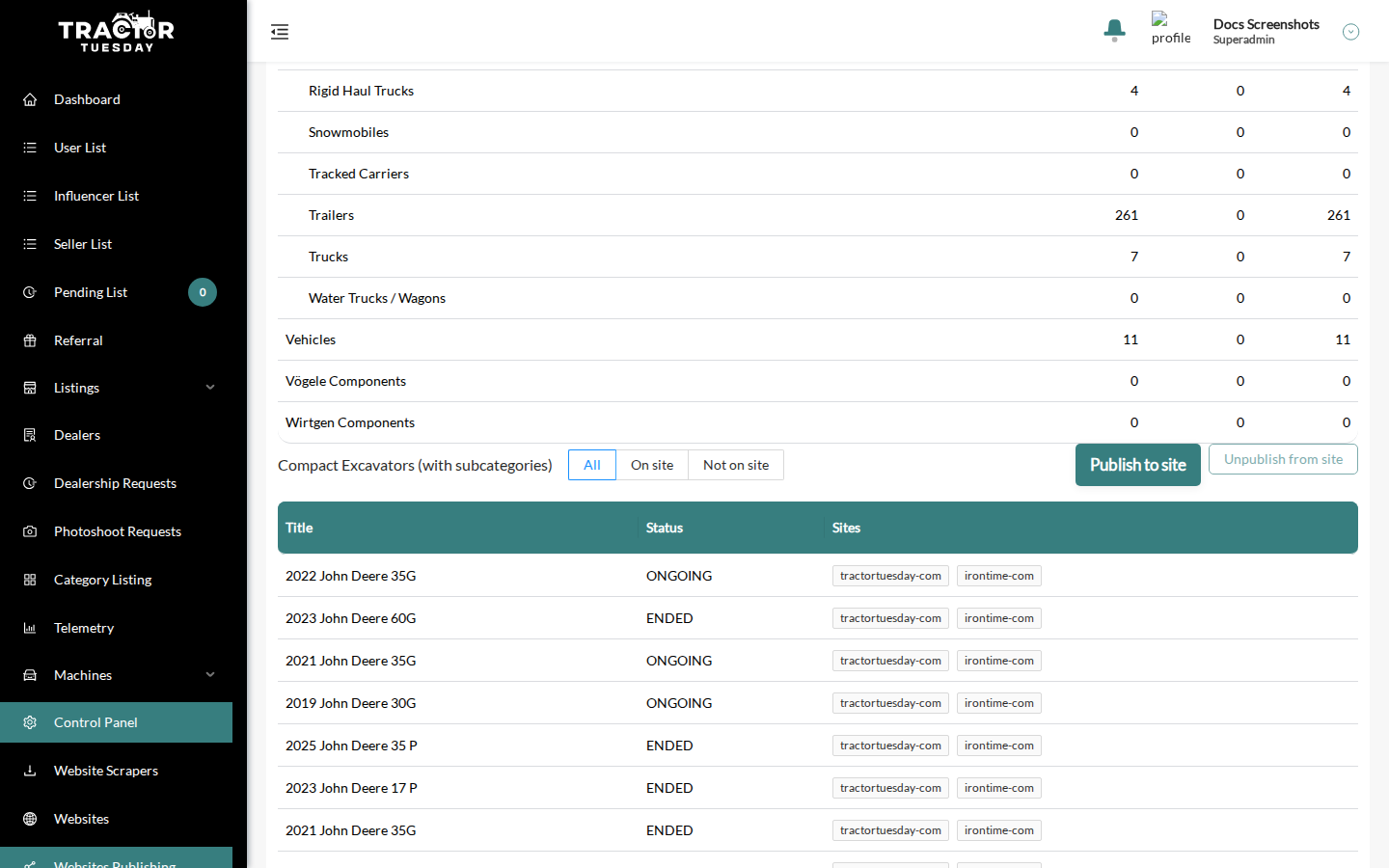
Use Publish to site or Unpublish from site. Unlike Save on the Categories tab, these buttons also add or remove the category and its subcategories in the site’s category list. Each opens a preview with the numbers (and the categories added or removed), then shows the progress “N of M listings processed”. The result reads “Done: X changed, Y skipped.” or “Failed: …”. After a failure, Retry restarts only the requests that did not finish.
The dialogs are titled “Publish to
- A listing is on the site it was created on, plus every active site whose categories include the listing’s category or one of its parents. An inactive site is never added.
- Unpublishing never leaves a listing without a site: it falls back to the default site. The preview says “N listing(s) would be left without a site and fall back to the default site.”
- A listing that is only on the default site cannot be unpublished from it; it is skipped. The preview says “N skipped listing(s) are left unchanged.”
- A category covered by a ticked parent cannot be unpublished on its own. The button is disabled with the tooltip “This category is published through a ticked parent category. Untick the parent on the Categories tab first.”
Pages tab
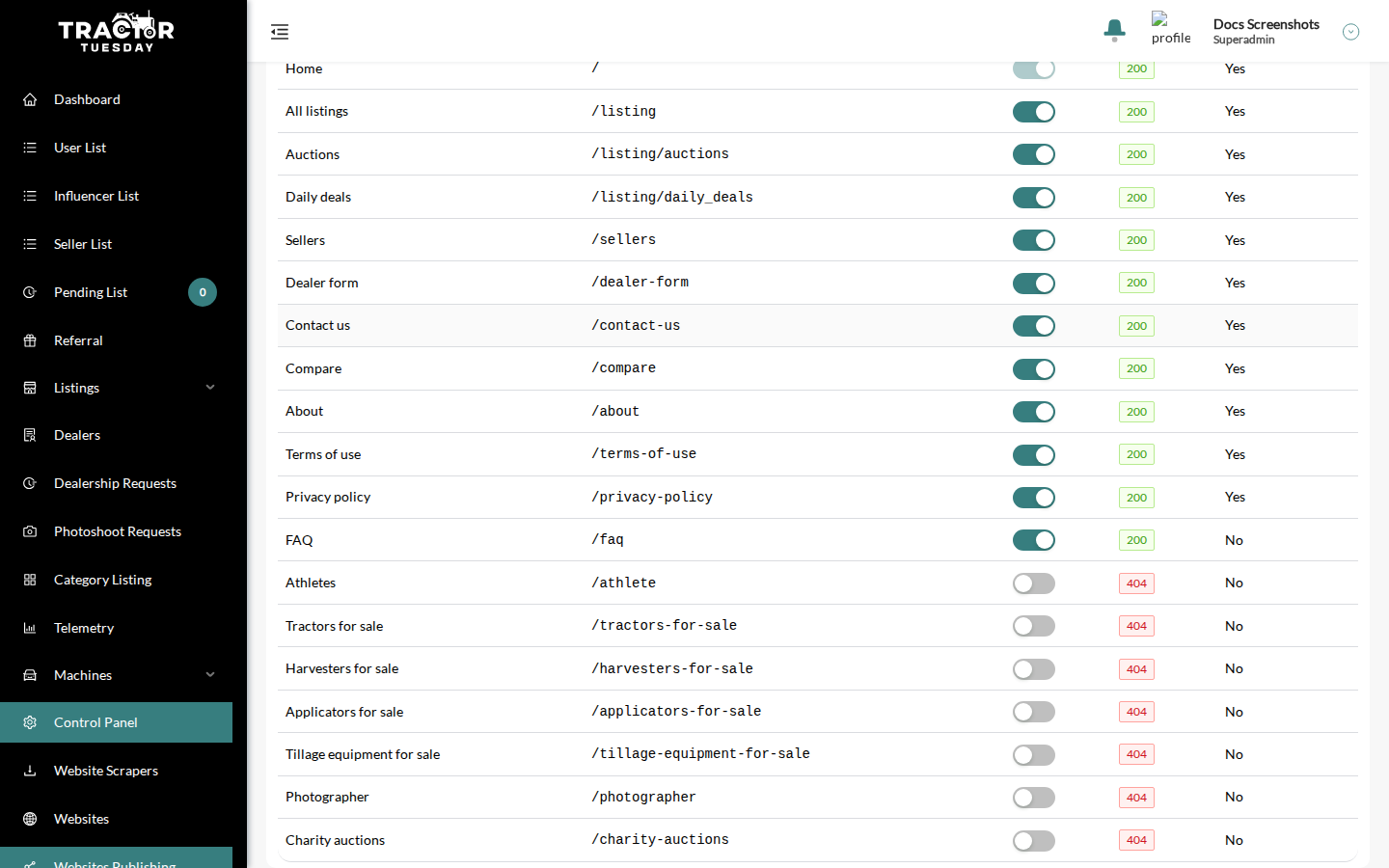
Section titled “Pages tab”Columns: Page, Path, On site (a switch), Status (200 or 404) and In sitemap (Yes or No). Reset and Save appear after a change, and the site dropdown stays locked until you save or reset.
Switched-off pages answer 404; those that are normally in the sitemap are removed from it. The FAQ, Photographer and Charity auctions pages are never in the sitemap. The Home page cannot be switched off.
One job at a time
Section titled “One job at a time”Only one publishing job runs per site at a time. If another job is running, the API answers “A publishing job is already running for this site”. The panel retries automatically up to 3 times, then shows “Blocked: another job is running on this site.” Wait for the other job to finish and retry. A job that sends no heartbeat for 2 minutes is considered stale and is taken over automatically.