Send Contact Us Messages to the Right People
By default, the Contact Us form on your website sends every message to one email address. With recipient routing, visitors pick a topic from a How Can We Help? list (“Sales”, “Parts”, “Service”, …), and the message goes to the people you assigned to that topic.
You set this up in the Forms app with two menus:
- Recipient Routing turns the topic list on or off for a website.
- Recipient Options holds the topics and who receives each one.

Before you start
Section titled “Before you start”- You need the Forms: Administrator role (see Give a user access).
- In the company switcher (top right), select the company that owns the website, or its parent company. You can set up websites of the active company and of its branches. A branch sees only its own websites.
- Each person who should receive messages must exist as a contact with an email address. The contact must be shared or belong to the website’s company or one of its parent companies.
1. Add the topics
Section titled “1. Add the topics”- Open Forms → Recipient Options.
- Click New.
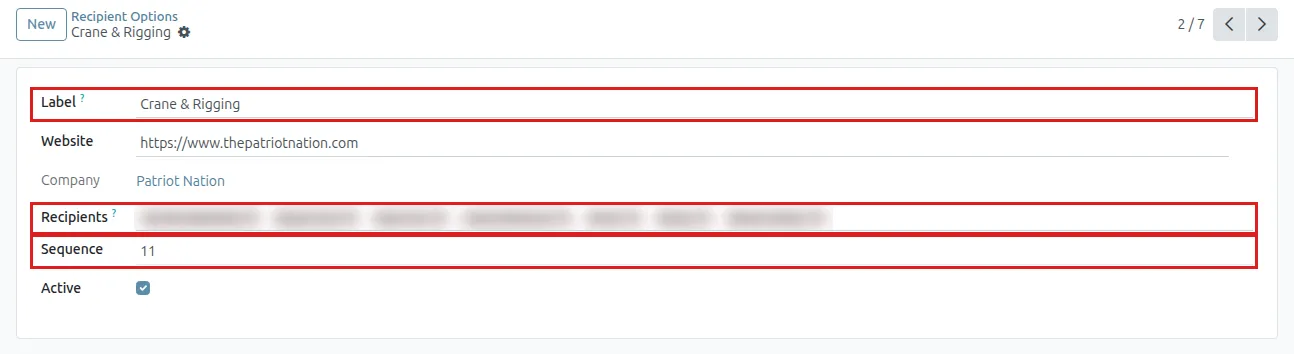
- Fill in:
- Label: the text visitors see in the list, for example
Parts. - Website: your website.
- Recipients: one or more contacts. Everyone on the line gets the same email, together in the To field, so they can see who else got it.
- Sequence: the position in the list. Lower numbers come first.
- Active: leave it ticked.
- Label: the text visitors see in the list, for example
- Save.
- Repeat for each topic.
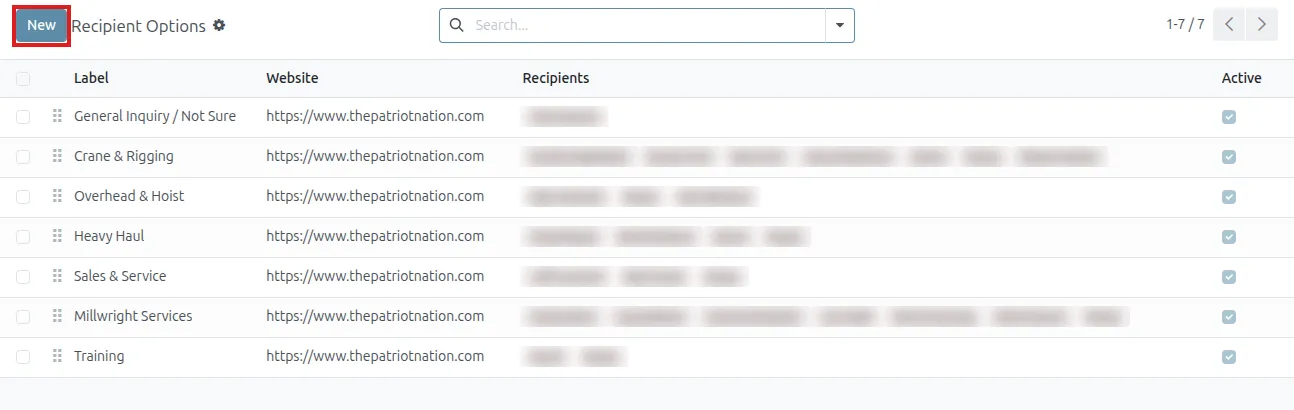
To change the order, drag the grip handle at the left of a row in the list. To remove a topic but keep the history of past messages, untick Active instead of deleting the line.
A topic appears on the website only if at least one of its recipients is active and has a valid email address.
2. Turn on the topic list
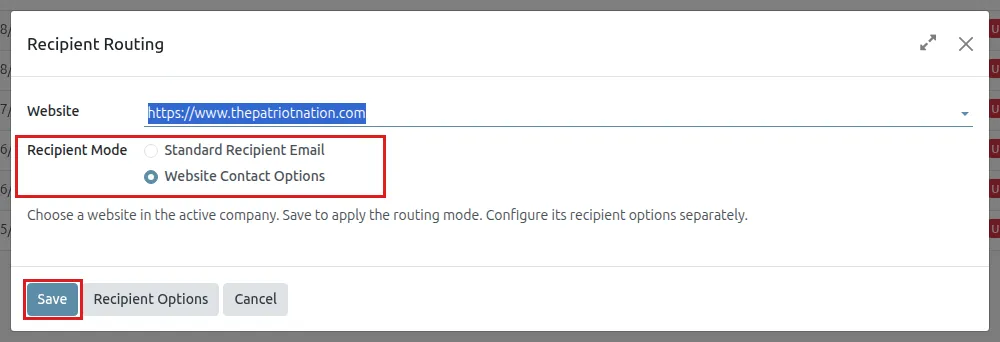
Section titled “2. Turn on the topic list”- Open Forms → Recipient Routing.
- In Website, choose your website.
- In Recipient Mode, choose Website Contact Options.
- Click Save.
| Recipient Mode | What happens |
|---|---|
| Standard Recipient Email | The form sends to the single Recipient Email set on the form in the website editor. This is the default. |
| Website Contact Options | The form shows the How Can We Help? list. The message goes to the recipients of the chosen topic. |
The mode applies to the whole website. Recipient Options in the same window opens the topics of the selected website. Cancel closes the window without changes.
3. Check the website
Section titled “3. Check the website”- Open the Contact Us page of your website (
/contactus). - Above Subject you see the required How Can We Help? list with your topics, in your order.
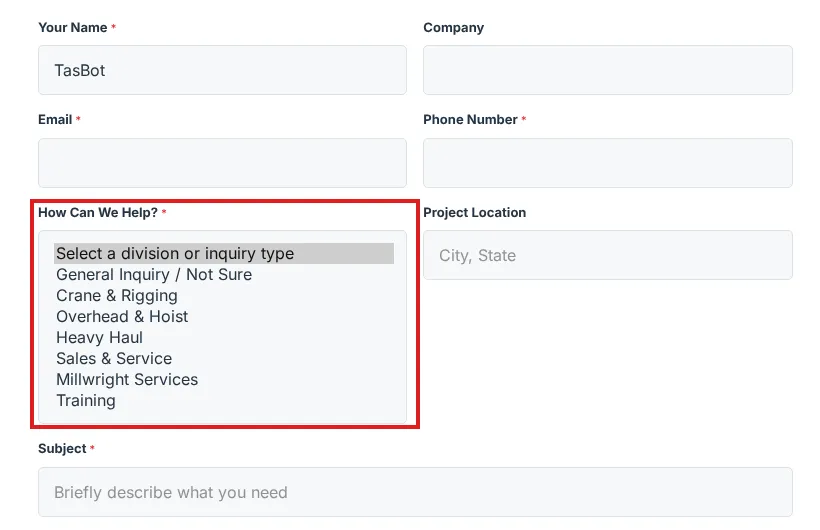
Visitors must pick a topic before they can send the form. The recipients’ email addresses are never shown on the page, only the labels.
You do not need to edit the Contact Us page. The list follows your Recipient Options automatically.
Give a user access
Section titled “Give a user access”- Open Settings → Users & Companies → Users.
- Open the user.
- Open the Access Rights tab.
- Set Forms to Administrator.
- Save.
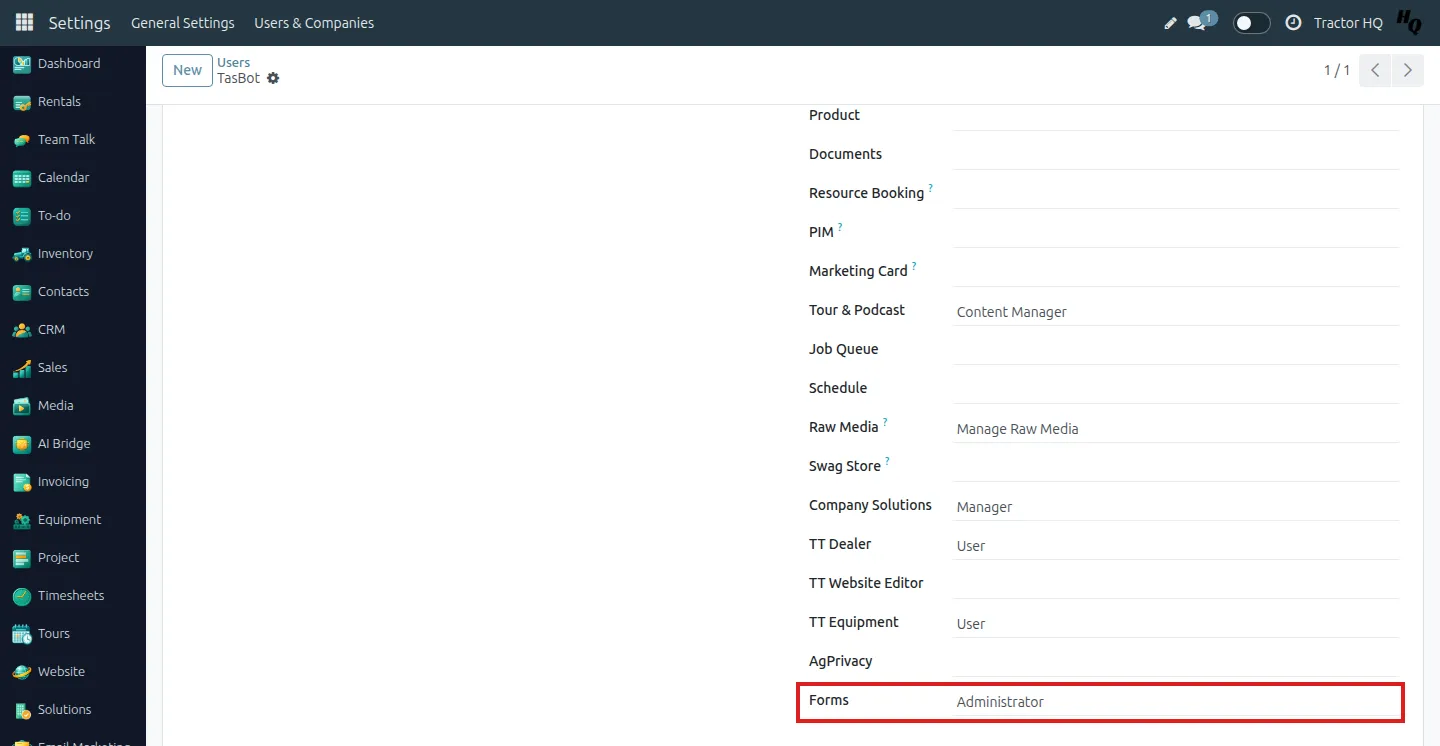
Forms: User can read and answer form submissions but cannot change recipient options or the mode. Neither role gives Settings or website editing rights.
Common questions
Section titled “Common questions”“Where did the routing setting in Website Settings go?” It moved to Forms → Recipient Routing and Forms → Recipient Options. Website Settings no longer has it.
“The Configure Recipient Options button in the website editor freezes.” When you select the Contact Us form in the website editor, its options show Recipient Mode and a Configure Recipient Options button. If the button does not respond, close the editor and use Forms → Recipient Routing and Forms → Recipient Options directly. They do the same thing.
“I can’t find my website in Recipient Routing.” Switch to the website’s company, or to its parent company, in the company switcher, then open Recipient Routing again.
“I can’t add a person as a recipient.” The person needs a contact with an email address, and the contact must be shared or belong to the website’s company or one of its parent companies.
“Where do I see the messages?” In the Forms app. Each Contact Us message shows the Recipients it was sent to.