Payment provider access: roles and structure
Companies connect their own Stripe account in HQ without help from TractorHQ staff. This guide explains which roles take part, what the Payment Provider Manager level allows, and how a Solutions Manager grants it. For how the Solutions app works in general, see Manage Company Solutions and User Access.
Roles at a glance
Section titled “Roles at a glance”| Role | What they do | Where |
|---|---|---|
| Stripe account holder | Creates the restricted API key and copies the publishable key. | Stripe Dashboard |
| Payment Provider Manager | Enters the keys, saves, and generates the webhook for their own company. | HQ: Invoicing → Configuration → Online Payments → Payment Providers |
| Solutions Manager | Gives a user the Payment Provider Manager level. | HQ: Solutions app |
| TractorHQ representative | Reviews the Configuration tab, verifies the webhook, tests a payment, and approves activation. | HQ and Stripe |
| HQ administrator (Settings) | Has full access; not needed for the dealer’s own setup. | HQ |
What the Payment Provider Manager level allows
Section titled “What the Payment Provider Manager level allows”A user with this level can:
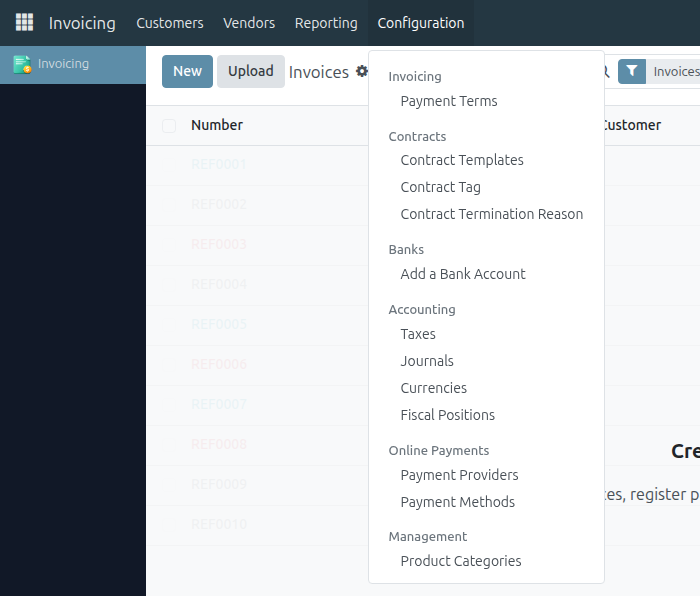
- Open the Stripe payment provider of their own company and edit it.
- Enter the Publishable Key and Secret Key (the restricted key).
- Click Generate your webhook and see the Webhook Signing Secret.
- Open Invoicing → Configuration → Online Payments → Payment Providers. The level includes Invoicing Administrator, so the rest of the Invoicing app is available too.
A user with this level cannot:
- See or change the payment providers of another company, including a parent company.
- Change the shared Stripe template used to create providers.
- Delete a payment provider.
- Enable payments on their own. Keep the provider Disabled until your representative approves it.
How the level is structured
Section titled “How the level is structured”Access in HQ is managed by solutions. The level lives in the Online Payments solution:
| Item | Value |
|---|---|
| Solution | Online Payments |
| Level | Payment Provider Manager |
| Requires | The Invoicing solution enabled and set up for the company. Without it Online Payments is Blocked and nobody gets the level. |
| Set up step | Creates a Disabled Stripe payment provider for the company, with empty keys |
What a level does depends on the Manage Access by Solutions checkbox under the company name in the Solutions app:
| Off (older companies) | On (new companies) | |
|---|---|---|
| Levels on User Access | Only a plan. Nothing is applied. | Applied right away. |
| User rights | Unchanged. | Exactly the rights of their levels. Everything else is removed. |
When it is On, a user keeps only the groups of their levels. The Payment Provider Manager level is part of the solution, so it is not removed by the next synchronization. When it is Off, the level does not give the user the right by itself; see step 5 below. Details are in Manage Company Solutions and User Access.
Grant the level (Solutions Manager)
Section titled “Grant the level (Solutions Manager)”You need the Solutions / Manager access.
-
Open the Solutions app and select the company in the company switcher.
-
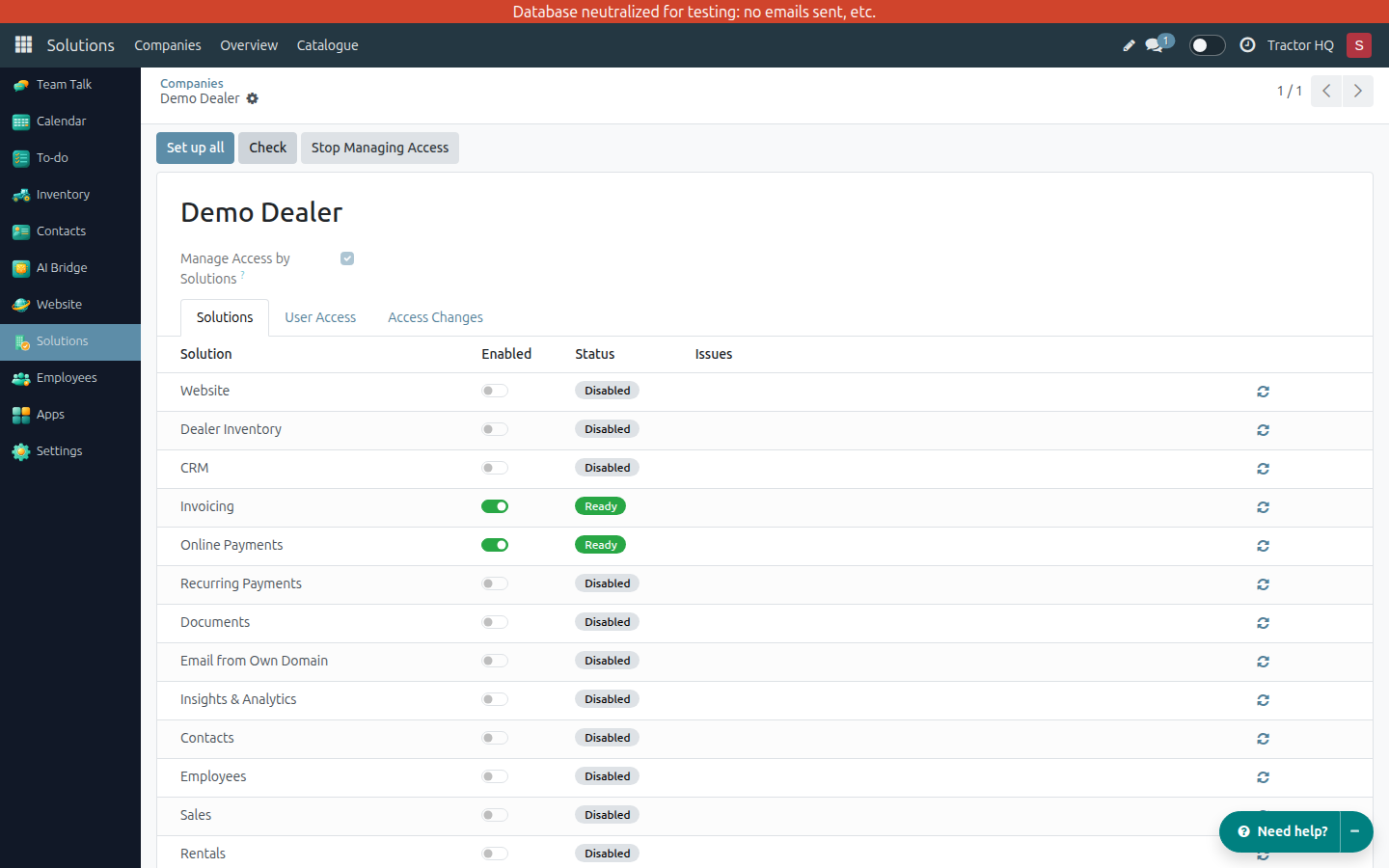
On the Solutions tab, switch Invoicing and Online Payments on.
-
If the status asks for it, click the magic wand (Set up) on the Invoicing line and then on the Online Payments line, and confirm. This loads the chart of accounts (on the company’s top parent company, and it cannot be undone with a button) and creates the disabled Stripe provider. The wand needs Settings rights; ask an HQ administrator if you do not see it. Click Check and wait until both lines are Ready or Warning.
-
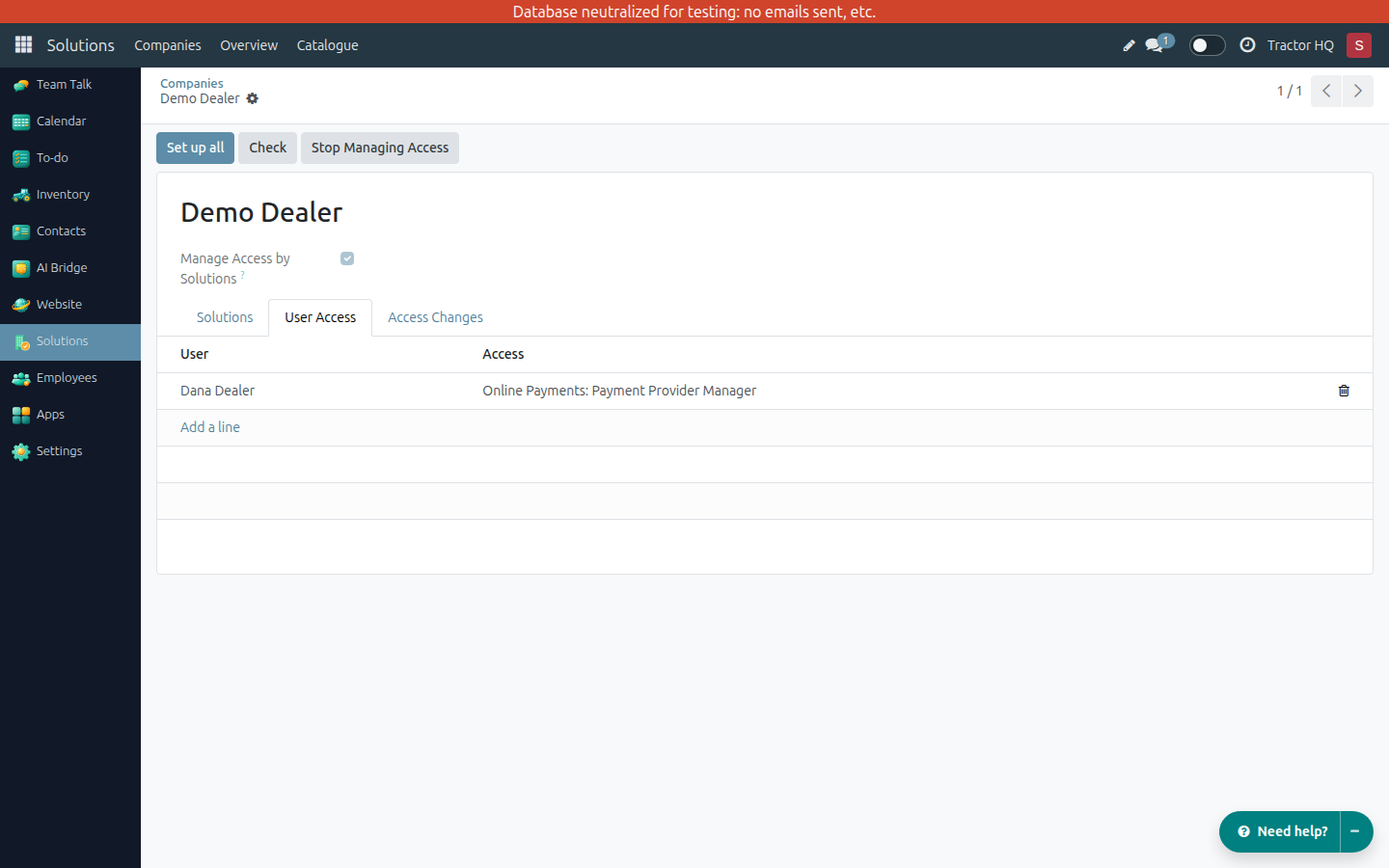
Open the User Access tab and set Online Payments to Payment Provider Manager for the user.
-
Look at Manage Access by Solutions under the company name.
- On: the level is already applied.
- Off: the level is only a plan. Either click Manage Access by Solutions at the top and Apply, or ask an HQ administrator to add the user to the Payment Provider Manager group in Settings → Users & Companies → Groups. Switching it On changes the rights of every user of the company, and rights it removes do not come back when you stop managing access. Open the Access Changes tab first (see the Solutions guide), or use the group to give the right to one user only.
-
Ask the user to reload the page.
Expected result: the user sees the Invoicing app with Online Payments → Payment Providers and can follow the Stripe payment provider setup guide.
Troubleshooting
Section titled “Troubleshooting”- The user has no apps at all: Online Payments or Invoicing is not Ready or Warning for the company, or the user has no level in Online Payments. Check the Solutions and User Access tabs.
- The user sees Payment Providers but gets an access error: the level is missing, the wrong company is active, or Manage Access by Solutions is Off for the company so the level was not applied. Check the user’s levels, the company selector and the checkbox.
- Credential fields are missing: the user does not have the Payment Provider Manager level. Credentials are hidden from users without it.
- The level disappears after a synchronization: the Online Payments solution is disabled for the company. Switch it on and set the level again.
- There is no Online Payments line on the User Access tab: click Check at the top of the company. The missing lines are added.
- No Stripe provider is listed: run Set up on the Online Payments solution once. Do not create a second provider by hand.
Checklist
Section titled “Checklist”- Invoicing and Online Payments are switched on and Ready or Warning for the company, and the Stripe provider exists, Disabled.
- The user has the Payment Provider Manager level, and it is applied: Manage Access by Solutions is On, or the user is in the group.
- The user follows the Stripe payment provider setup guide.
- The TractorHQ representative approves activation before the provider is enabled.