Set up your store
Open your location
Section titled “Open your location”- Open Franchise → Locations and select your store.
- Confirm the store name and address. In the example, both the company and location are Hastings.
- Review the fields below. After editing, use Save manually (the cloud icon near the record title), or wait for autosave when leaving the record. Resolve any validation message before continuing.
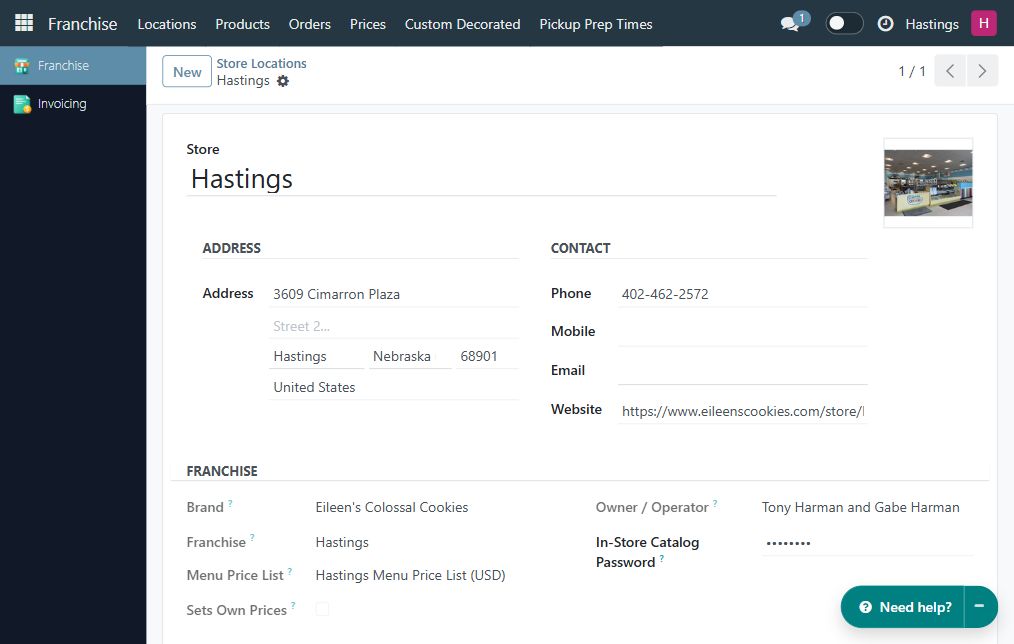
Contact details and public page
Section titled “Contact details and public page”Enter the correct street address, city, state, ZIP code, phone, and Email. Use a monitored store email address: website inquiries may be routed there. Do not leave the email empty when saving the store form.
Keep Store Status accurate. Is Published controls whether the location page is published. Opening or closing a franchise and changes to brand ownership should be coordinated with the brand administrator; do not archive a store merely to hide a single product.
The URL Slug identifies the store page. For Hastings, the public page is /locations/hastings-ne/. After saving a change, open your own location page and check the address, phone, hours, and links as a visitor would.
Local Links, Store Story, and the optional SEO Title / SEO Meta Description describe this particular location. Use local information rather than replacing brand-wide website content. Leave SEO overrides empty if the generated wording is already appropriate.
Opening hours
Section titled “Opening hours”- Find Opening Hours and verify Timezone. Hastings uses America/Chicago.
- Set a regular row using From Day, Through Day, Opens, and Closes. A Monday-through-Friday row can cover all five days.
- Mark a closed day with Closed instead of entering opening and closing times of zero.
- For a holiday or temporary exception, use Special From, Special To, and a clear Label, then enter that period’s hours or mark it closed.
- Save and check the public location page.
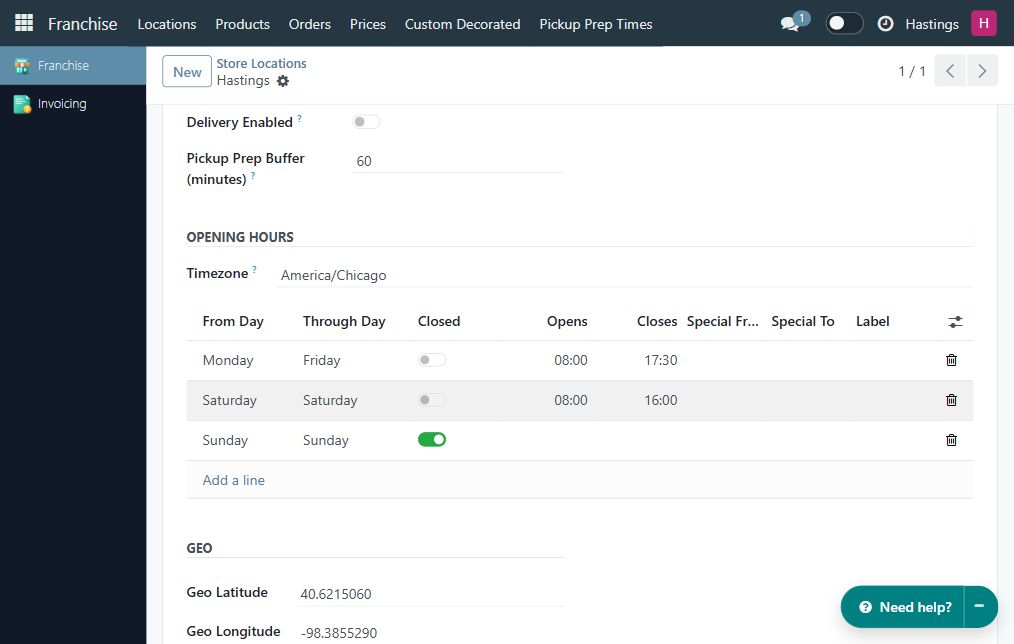
Opening hours influence when pickup can be offered. The timezone belongs to the store; changing your personal display timezone is not a substitute for correcting the store’s timezone.
Delivery
Section titled “Delivery”If your store offers delivery, turn on Delivery Enabled and fill in:
| Field | What to enter |
|---|---|
| Delivery Radius (miles) | A positive service radius measured from your store |
| Delivery Fee | The flat fee in your franchise’s currency; zero means free delivery |
Save and check delivery in the storefront for your selected store. A location outside the radius is refused at checkout. The radius is measured in a straight line, so driving distance can be longer. Leave delivery off for a pickup-only location.
Set the store staff password
Section titled “Set the store staff password”The In-Store Catalog Password on this location form unlocks the staff view used by the internal catalog and order board. The field is masked; it does not reveal the existing password.
- Agree a store password with your authorized staff.
- Enter it in In-Store Catalog Password and save the location.
- On the Eileen’s website, choose your store and test the password in the staff panel.
- Share it privately with authorized staff. Do not place it in public store text, a box description, a screenshot, or an order note.
Changing this password invalidates earlier unlocks; staff may need to unlock their screens again. Keep your individual HQ login separate from this shared staff access.