Geographic Email Targeting User Guide
Use geographic email targeting to send an Email Marketing mailing only to contacts who live near a place, for example “everyone within 50 miles of ZIP 68508” or “everyone within 75 miles of our Grand Island store”. The distance is measured in a straight line between the ZIP code of the place and the ZIP code of each contact.
This guide covers tt_mass_mailing_geo (the Near options ZIP Code and Our Location, and the radius) and tt_mass_mailing_company (a mailing only reaches the contacts of its own company). Targeting around a tour date venue is described in the Tour Date Email Targeting User Guide.
Before you start
Section titled “Before you start”- Your administrator must install
tt_mass_mailing_geo. It installstt_mass_mailing_companywith it and loads the US ZIP code dataset. - To create mailings you need Email Marketing access.
- Select the company that owns the contacts in the company switcher at the top right. New mailings belong to the company that is selected when you create them.
- Contacts are matched by the ZIP field on the contact. Contacts without a ZIP, or with a ZIP that is not in the dataset, are never included in a geographic mailing.
1. The ZIP code dataset
Section titled “1. The ZIP code dataset”The module ships with the US Census 2025 ZCTA Gazetteer: about 33,800 US ZIP codes with the latitude and longitude of their centre. It is read-only and needs no maintenance.
Open Email Marketing → Configuration → ZIP Codes to look up a ZIP. Search by ZIP to check that it exists.
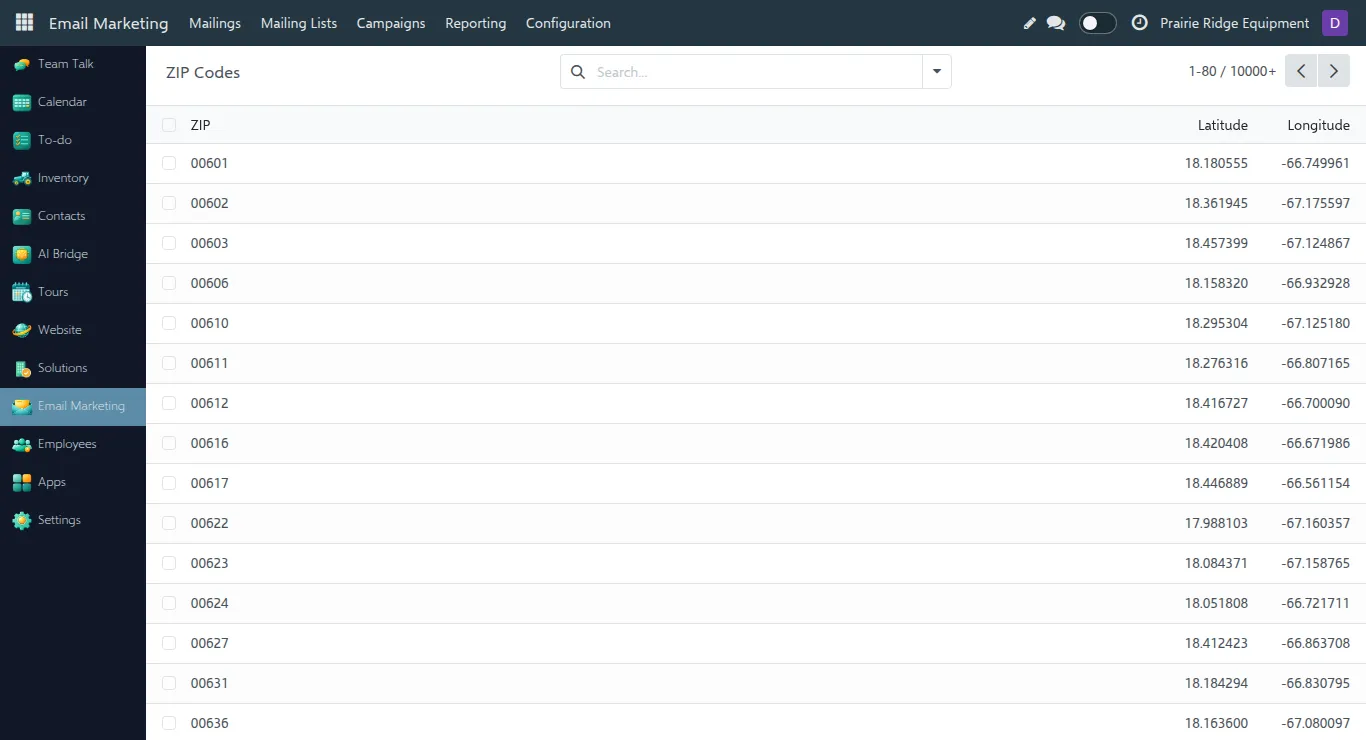
ZIP codes used only for PO boxes or single large organisations have no area of their own and are not in the dataset.
2. Create a geographic mailing
Section titled “2. Create a geographic mailing”-
Open Email Marketing → Mailings and click New.
-
Enter the Subject. A new mailing starts with Recipients set to Mailing List: change it to Contact. Geographic targeting is only available for contacts; for mailing lists the option is hidden.
-
Optionally add the usual recipient rules, for example a tag or a country. These rules still apply.
-
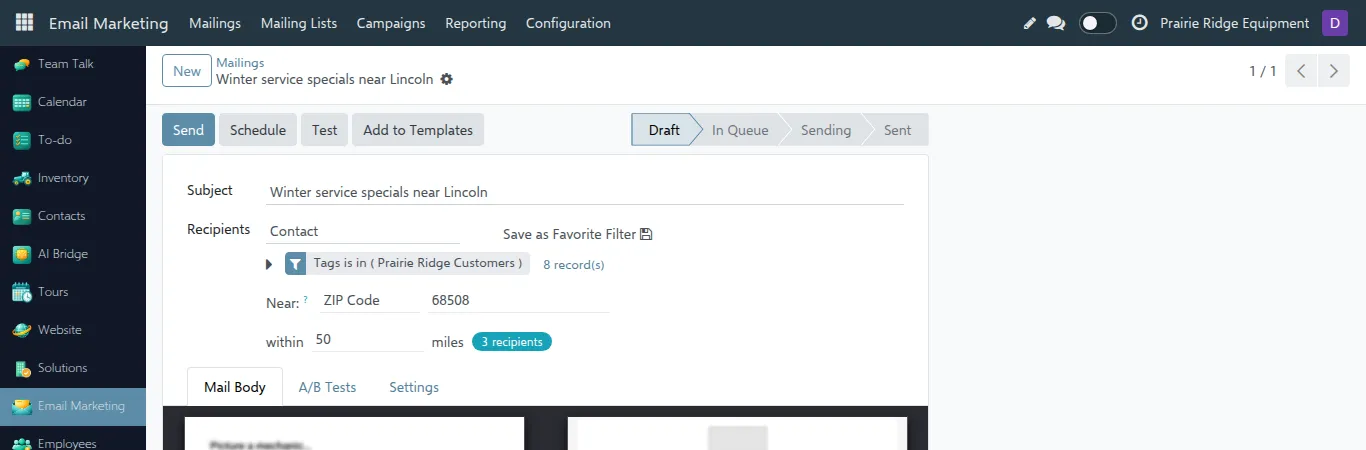
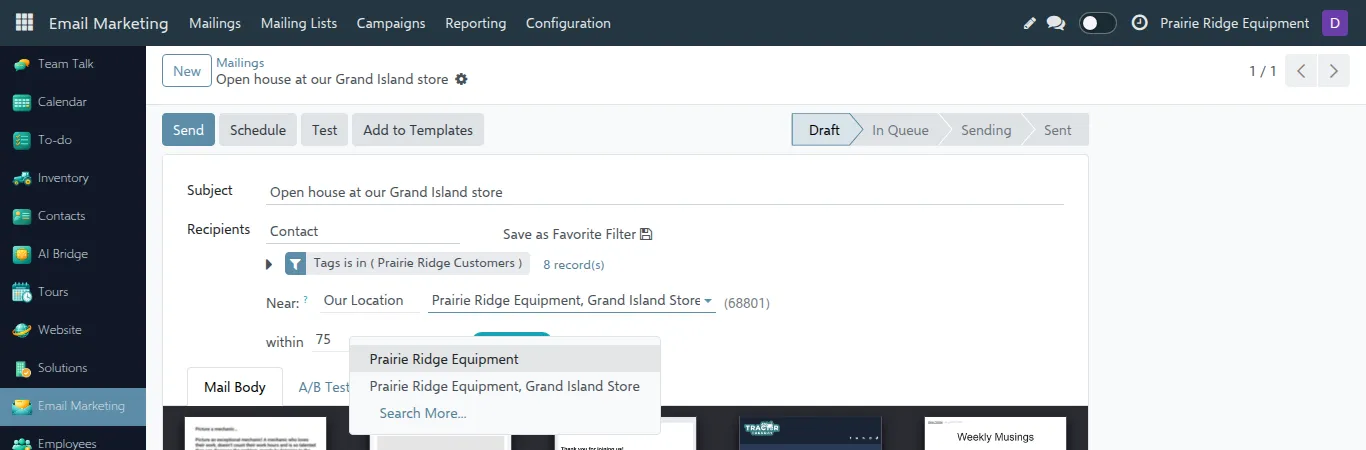
In Near, choose what the distance is measured from:
- ZIP Code: type a five-digit US ZIP in the field next to it.
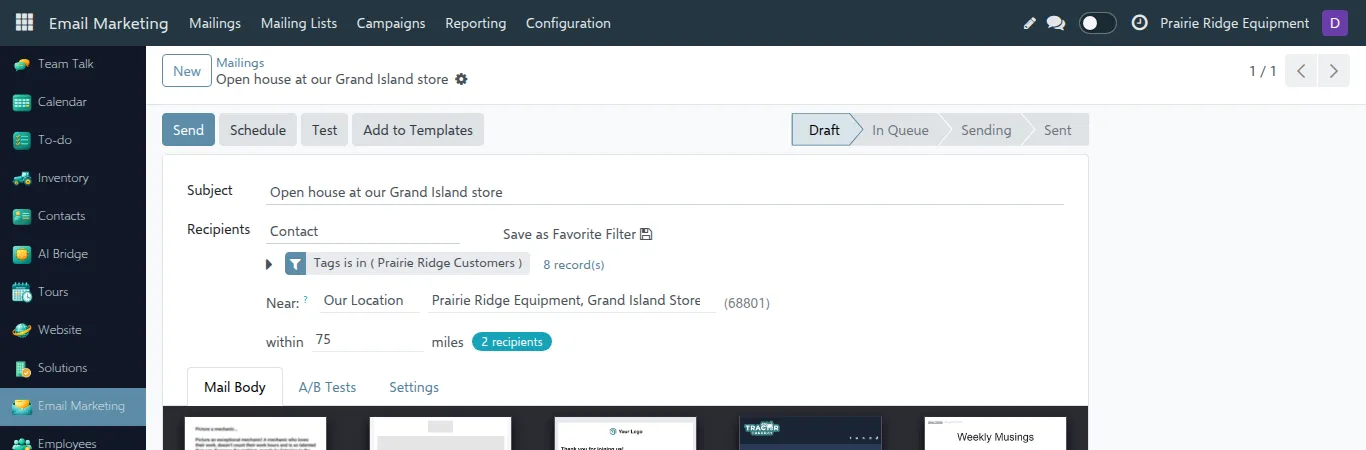
- Our Location: pick an address of the mailing company. The list shows the company address and its other addresses (branches, stores) that have a ZIP. The main company address is filled in for you; the ZIP used is shown in brackets.
- Tour Date: only when
tt_tour_mass_mailingis installed, see the tour guide.
-
Adjust within … miles if needed. The default is 100 miles; the radius must be a whole number greater than zero.
-
The blue badge shows how many contacts will receive the mailing: the contacts that match your recipient rules and live within the radius.
-
Write the email on the Mail Body tab, then click Send or Schedule as usual.
The record count next to the recipient rules (for example 8 record(s)) ignores the location; the blue badge is the number that will actually be sent.
To send to everyone again, clear Near: the place, the radius and the badge disappear and the normal recipient rules apply.
Red bar: the ZIP is not known
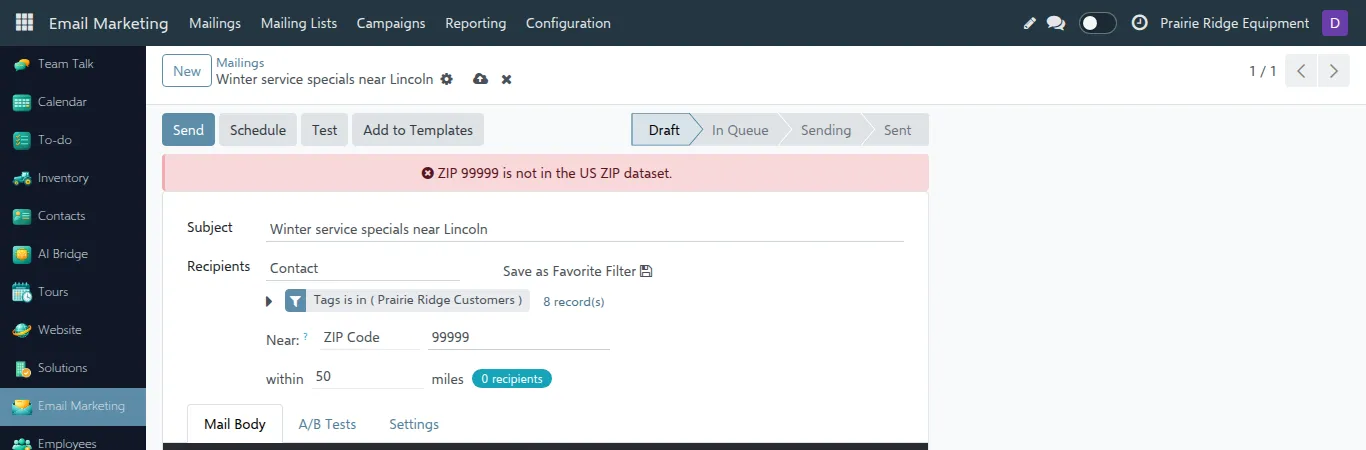
Section titled “Red bar: the ZIP is not known”When the ZIP typed in ZIP Code is not a US ZIP, or is not in the dataset, a red bar appears at the top of the form, for example ZIP 99999 is not in the US ZIP dataset. The badge shows 0 recipients: while Near is set, a mailing without a known centre ZIP is sent to nobody. Correct the ZIP or clear Near.
3. Company of the mailing
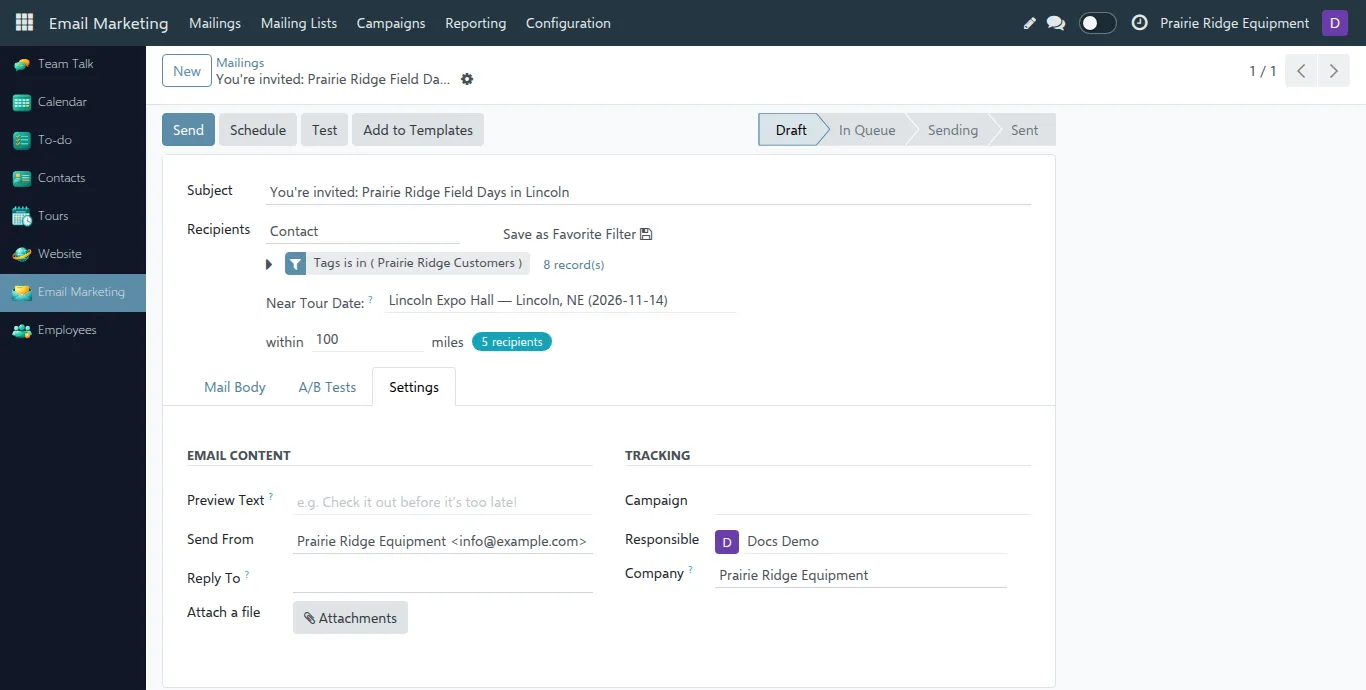
Section titled “3. Company of the mailing”Open the Settings tab to see the Company of the mailing (shown to users who work with several companies). It is set to the company selected when the mailing was created, and it cannot be changed once the mailing is sending. Our Location lists the addresses of this company.
When the mailing is sent, only the contacts that the Responsible user can see in that company are included. This is the same set as the counters on the form. Contacts of other companies are never included, even though the sending runs in the background as the system user.
Contacts that belong to internal users of the database are shared between all companies by Odoo, so they can appear in the mailings of every company.
4. How contacts are matched
Section titled “4. How contacts are matched”- The first five digits of a ZIP are used:
68110-2821is read as68110. This applies to contacts, to the ZIP you type and to company addresses. - A four-digit ZIP that lost its leading zero, typically after a spreadsheet import, is padded:
7821is read as07821. - Values that are not a US ZIP (for example Canadian postal codes) are ignored.
- The distance is the straight-line (great-circle) distance between the centres of the two ZIP areas, not the driving distance.
Troubleshooting
Section titled “Troubleshooting”| What you see | Why | What to do |
|---|---|---|
| Near is not visible | Recipients is not Contact | Set Recipients to Contact |
| A red bar at the top of the mailing | The ZIP is not a US ZIP or not in the dataset | Correct the ZIP, or pick another place |
| A company address is not in Our Location | It has no ZIP, or it belongs to another company | Add the ZIP on the address; check the company of the mailing |
| The badge shows 0 recipients | No place is filled in, no contact within the radius has a known ZIP, or the recipient rules exclude them | Fill in the place, increase the radius, check the recipient rules, fill in contact ZIPs |
| Fewer recipients than contacts in the area | Contacts without a ZIP or with a PO-box ZIP are skipped | Complete the contact ZIP |
| Fewer emails sent than the badge showed | Contacts without an email address are counted but cannot be emailed (standard Odoo) | Complete the contact email |