HQ rental user guide
Use this guide to prepare rental quotations in HQ, confirm a booking, check its stock reservation, and follow up on website Contact To Rent requests.
For product, price, warehouse, and email setup, see the Rental admin guide.
Before you begin
Section titled “Before you begin”- Select the correct company in HQ and use that company’s customer, pricelist, and warehouse. Check these again before confirming a booking.
- The physical product must be marked Rental and have an applicable rental price. Add that product itself to the order, not a separate service product.
- For stock-controlled equipment, the product must have Track Inventory enabled, the warehouse must support rentals, and stock must be in its rental locations. Ask an administrator to correct setup or stock issues rather than bypassing a warning.
- Decide the rental start and end, including the time. HQ displays date-times in your user timezone; agree the actual handover times with the customer.
Quantity means physical items, not days or hours. Renting one machine for several days still uses quantity 1. The rental period determines the price of that item.
Create and confirm a rental order
Section titled “Create and confirm a rental order”- Open Rentals → Quotations → New.
- Select the customer. Check the company, warehouse, pricelist, and Rental Order setting.
- Set Rental Start and Rental End in the header. These are the default dates for the rental lines. The start date-time must be earlier than the end date-time.
- Add the physical rental product under Order Lines and enter the item quantity.
- If one line needs different dates, use the order-line column selector to show Line Rental Start and Line Rental End. These columns are hidden by default. Set both values, or leave both empty to use the header dates. A line’s own period controls its pricing and stock schedule; it does not change other lines.
- Click Update Rental Prices. Review the rental periods, item quantities, unit prices, taxes, and total. Recheck prices after changing dates or products.
- Save the quotation. Send it to the customer when ready. Saving or sending a quotation does not confirm the booking or reserve stock.
- Once the customer agrees, click Confirm. Resolve any price or availability warning before proceeding.
- Open the linked transfer and check the product, quantity, locations, scheduled date, and reservation status. Confirmation is a booking, not proof of handover.
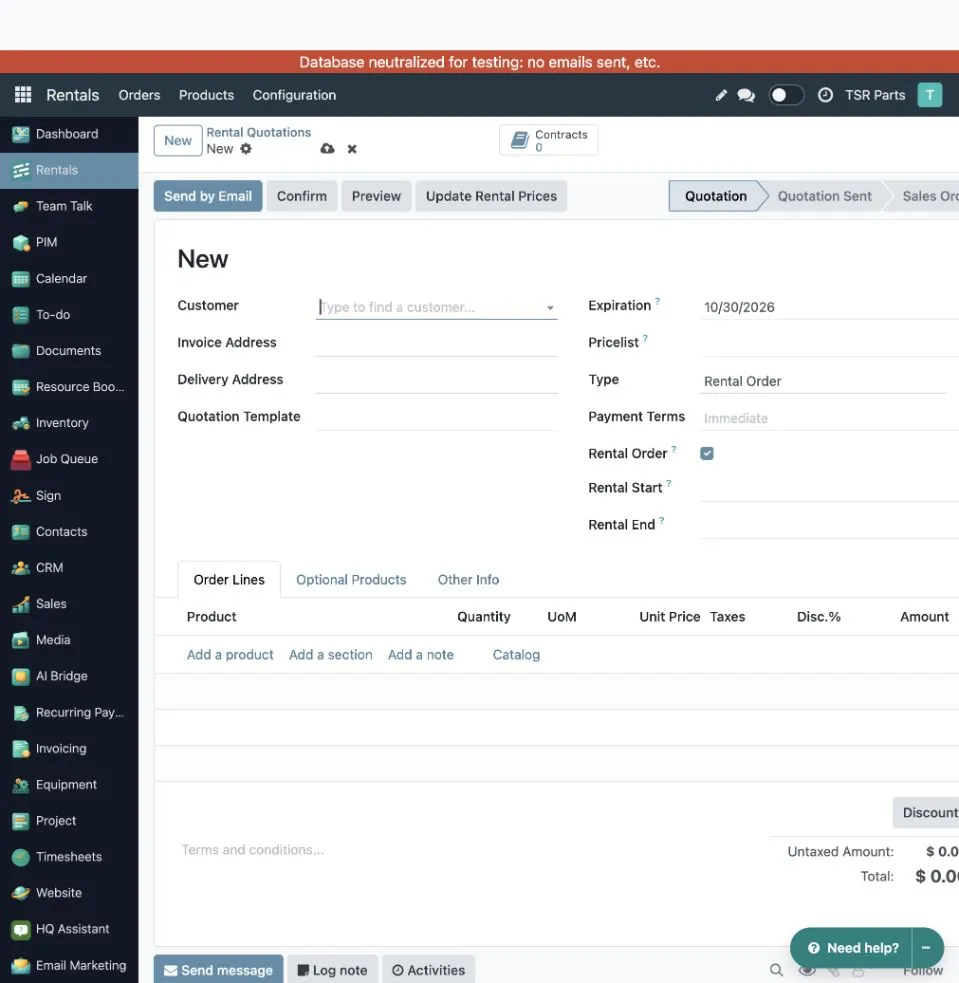
This earlier illustrative screenshot shows the default rental dates and Order Lines. Use Update Rental Prices before sending or confirming a quotation.
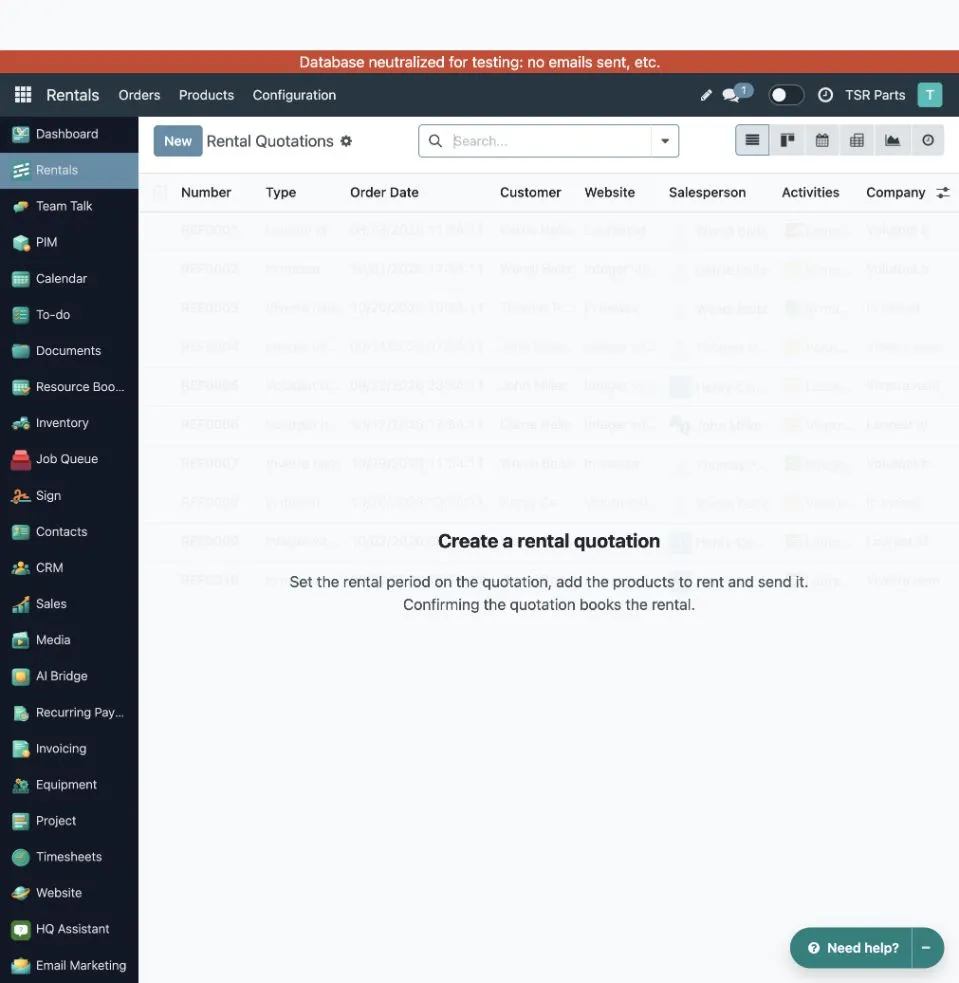
Draft quotations appear under Rentals → Quotations; confirmed bookings appear under Rentals → Orders. Use New to start a quotation.
What confirmation does
Section titled “What confirmation does”HQ checks that rental lines have a period and an applicable rental price. For products with Track Inventory enabled, it checks the warehouse’s rental fleet against confirmed bookings that overlap the requested period, then creates the rental stock moves. Insufficient stock prevents confirmation.
Products without Track Inventory do not receive quantity-based availability checks or rental stock moves. Marking a product Rental alone does not enable inventory tracking.
The rental dates of a confirmed order and its lines cannot be changed. If the period must change, cancel the booking and book it again, coordinating any existing transfers with the warehouse team.
Worked example: one item, one day, confirmed and reserved
Section titled “Worked example: one item, one day, confirmed and reserved”This example was exercised in HQ with isolated QA records. It demonstrates a completed booking and stock reservation, not a completed rental handover or return. The product was unpublished and the customer had no email address; no website request was submitted for this example.
1. Check the product and price
Section titled “1. Check the product and price”The product HQ QA Rental Example was marked Rental, with Track Inventory enabled, no lot/serial tracking, and a Day rental price of USD 125.00. One physical item was available in Rental/Rental In in the selected company and warehouse.
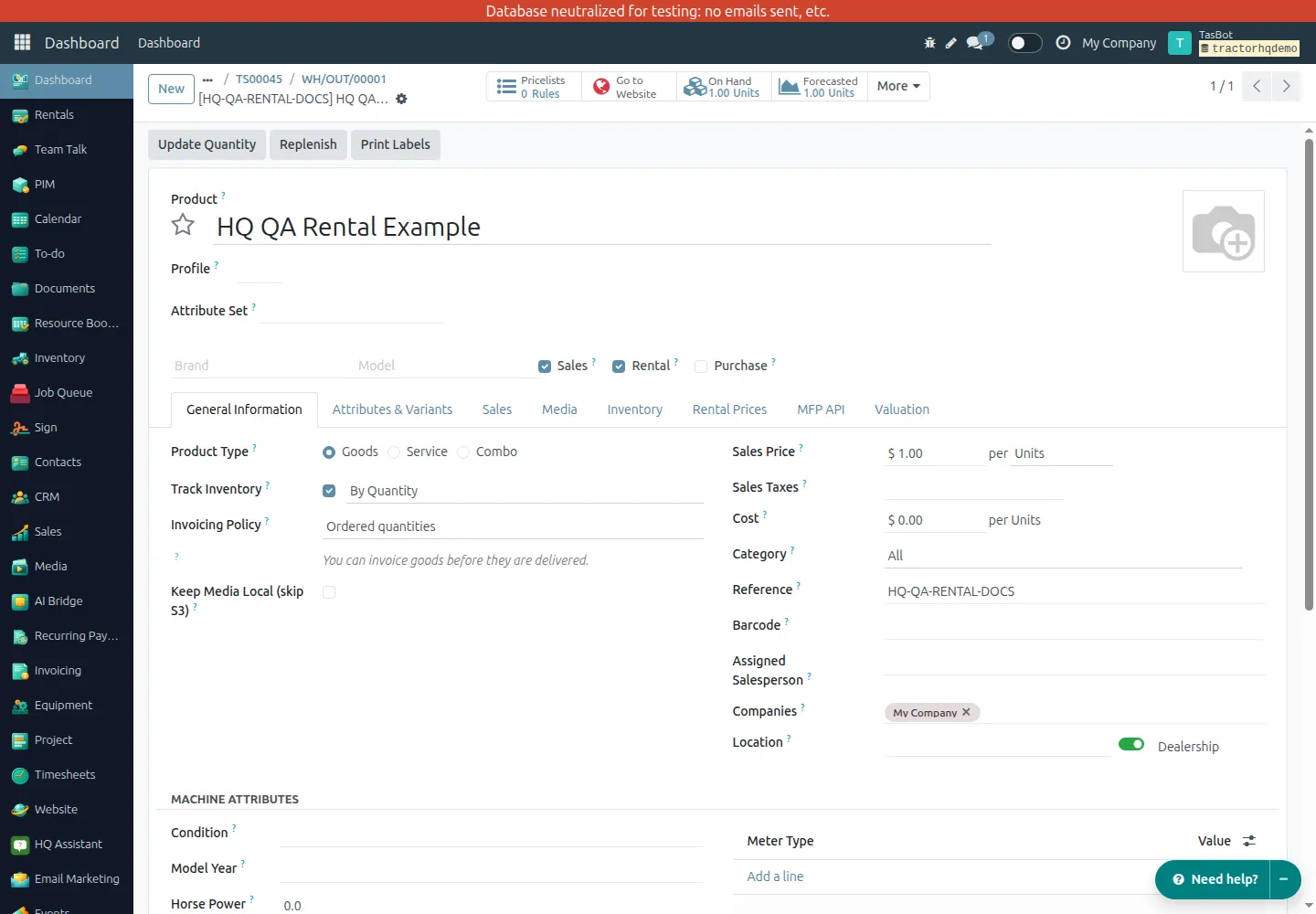
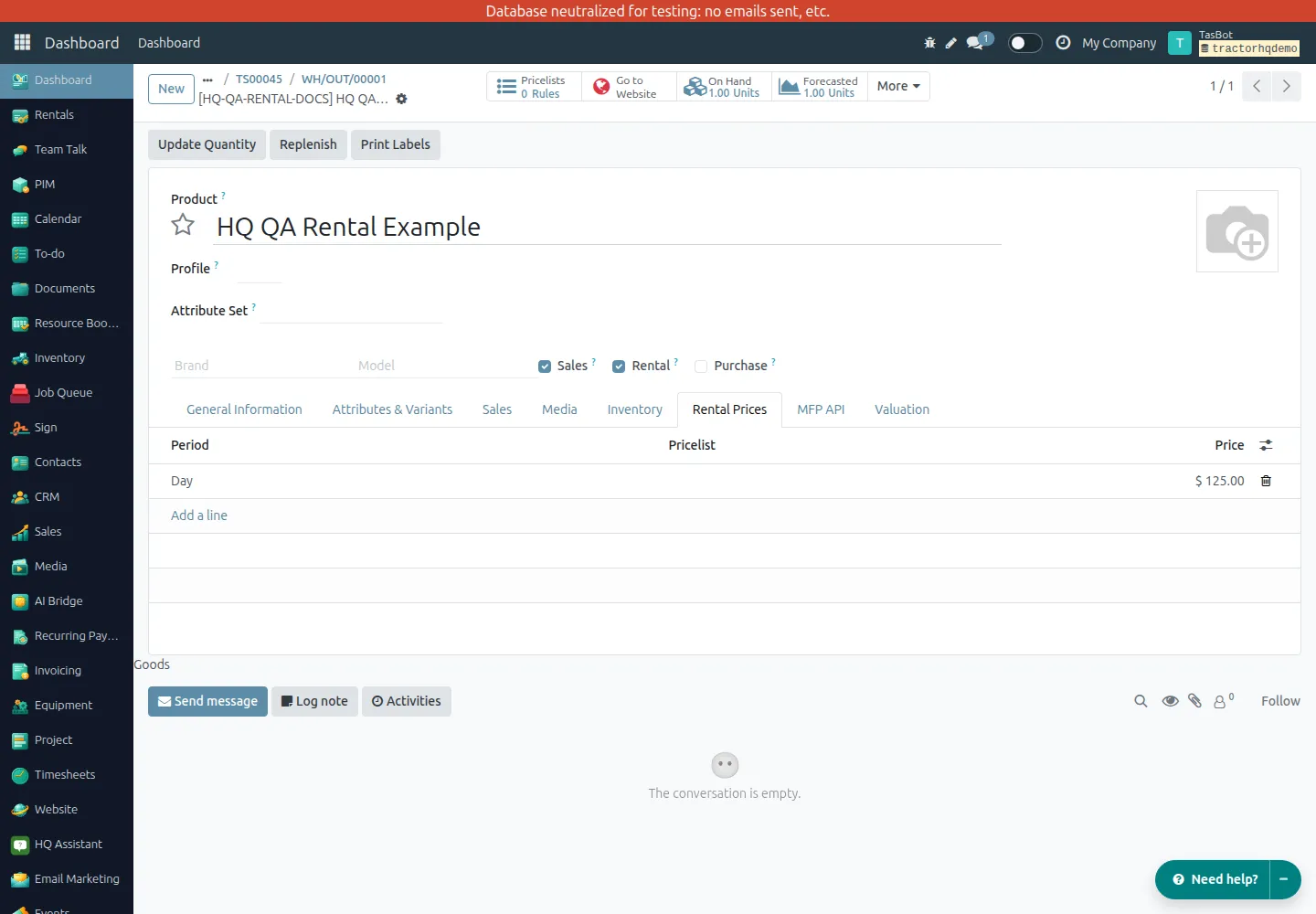
Inventory tracking and lot/serial tracking are different settings: this example reserves an item quantity without selecting a serial number.
2. Prepare and price the quotation
Section titled “2. Prepare and price the quotation”Quotation TS00045 used these values:
| Field | Verified value |
|---|---|
| Customer | HQ QA Rental Customer |
| Product | HQ QA Rental Example |
| Item quantity | 1 |
| Rental Start | 19 October 2026, 10:00 UTC |
| Rental End | 20 October 2026, 10:00 UTC |
| Line date overrides | Empty; the line uses the header period |
| Price after Update Rental Prices | USD 125.00 |
| Taxes | None in this isolated example |
| Order total | USD 125.00 |
The screenshots use the local HQ display timezone: 12:00 CEST corresponds to 10:00 UTC on these dates. Use your own user timezone when entering or checking times. The one-day period changes the price, not the physical item quantity.
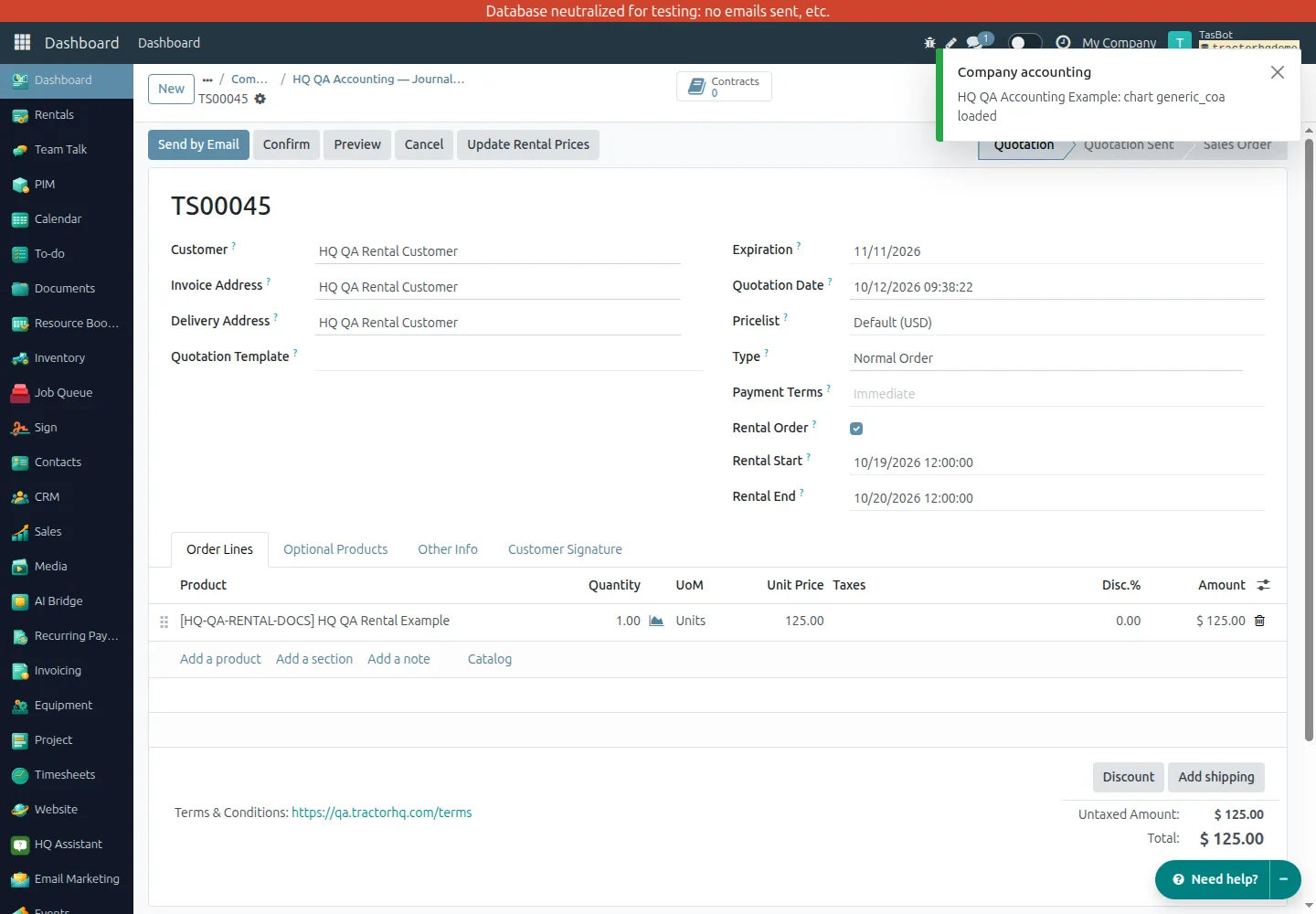
3. Confirm the booking
Section titled “3. Confirm the booking”Confirm was executed through the real HQ order screen. TS00045 became a confirmed rental order, with quantity 1 and total USD 125.00 unchanged.
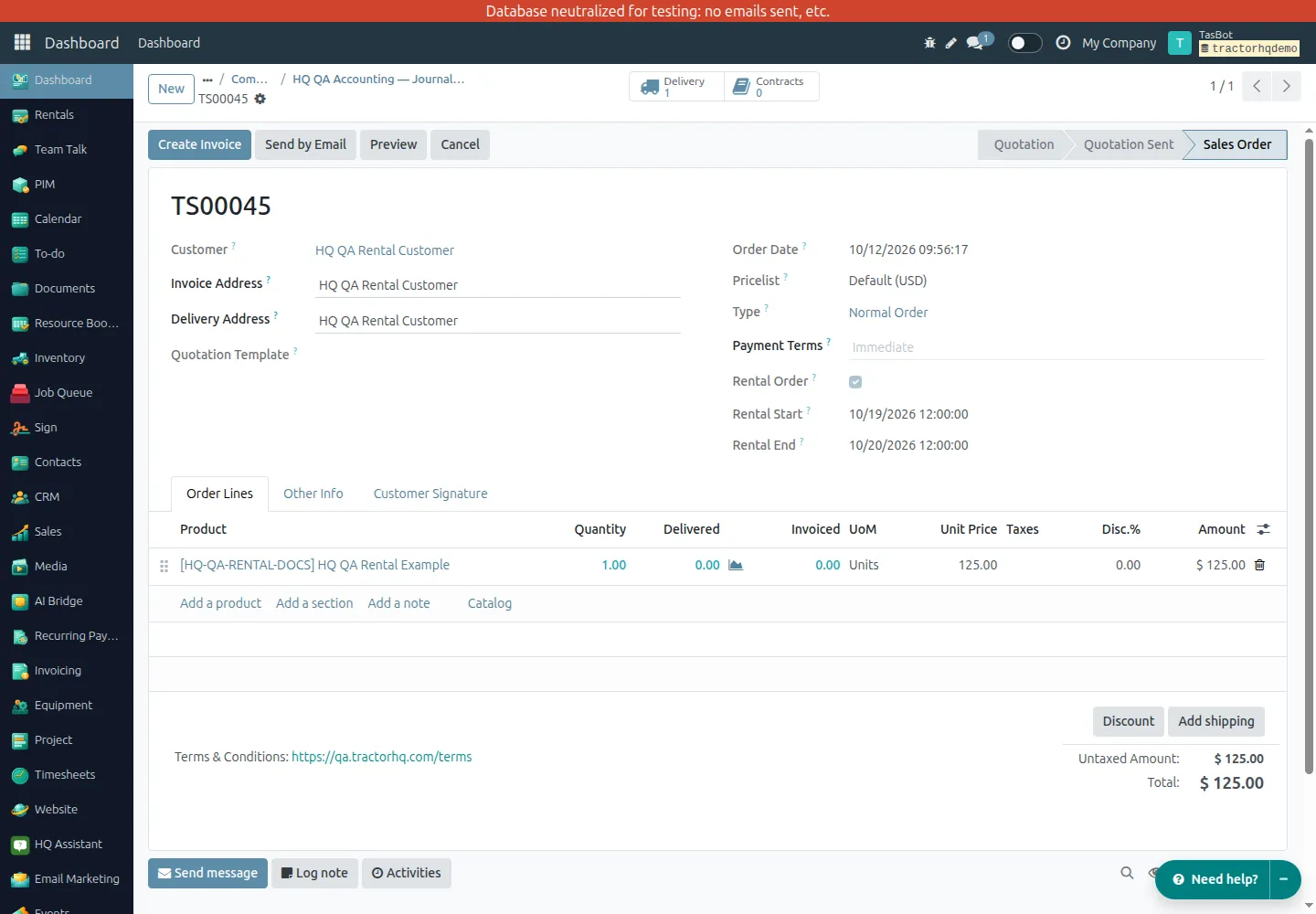
This is the booking milestone. The order is no longer merely a saved or sent quotation.
4. Check the stock evidence
Section titled “4. Check the stock evidence”The linked transfer WH/OUT/00001 was created for this booking:
| Check | Verified result |
|---|---|
| Product | HQ QA Rental Example |
| Transfer quantity | 1 physical item |
| Source | Rental/Rental In |
| Destination | Rental/Rental Out |
| Scheduled date | 19 October 2026, 10:00 UTC (12:00 CEST) |
| Reservation | Assigned; one item reserved |
| Source stock | One item on hand, one item reserved |
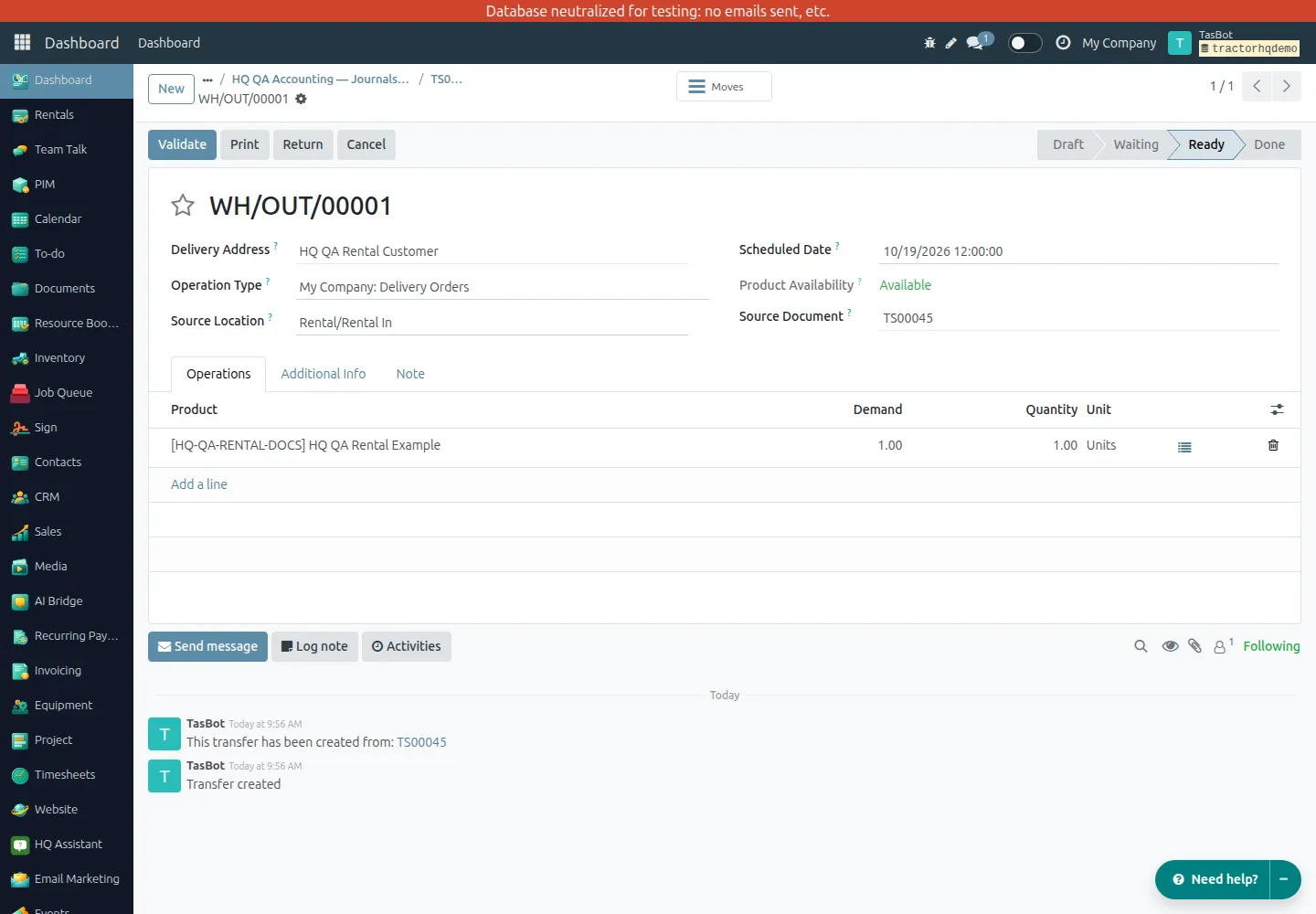
The stock record was checked as well as the transfer: its on-hand quantity remained 1, and its reserved quantity was 1. This is reservation evidence, not evidence that the machine physically left the warehouse.
The transfer was not validated and no invoice was generated in this example. Handover, return, invoicing, and payment remain separate operational steps.
Rental operations after booking
Section titled “Rental operations after booking”- Before handover: check the linked transfer and confirm that the correct item quantity is reserved, with the agreed date and rental locations.
- At handover: the warehouse team processes the actual transfer according to its procedures. Do not validate a transfer just to make the order look complete.
- At return: follow the warehouse’s rental return process and verify the resulting stock records. A confirmed booking alone does not establish that a return occurred.
- Billing: handle invoicing and payment separately. A confirmed rental order or a reserved transfer is not evidence of an invoice, a payment, or a completed rental.
For warehouse and pricing prerequisites, use the Rental admin guide.
Process a website Contact To Rent request
Section titled “Process a website Contact To Rent request”Customers can use Contact To Rent on a published rental product. This is a request for a quotation, not an instant paid booking. A valid submission creates a rental request, a CRM opportunity, and a draft rental order for the selected product, calendar dates, and quantity.
Stock is not checked or reserved at intake. HQ queues an acknowledgement email to confirm receipt of the request; that acknowledgement is not a quotation or a booking confirmation. A salesperson reviews the draft and sends the quotation separately. Seller notifications are also attempted, so submitting the form has real communication side effects.
The website screenshots below are retained from an earlier illustrative scenario. They are not screenshots of the verified TS00045 example above, and do not prove a new website submission, email delivery, or stock reservation.
Customer steps
Section titled “Customer steps”- Open the published rental product.
- Click Contact To Rent.
- Enter contact details, rental start and end dates, item quantity, and an optional message.
- Click Request quotation to submit the request.
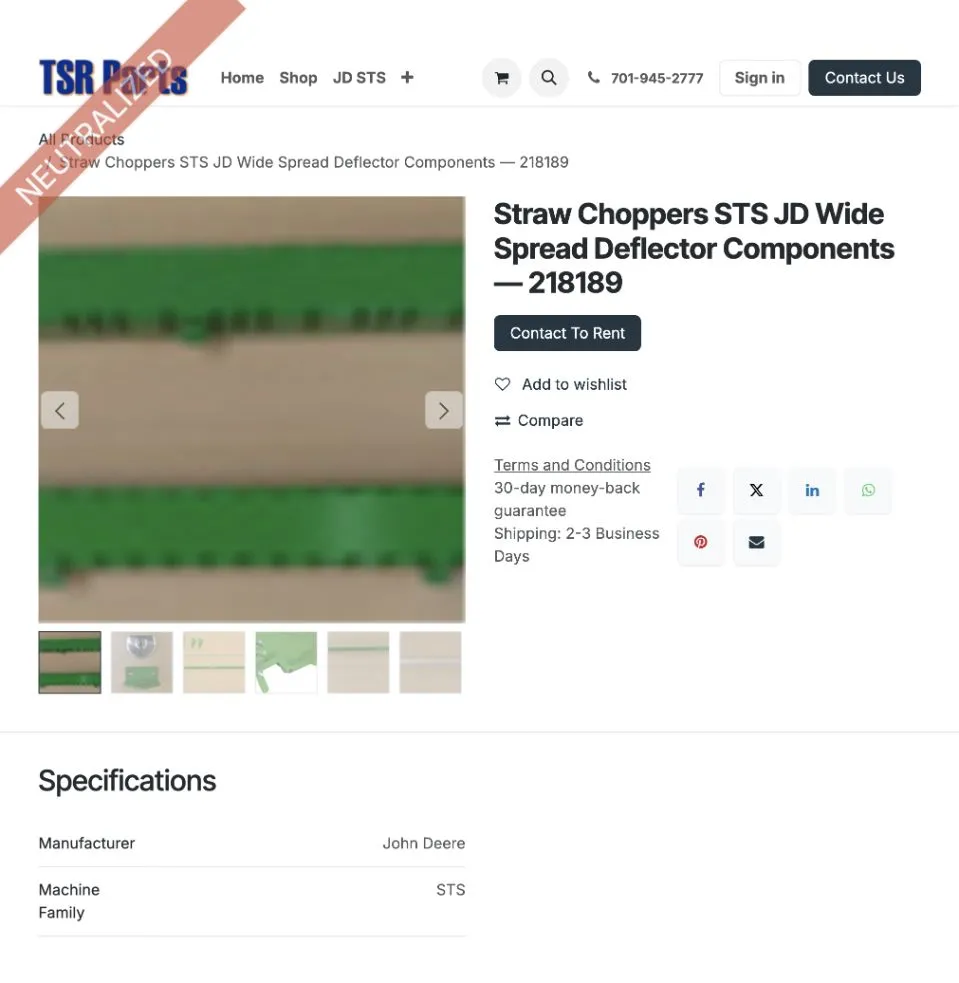
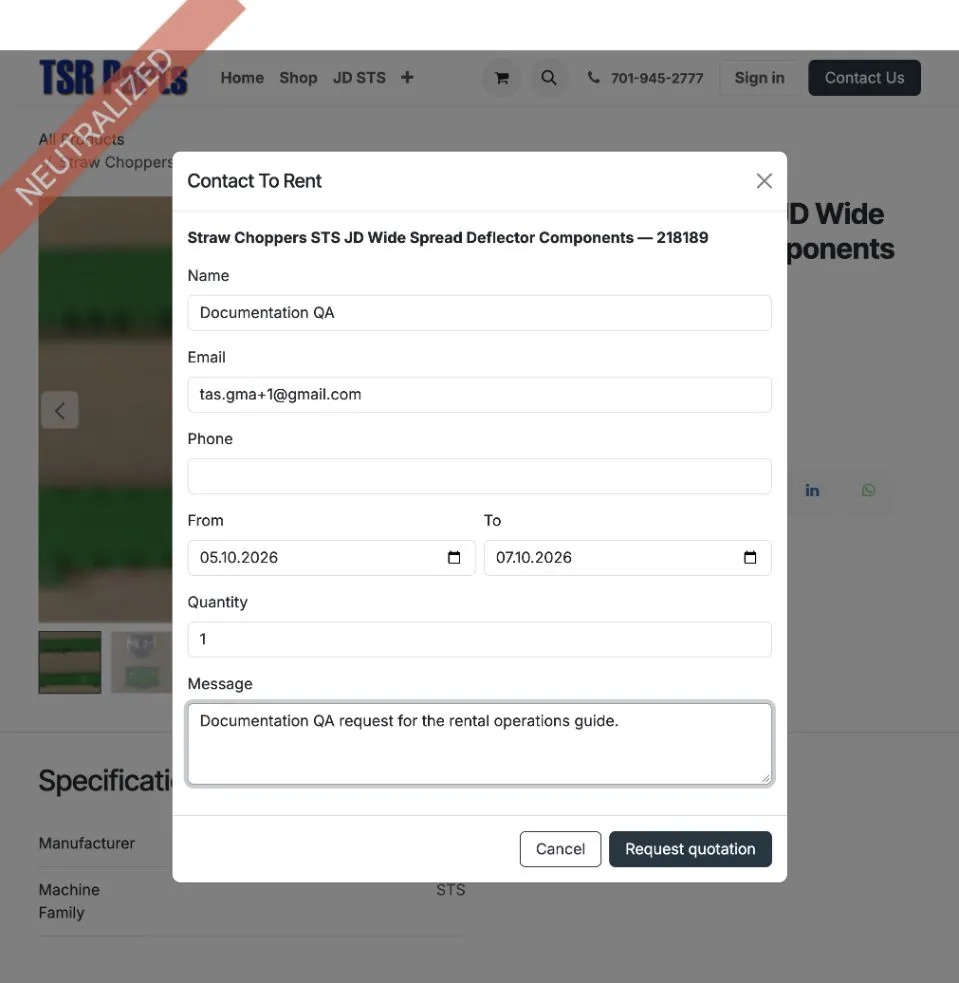
Requests require a published product marked Rental, an applicable rental price for that product/variant and the resolved pricelist, valid contact details including an email address, and an item quantity from 1 to 999.
The requested start date cannot be in the past. The end date may be the same day as the start or later, with a maximum difference of 730 days. Unlike the backend quotation’s precise date-times, the website uses calendar dates: its generated order runs from 00:00:00 UTC on the first day to 23:59:59 UTC on the last day, not local-time midnight boundaries. HQ displays these times in your user timezone. Review the converted times before quoting or confirming.
Replaying the same submission with the same request identifier and matching details returns the existing records rather than creating duplicates. A separate new request is not automatically merged just because it has similar details.
Contact person and phone
Section titled “Contact person and phone”The form may show a hint such as Questions? Contact TSR Location: 23456666, as in this earlier screenshot:
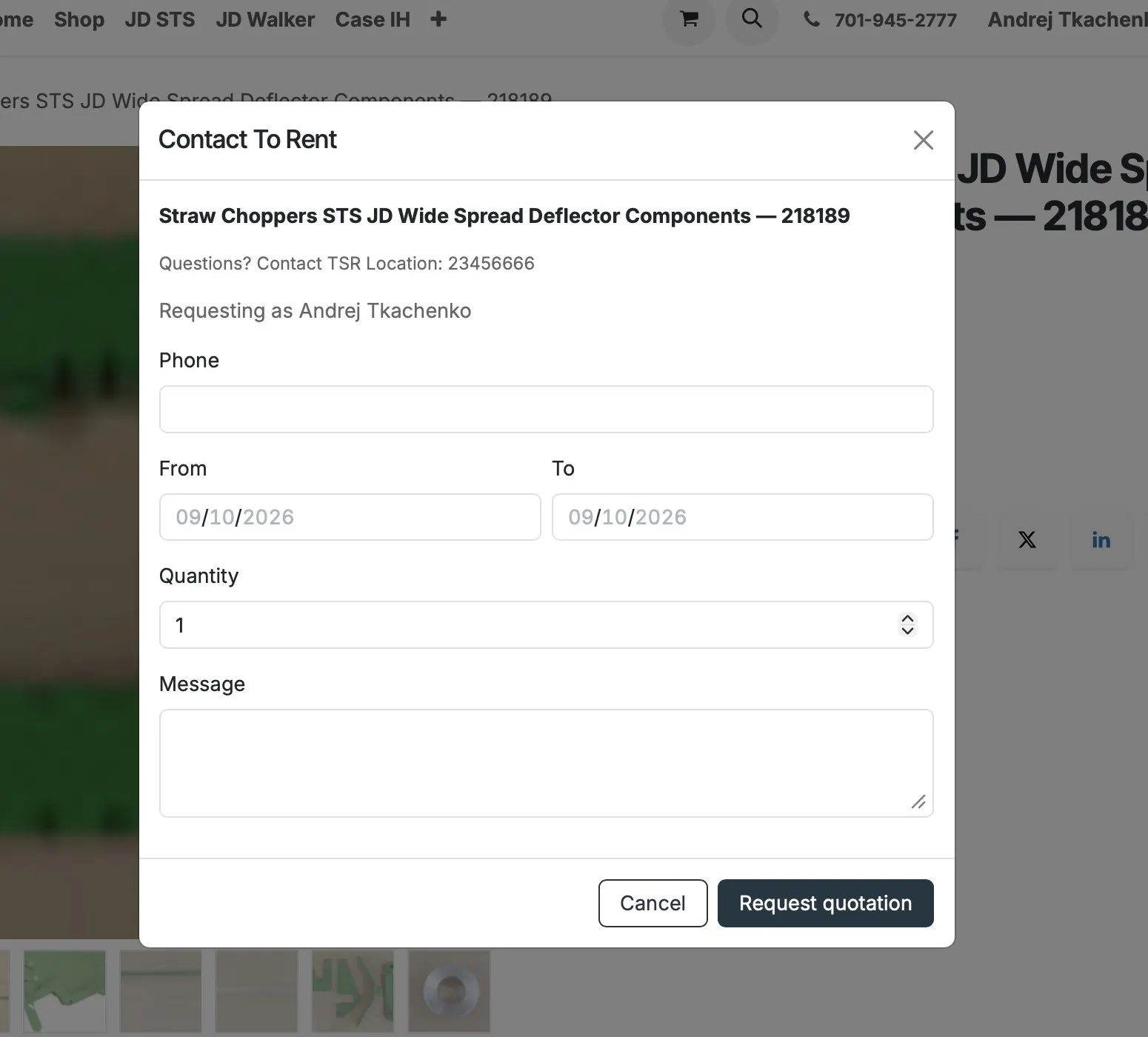
HQ considers the assigned salesperson, then the product’s dealer location, then the company. The first contact with a phone number is shown. If none has a phone number, the phone hint is omitted.
The rental request records the Contact Person and Contact Phone. Seller email is addressed to the dealer location, falling back to the company, with a copy to the contact person when appropriate and an address is available. Missing addresses or notification failures can prevent seller email; the request still needs follow-up.
Find the request, opportunity, and draft order
Section titled “Find the request, opportunity, and draft order”- Open CRM → Offers → Rental Offers. This view lists opportunities linked to website rental requests.
- Open the opportunity and its linked rental order, or find the draft under Rentals → Quotations.
- Open the Rental Request link on the opportunity or order to review the original dates, quantity, website, pricelist, and message.
- Check the customer, company, warehouse, converted rental times, and item quantity. Use Update Rental Prices and review the total before sending the quotation.
- After the customer agrees, click Confirm to run the availability check and book tracked stock. Check the resulting transfer as described above.
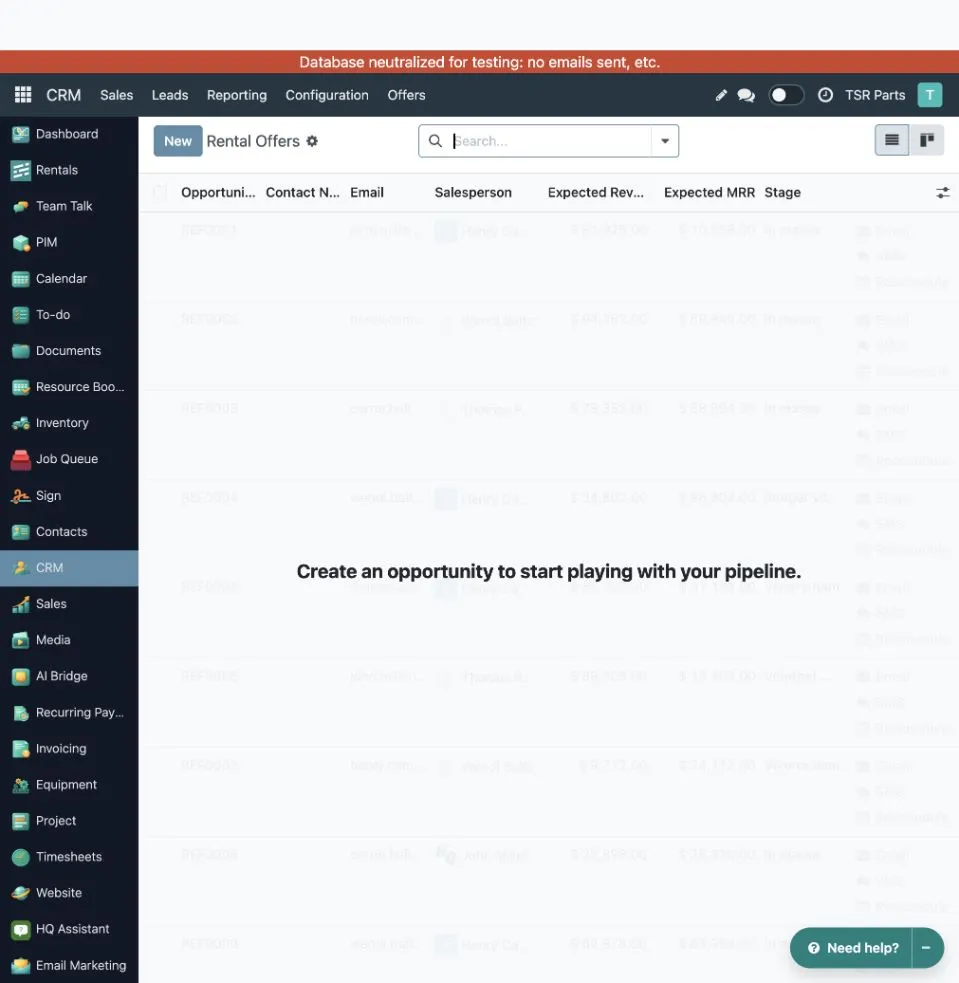
If the acknowledgement could not be sent, open the request and check Email Status. Retry Acknowledgement Email requeues an acknowledgement that failed or was cancelled; it is not a way to send the quotation. A queued email is not proof that the customer received it.
Troubleshooting and limits
Section titled “Troubleshooting and limits”| Symptom | What to check |
|---|---|
| Rental dates or price action are missing | Open the rental workflow and check Rental Order is enabled. |
| Per-line dates are missing | Show Line Rental Start and Line Rental End in the order-line column selector. |
| Period validation fails | Backend start must be earlier than end; line overrides require both values. Website same-day dates are allowed. |
| No rental price | Ask an administrator to check product/variant rental prices and the order’s pricelist. Then update rental prices. |
| Not enough stock to confirm | Check warehouse rental setup, stock in rental locations, item quantity, and overlapping confirmed bookings. A website request does not guarantee availability. |
| No rental stock transfer | Check Track Inventory. Products without it intentionally create no rental stock moves. |
| Confirmed dates cannot be edited | Cancel and book again; coordinate existing transfers with the warehouse team. |
| Website button or submission is unavailable | Check publication, Rental, website/company scope, applicable price, dates, quantity, and required contact details. |
| Customer has only an acknowledgement | Review and send the actual quotation; the acknowledgement does not book stock. |