Create and publish Decorated Dozen boxes
A Ready Box in HQ is a Decorated Dozen on the website: twelve cookies in a fixed combination of designs. The customer chooses the box and how many boxes to buy; they do not rebuild its design mix.
What you can edit
Section titled “What you can edit”| Box owner | What a franchisee can do |
|---|---|
| Your franchise, such as Hastings | Create and edit the box, its composition, price, and publication |
| Eileen’s Colossal Cookies | View the brand box, hide it at your store, or duplicate it to your franchise; its original composition stays with the brand |
You do not need the Franchise Administrator role to create a local box.
Before creating a box
Section titled “Before creating a box”- Sign in with your individual HQ account and check your company.
- Choose published small designs that your store can make. Restricted designs are not offered in this picker.
- Prepare the price per box, a customer-facing name, and the occasion category.
- For a new box, use one of the combinations shown by the form: 3 different designs × 4 cookies or 4 different designs × 3 cookies. Existing brand boxes can have other preset mixes; do not use those legacy mixes as a template for a new local box.
Worked example: Hastings Celebration Dozen
Section titled “Worked example: Hastings Celebration Dozen”This QA example was created and saved through the franchisee’s Ready Boxes form, then published and checked on the website with Hastings selected.
| Field | Example |
|---|---|
| Name | Hastings Celebration Dozen |
| Owner | Hastings |
| Category | Birthday |
| Price | USD 27.00 per box |
| Cupcake | 4 cookies |
| Crown | 4 cookies |
| Heart | 4 cookies |
| Total | 12 cookies |
1. Start the box
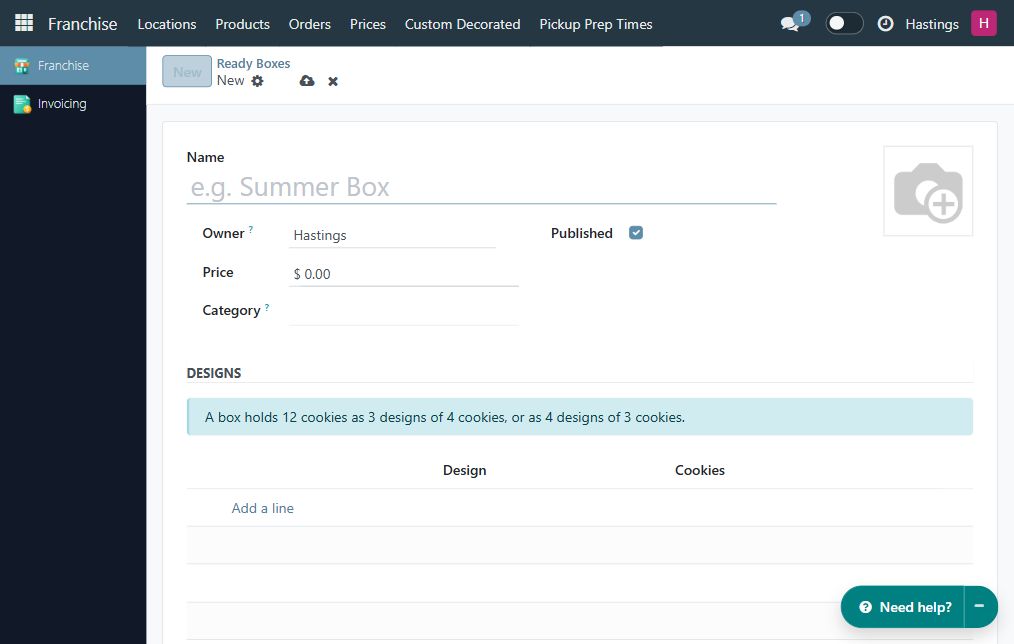
Section titled “1. Start the box”- Open Franchise → Custom Decorated → Ready Boxes.
- Click New.
- Check Owner is your own franchise. Enter the name and the price per box.
- Choose Category, such as Birthday. This controls where shoppers can find the box in the Decorated Dozen collection.
- Turn Published off while preparing the box; it may be on by default.
2. Choose the designs and quantities
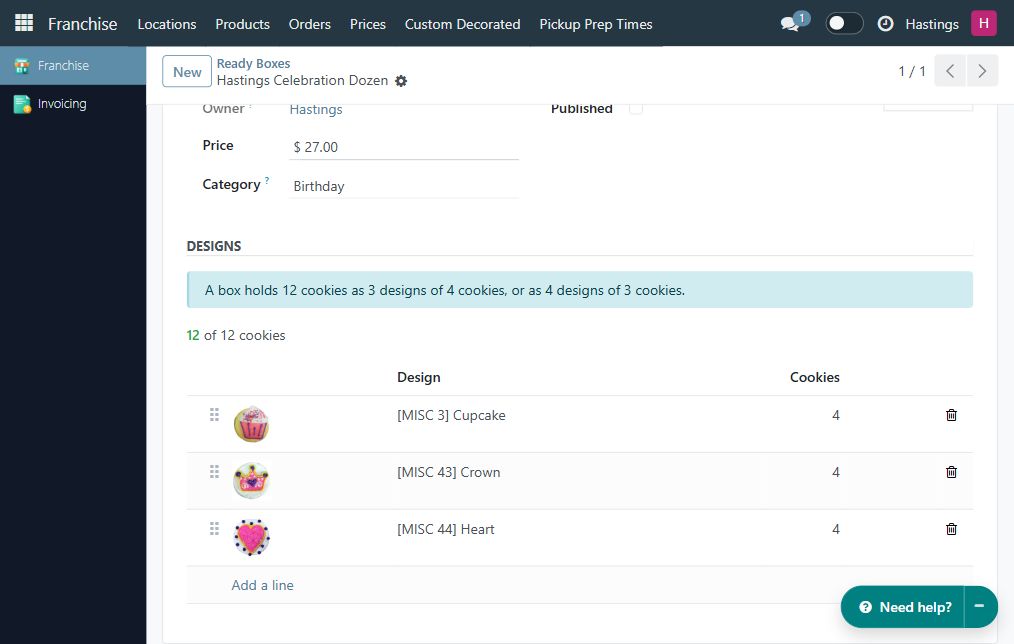
Section titled “2. Choose the designs and quantities”- Under Designs, click Add a line.
- Search by design name or code, select the design, and enter Cookies = 4 for a three-design box.
- Add two more different designs, each with four cookies. For a four-design box, use three of each instead.
- Click outside the edited row so the quantity is applied.
- Check the saved form shows 12 of 12 cookies.
Each design appears once in the composition. Quantity is the number of individual cookies of that design inside one box, not the number of boxes being sold.
If the design cannot be found, check its small-size eligibility, publication, and restricted status with the brand. If the form reports an invalid mix or total, correct the rows before saving.
3. Save and publish
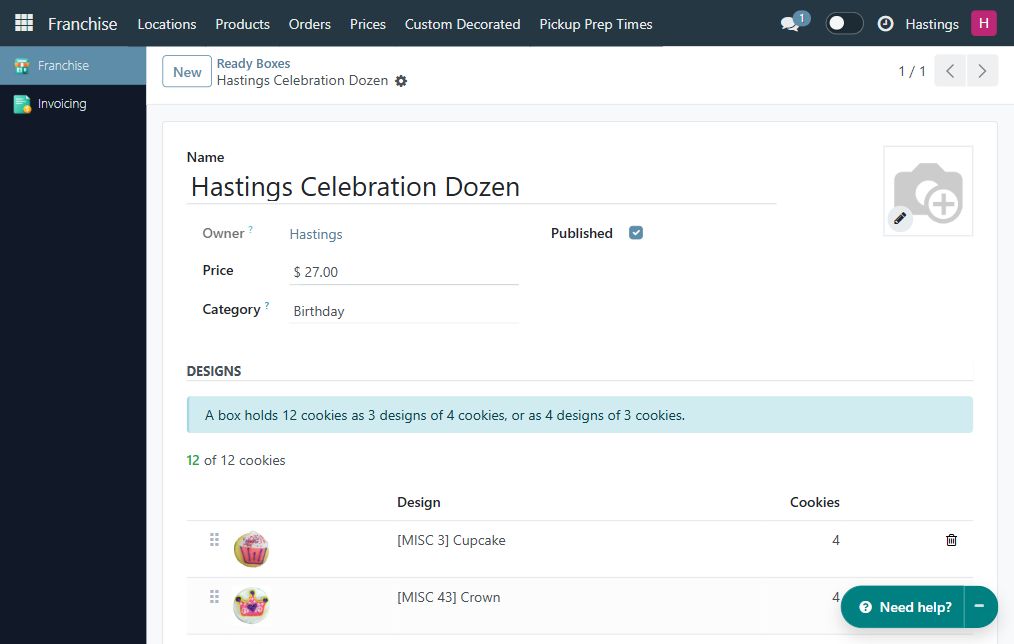
Section titled “3. Save and publish”- Use Save manually near the title and wait for saving to finish.
- Recheck the owner, name, category, price, and composition.
- If a photo field is available, add a representative photo that matches what the customer will receive. The storefront can also show the designs together as the box composition.
- Turn Published on and save again when the box is ready to sell.
4. Verify the published result
Section titled “4. Verify the published result”- Open Decorated Dozen on the Eileen’s website, at
/custom-dozen. - Use Find a store / Change store to choose your store. This is required even if you already selected your company in HQ.
- Find your category or search for the box name.
- Select the box and check all design quantities and the per box price.
- Confirm the page describes one complete box of twelve cookies and matches the composition you saved.
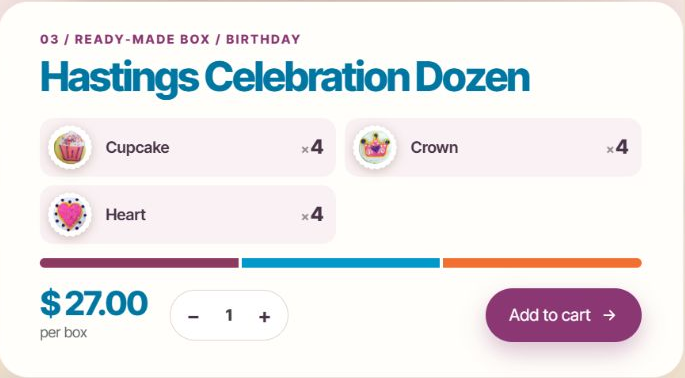
The example appeared only after Hastings was selected. Without a store selection, the collection showed the brand boxes, not the new Hastings-only box.
Start from a brand box
Section titled “Start from a brand box”Open a brand-owned box and choose Duplicate to my franchise. Check the copied box’s owner, name, price, category, and publication before editing. Review the current composition rules when saving a copy. Editing the copy does not change the original brand box or automatically replace it at your store.
If you no longer want to sell the original brand box, open that original and use Hide at my stores, select your store, and save. This hides it locally without unpublishing it for other franchises.
When a box is missing from the website
Section titled “When a box is missing from the website”Check these in order:
- The shopper has selected the correct store.
- The box is active and Published is on.
- The box belongs to your franchise or to the brand.
- Its designs remain published and eligible for boxes.
- None of those designs is switched off at your store.
- A brand box is not hidden through Hide at my stores.
- The selected category/search filter is not excluding it.
If the box form warns that a design is switched off, use Fix availability and review the design for your store. Publication alone does not override local unavailability.
Stop selling a box
Section titled “Stop selling a box”For your own box, turn Published off and save. Use Archive when retiring it from active use. A box that has already been ordered can be archived but cannot be deleted; keep the history of what was sold. Use Hide at my stores for a brand box instead of changing its global publication.