Stripe payment provider setup
Connect your company’s Stripe account to its TractorHQ website without emailing or texting API keys. You enter the credentials directly in your own HQ account, then your TractorHQ representative reviews the connection before live payments are enabled.
This guide uses the manual restricted-key setup. The Connect Stripe button starts a separate onboarding flow; you do not need to click it to follow these steps.
Before you start
Section titled “Before you start”You need:
- Access to the Stripe account that belongs to the company receiving payments, with permission to manage API keys.
- An HQ user with the Payment Provider Manager level (or an HQ administrator) who can access Payment Providers and edit Stripe credentials. Developer mode exposes technical options; it does not grant these permissions. See Payment provider access: roles and structure for who grants the level.
- The correct company selected in HQ and confirmation of the intended website/domain.
- A TractorHQ representative available to review the connection and finish the payment configuration.
1. Prepare the company’s Stripe account
Section titled “1. Prepare the company’s Stripe account”- Sign in at stripe.com or create a business account.
- Check that you are viewing the correct business/account, especially if you manage several companies.
- Complete Stripe’s required business information, identity verification, contact details, and payout bank account.
- Before going live, resolve any Stripe activation requirements or restrictions on accepting payments.
Expected result: you have access to the company’s Stripe account and know whether you are configuring a sandbox/test environment or live payments.
2. Create a restricted API key
Section titled “2. Create a restricted API key”- In the Stripe Dashboard, open Developers → API keys and choose Create restricted key. Dashboard navigation can vary; use Stripe’s API keys page if needed.
- Name the key TractorHQ so you can identify its purpose later. For a Headland website, use Headland.
- Grant Write access to these resources, as specified in the Headland / TractorHQ client setup guide:
- Payment Intents
- Setup Intents
- Payment Methods
- Customers
- Charges / Refunds — if Stripe lists these separately, include both.
- Webhook Endpoints
- If you plan to offer Apple Pay, also grant Write access to Apple Pay Domains.
- Leave unrelated permissions at None / no access. Do not grant unrestricted access to work around an error; ask your representative to identify the missing permission.
- Create the key and keep it available securely for entry into HQ. Also locate the account’s Publishable key.
Use both keys from the same Stripe account and environment:
- Live production setup: publishable key starts with
pk_live_; restricted key starts withrk_live_. - Sandbox/test setup: publishable key starts with
pk_test_; restricted key starts withrk_test_.
These are prefixes, not usable example credentials. A restricted key is a secret even though its permissions are limited. Do not send it to your representative, put it in a support ticket, or include it in a screenshot.
Expected result: you have a matching publishable key and restricted key for the intended environment, with only the required permissions.
3. Open HQ in developer mode
Section titled “3. Open HQ in developer mode”- Sign in to your company’s HQ website.
- Open
/hq?debug=1on that same hostname. For the QA example, the address ishttps://qa.tractorhq.com/hq?debug=1. - If the address already has a query string, append
&debug=1instead of adding a second?. - Check the company selector in the top bar. Select the company you are configuring; the screenshots use Tractor HQ.
Expected result: you are signed in to the correct HQ environment with the intended company active.
4. Open that company’s Stripe provider
Section titled “4. Open that company’s Stripe provider”- Open the Website application and choose Configuration → Payment Providers. If you have the Payment Provider Manager level and no Website access, open Invoicing → Configuration → Online Payments → Payment Providers instead.
- Both menus open the same list of providers.
- Find Stripe and confirm its Company matches the intended company.
- Open the existing Stripe record. Do not create a second provider merely because it is Disabled.
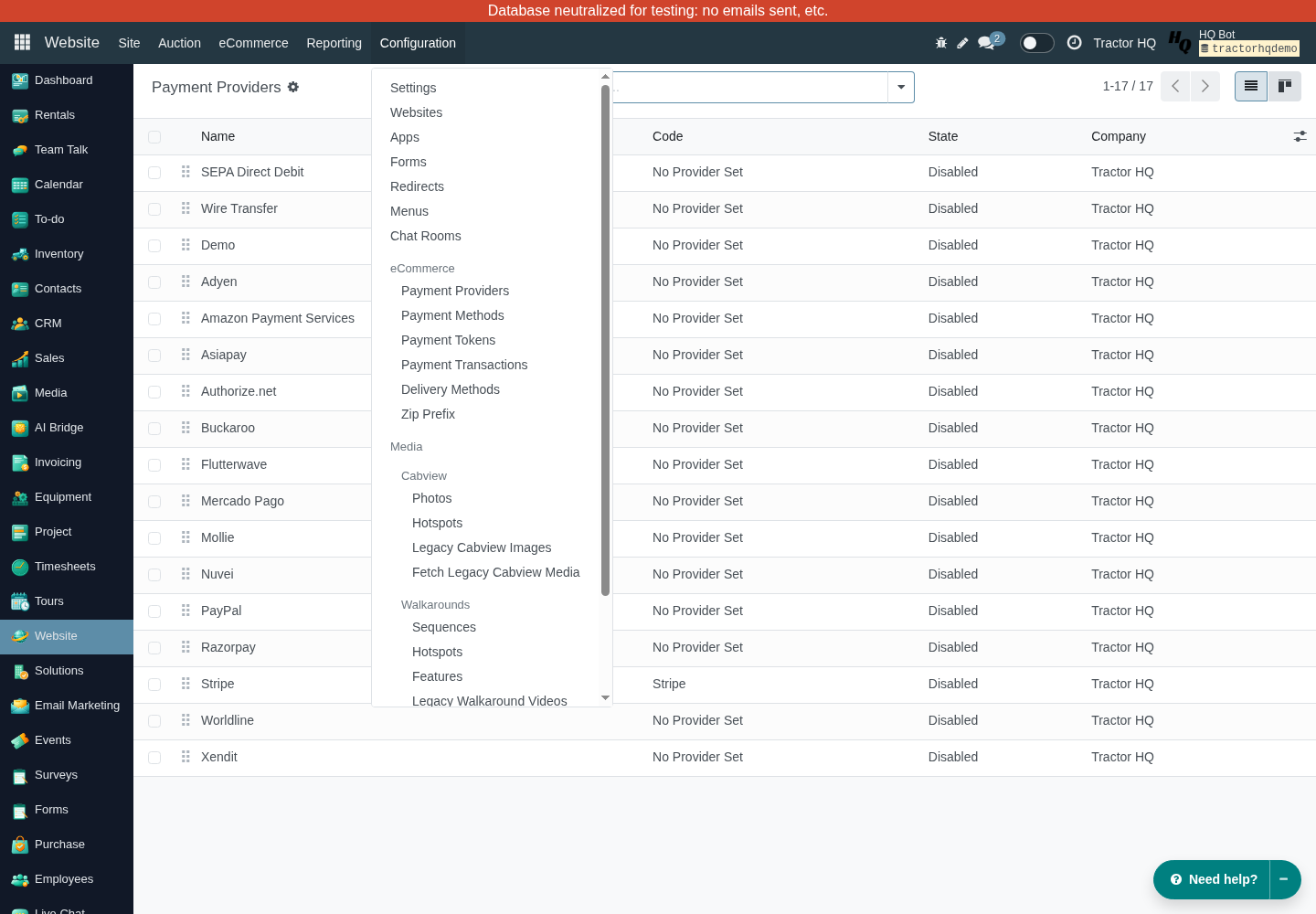
On the Stripe form, check Company again. Check Website with your representative if your company has multiple sites. The blank Website field in the QA example is not an instruction to clear your own website assignment.
5. Enter the credentials and save
Section titled “5. Enter the credentials and save”Open the Credentials tab and enter:
- Publishable Key: your matching Stripe publishable key (
pk_live_for production, orpk_test_for a sandbox/test setup). - Secret Key: your restricted key (
rk_live_for production, orrk_test_for a sandbox/test setup). The HQ field is labeled Secret Key, even when you are using a restricted key. You do not need to replace it with an unrestrictedsk_key.
Use Save (the cloud/check icon, accessible as Save manually in the QA interface), then reopen the record if needed to confirm the form saved without errors. Do not reveal the password-style field for a screenshot.
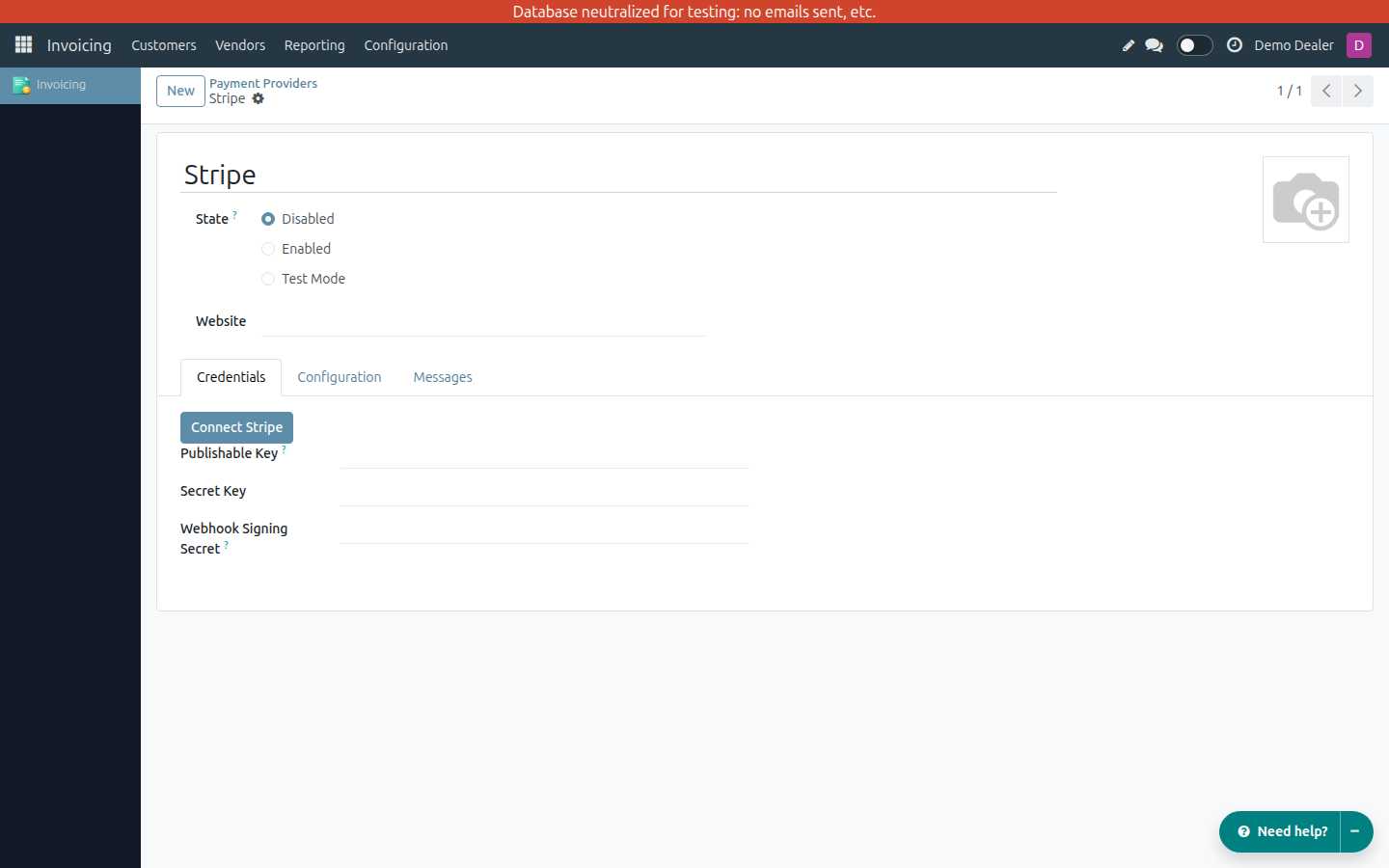
The Payment Provider Manager sees the same fields as an administrator. The next screenshot shows the administrator view for the Tractor HQ company.
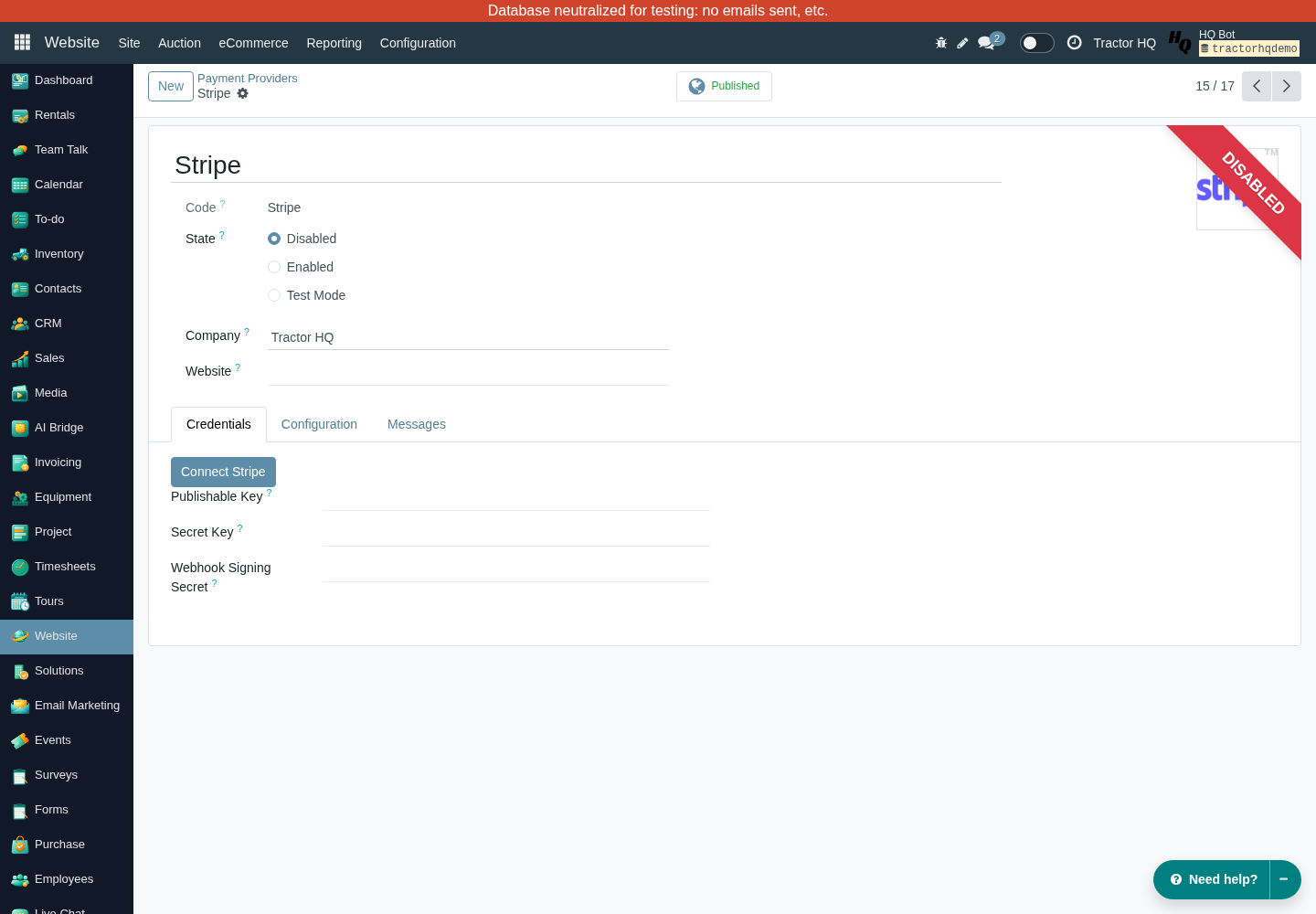
The screenshot intentionally contains no keys. Connect Stripe is visible because this QA record has no credentials; continue with manual entry for this guide.
Expected result: both credentials have been saved on the correct company’s provider. Saving credentials alone does not verify a payment or complete the webhook setup.
6. Generate the webhook
Section titled “6. Generate the webhook”A webhook lets Stripe notify HQ about payment events; HQ uses the Webhook Signing Secret to verify those notifications.
- After saving the credentials, look for Generate your webhook in the Credentials tab, next to Webhook Signing Secret.
- Click it once and check the resulting success or error notification.
- Reopen the provider and confirm that Webhook Signing Secret is populated. Keep its value hidden.
- Ask your representative to verify in Stripe that the webhook destination points to the intended public HTTPS website, not a QA or another company’s hostname, and that it uses the matching Stripe environment.
Do not paste an API key into Webhook Signing Secret. That field holds a separate secret associated with the webhook endpoint, not your publishable or restricted API key.
Expected result: the signing secret is stored in HQ and the webhook destination has been checked for the correct site and Stripe environment. Its presence alone does not prove event delivery works.
7. Contact your TractorHQ representative
Section titled “7. Contact your TractorHQ representative”Tell your representative that the credentials have been saved and the webhook has been generated. Share only the company name, website/domain, environment (test or live), and any error message with secrets removed. Do not send keys or screenshots that expose them.
Your representative will review the connection and finish the payment configuration, including:
- The correct company, website, Stripe account, and key environment.
- The payment journal, available payment methods, and any currency, country, or amount restrictions.
- Successful webhook delivery and the corresponding payment status in HQ.
- A controlled payment test in the agreed environment, including refund behavior if applicable.
- Production activation only after the agreed checks are complete.
The Configuration tab contains options such as Allow Saving Payment Methods, Capture Amount Manually, Allow Express Checkout, and Payment Journal. Do not copy QA defaults without discussing your company’s requirements.
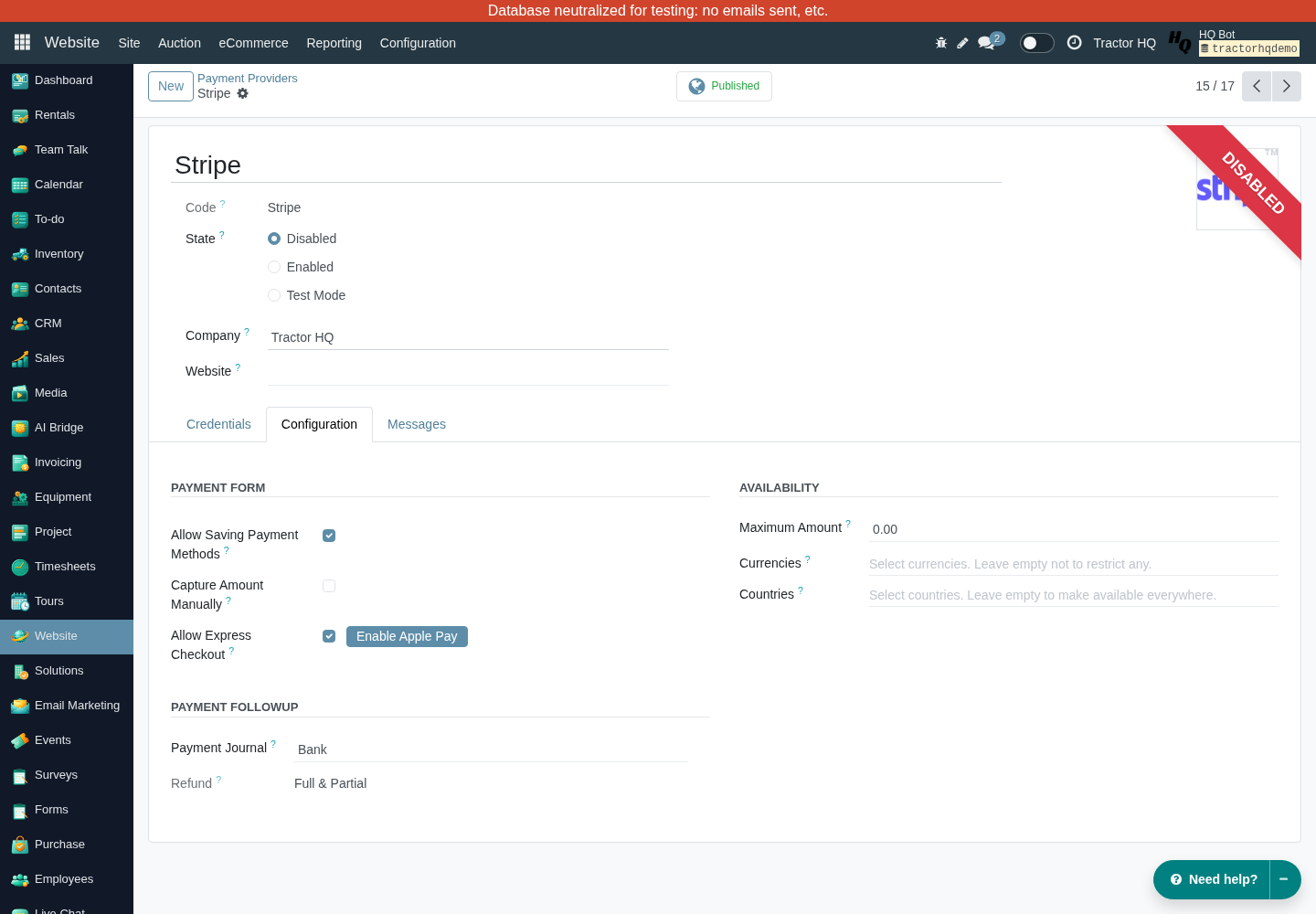
For Apple Pay, the representative should also review Allow Express Checkout and Enable Apple Pay on this tab and verify the intended live domain. Granting the Apple Pay key permission alone does not finish Apple Pay activation; do not enter live credentials into QA to try the button.
Expected result: your representative confirms the connection is ready before your production provider is set to Enabled. Do not use a real customer card for a QA demonstration.
Troubleshooting
Section titled “Troubleshooting”- Payment Providers or credential fields are missing: check the active company, enable developer mode, and ask your Solutions Manager to give you the Payment Provider Manager level in Online Payments. Do not create another account or provider as a workaround.
- Generate your webhook is missing: save the restricted key first and check whether a signing secret already exists. If both conditions are correct, ask your Solutions Manager to check that you have the Payment Provider Manager level.
- Stripe reports insufficient permissions: review the restricted-key permissions above and have your representative inspect the specific Stripe error. Do not switch to an unrestricted key by default.
- Authentication or mode error: check for accidental whitespace and verify that both keys belong to the same Stripe account and environment. Re-enter them privately; never send their values to support.
- Webhook fails or payment status does not update: have your representative check the actual webhook destination, event delivery/error details, signing secret, and matching test/live environment. Do not repeatedly regenerate endpoints.
- Stripe is not offered at checkout: after setup is approved, have your representative check State, publication, website assignment, enabled payment methods, availability restrictions, and the order’s amount/currency. A successful save does not guarantee checkout availability.
Completion checklist
Section titled “Completion checklist”- Correct HQ environment, company, and intended website confirmed.
- Stripe business account ready for the intended payment environment.
- Restricted key has the required permissions and no unrelated access.
- Matching publishable and restricted keys saved in the correct fields.
- Webhook signing secret stored and destination verified.
- TractorHQ representative notified without disclosing secrets.
- Representative completes payment/webhook testing and approves activation.
References
Section titled “References”This guide adapts the Headland / TractorHQ — Stripe Payment Setup client handout (restricted-key workflow). See also:
- Stripe API keys: types, security, and sandbox versus live mode
- Odoo 18 Stripe provider: manual credential input, webhook, and Apple Pay
The client handout specifies a restricted key; general Odoo documentation also describes standard secret keys. Follow the restricted-key workflow here and have your representative confirm any additional permissions needed for your enabled features.