Set up company accounting in HQ
Company accounting setup gives a company a chart of accounts and the journals needed for invoicing. Use this guide to check a new company’s setup or initialize an existing company that is missing a sales journal. A working sales journal is also needed for the used-machine Sold workflow.
Before you start
Section titled “Before you start”- Sign in with an HQ administrator account. Initialize company accounting is restricted to administrators with Settings access.
- Confirm that the Company Accounting Init module (
tt_company_accounting_init) is installed. Ask your administrator if the action is unavailable. - Identify the company you intend to configure, its country, and whether it belongs to a parent company. Do not select unrelated companies.
- Make sure the appropriate country’s accounting localization is installed, or agree with your accountant which installed fallback chart to use.
- Review existing accounting before proceeding. This action is not a chart-migration tool and does not finish tax, banking, or fiscal-position configuration for you.
What HQ does automatically
Section titled “What HQ does automatically”For a normal new standalone company, HQ schedules accounting initialization when you save the company, just before the save transaction commits. You normally do not need to run the manual action. If automatic initialization fails, the company can still be created; the failure is recorded in the server log. Check the journals after saving rather than assuming setup succeeded.
A child company whose parent already has a chart uses HQ’s parent/branch accounting behavior. Its sales journal can belong to a parent; it does not necessarily need a separate set of journals.
When the module is first installed, it also attempts to initialize existing companies without a sales journal in their own company or parent chain, processing parents first. This installation backfill is not a routine that runs on every module upgrade. Use the manual action for a company that still needs attention.
How the chart is chosen
Section titled “How the chart is chosen”If a company already has a chart recorded, HQ uses that chart rather than selecting a replacement. Otherwise, it uses the parent’s chart when available, then chooses from installed templates in this order:
- An installed country-specific chart matching the company’s country, excluding child templates.
- The installed template named by
tt_company_accounting_init.default_chart_template. - The installed generic chart,
generic_coa.
If none is available, setup reports an error. Setting a country alone does not install its localization.
Initialize accounting manually
Section titled “Initialize accounting manually”1. Confirm the company
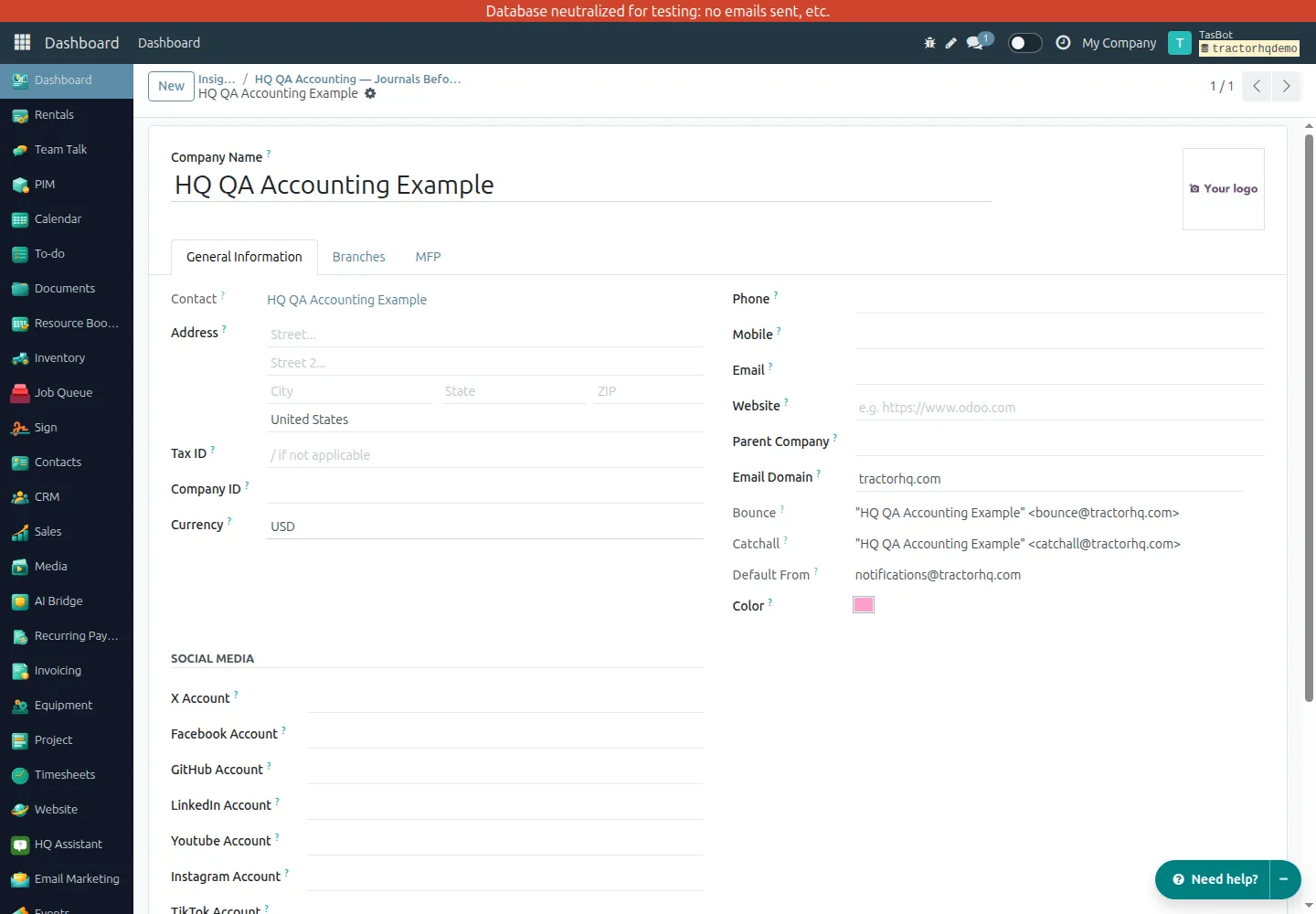
Section titled “1. Confirm the company”Open Settings → Companies and find the intended company. Review its name, country, and parent before making changes.
2. Check the current journals
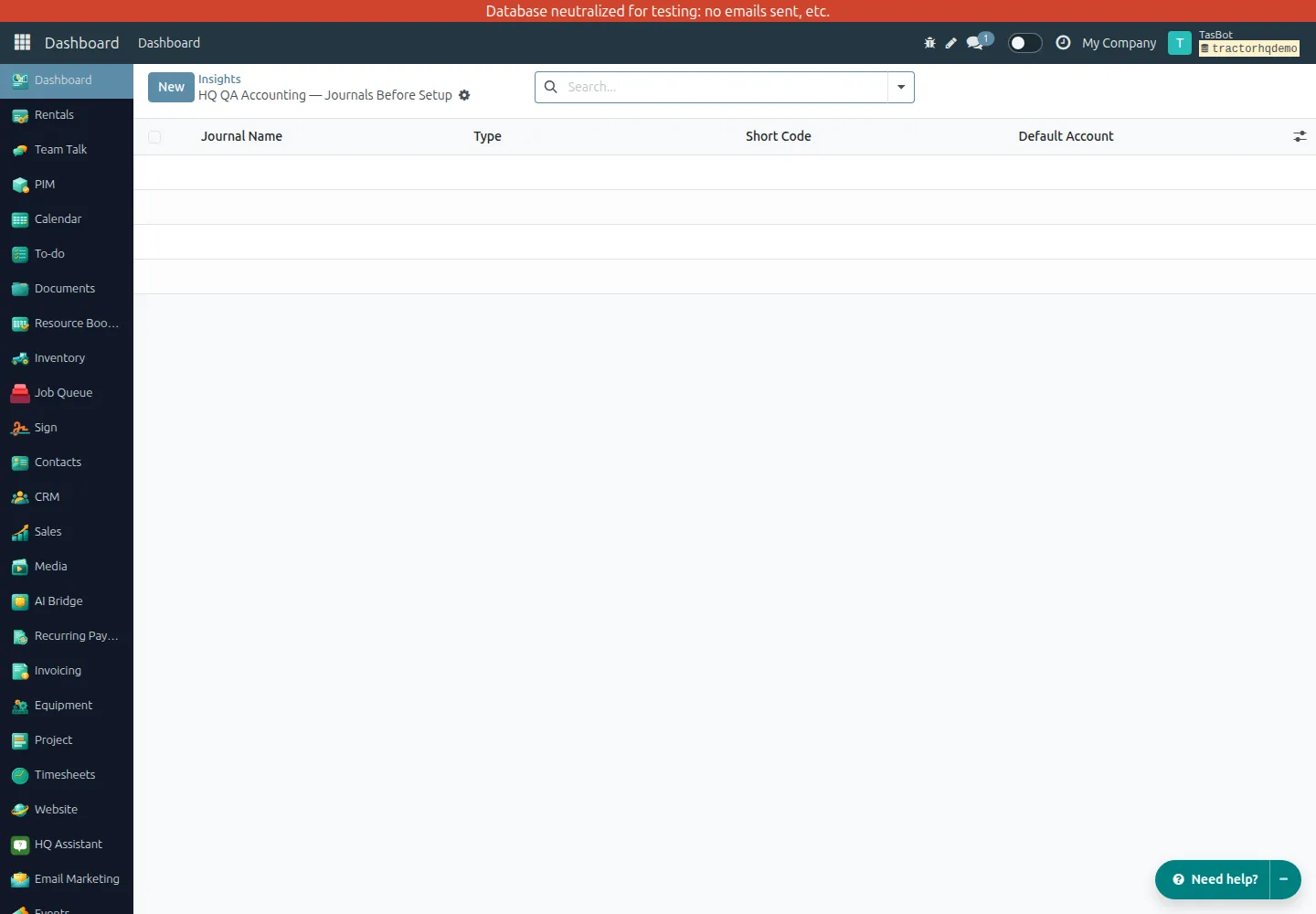
Section titled “2. Check the current journals”Switch the active company to the intended company using HQ’s company selector. Open Accounting → Configuration → Journals and check the company filter so you are not inspecting another company’s journals.
Look for an active journal of type Sales, often named Customer Invoices. For a branch, also check the journals it shares with its parent. If the company already has a usable sales journal, initialization is usually unnecessary.
3. Run the action on the intended company
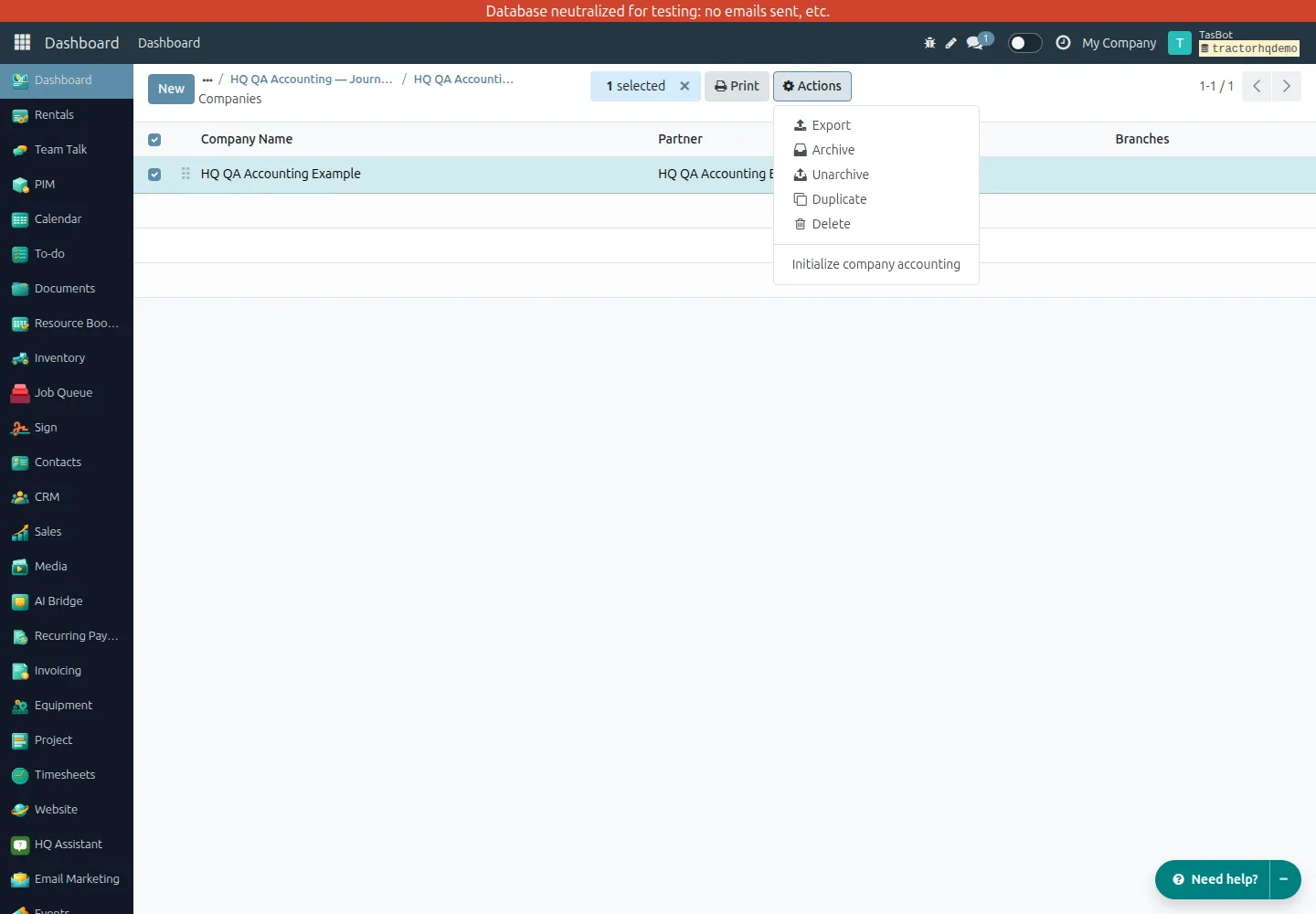
Section titled “3. Run the action on the intended company”- Return to the Companies list in Settings.
- Select only the intended company’s row. For a deliberate multi-company setup, select only the companies you have reviewed.
- Open Actions → Initialize company accounting.
- Read the result before continuing. If you selected several companies, HQ reports a result for each and processes parents before children.
4. Read the notification
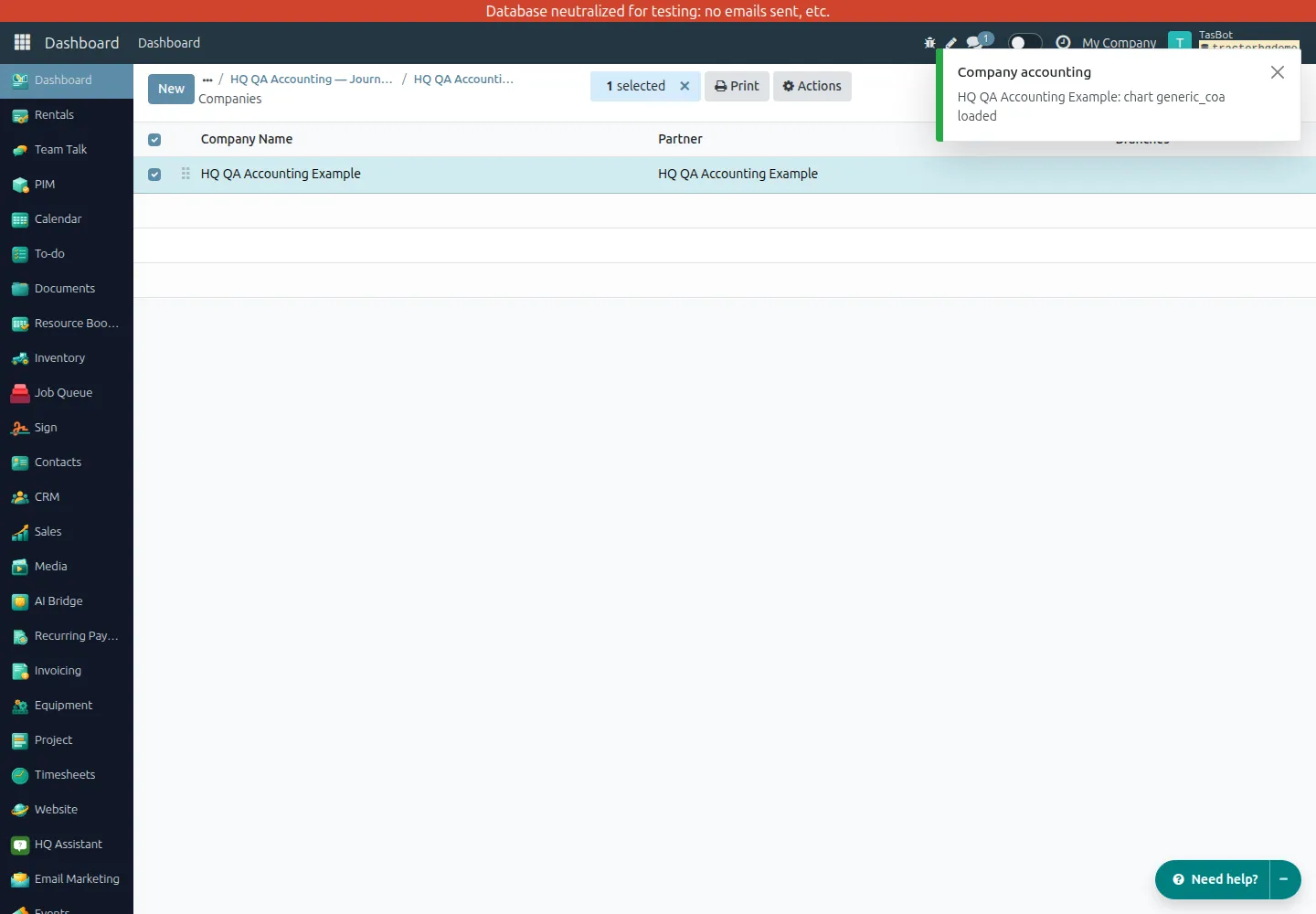
Section titled “4. Read the notification”On success, HQ displays a Company accounting notification with the company name and the result. The notification stays visible until you dismiss it.
| Result text | Meaning and next step |
|---|---|
chart generic_coa loaded (or another template code) | HQ loaded the selected chart. Check the resulting journals. |
chart … was set but empty, loaded | A standalone company recorded a chart but had no accounts, journals, or accounting entries. HQ cleared stale accounting references and loaded that chart from scratch. |
chart … reloaded, missing journals created | HQ reloaded the recorded chart to add missing setup without removing existing data. Verify the sales journal afterward. |
already set up | A sales journal exists for the company or in its parent chain. No initialization was performed. This includes archived sales journals; check that an active one is available. |
skipped: it has accounting entries but no chart of accounts | HQ did not load a new chart because accounting entries exist without a recorded chart. Ask your accountant or administrator to review the setup. |
A success notification can include a skipped result. Read the text, not just the notification color.
5. Verify the result
Section titled “5. Verify the result”Return to Accounting → Configuration → Journals, refresh the list if needed, and confirm the company context and filters again.
- Confirm there is an active Sales journal available to the company, usually Customer Invoices.
- Check the other journals supplied by the chosen chart. Their names and number depend on the template and installed modules.
- For a branch, verify that its shared parent journal is available in the intended workflow rather than expecting duplicate branch journals.
- Before issuing invoices, have your accountant review taxes, fiscal positions, account defaults, and banking configuration.
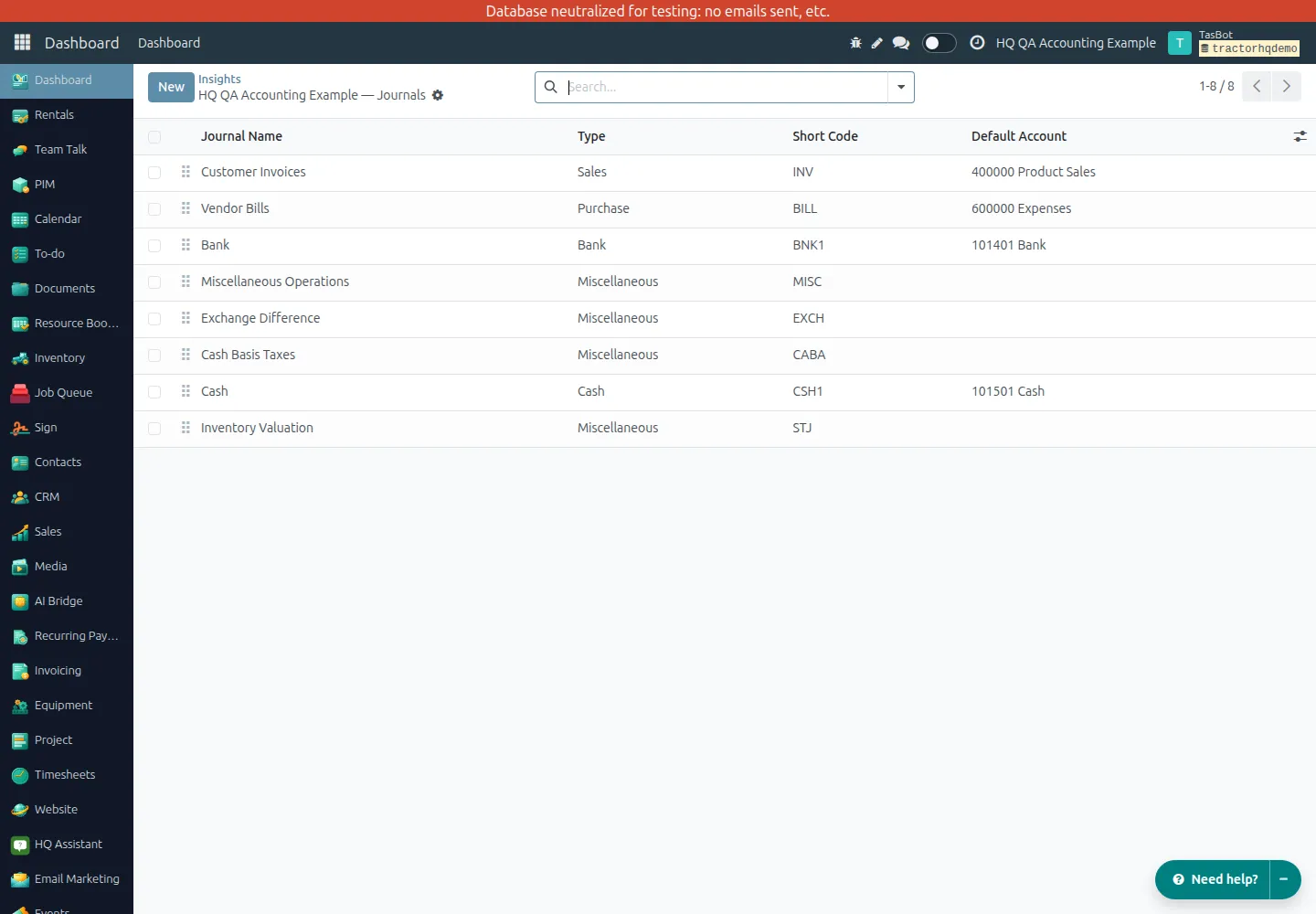
Once the sales journal is usable, return to the used-machine Sold workflow if that was the task blocked by missing accounting setup.
Worked example: HQ QA Accounting Example
Section titled “Worked example: HQ QA Accounting Example”The screenshots show an isolated QA company named HQ QA Accounting Example. Automatic initialization was explicitly suppressed while preparing this test fixture so that the manual workflow could be demonstrated. Its empty starting state is not the expected result of ordinary company creation.
The verified sequence was:
- Before initialization, the example company had no recorded chart and no journals.
- An administrator selected only this company in the Companies list and ran Actions → Initialize company accounting.
- HQ reported
HQ QA Accounting Example: chart generic_coa loaded. - The company then had eight journals: Customer Invoices, Vendor Bills, Bank, Miscellaneous Operations, Cash, Cash Basis Taxes, Exchange Difference, and Inventory Valuation. Customer Invoices was an active Sales journal.
- Running the action again reported
already set up; the same journal records remained, with no duplicates.
Eight journals is the result for this QA environment, not a guaranteed count for every company or chart. Check journal type, active status, and company scope rather than relying on a particular count or account code.
Troubleshooting
Section titled “Troubleshooting”| Problem | What to check |
|---|---|
| Initialize company accounting is missing | Confirm you have administrator Settings access, the module is installed, and a company is selected in the Companies list. |
| A new company saved successfully but has no usable sales journal | Automatic setup failures do not block company creation. Run the manual action to see the error and ask an administrator to review the server log for Could not initialize accounting for company. |
No installed chart of accounts is available for this company. | Ask an administrator to install the appropriate localization or a valid fallback template. A configured template code must refer to an installed template. |
Loading chart template … did not create a sales journal. | Setup did not satisfy its sales-journal check. Ask an administrator to inspect the template and error logs; do not manually create unrelated accounting records just to bypass the error. |
already set up, but invoicing still cannot find a sales journal | The initializer counts archived Sales journals as configured. Check archived journals as well as active ones, then have an accountant review whether the appropriate journal should be unarchived. Also check the active company and parent-company context. Repeating initialization does not repair an archived journal. |
| The result says accounting entries exist but no chart is recorded | The action deliberately skips this situation. Have an accountant review the existing entries and chart configuration; do not force a fresh chart over them. |
| Journals appear to belong to another company | Check the company selector, journal filters, and parent relationship. Shared parent accounting can be correct for a branch. Unrelated-company references require administrator investigation. |
| An error mentions incompatible companies | An otherwise empty standalone company can retain stale defaults from copied or imported data. HQ clears eligible stale references before a fresh load. If the error remains, ask an administrator to investigate; do not delete existing accounts or entries. |
| The manual action shows Accounting setup failed | Read the per-company details. The failed company’s initialization is rolled back. If you selected multiple companies, recheck all their journals after the error rather than assuming another listed success was committed. Resolve the cause and retry only the intended companies. |
Administrator setting and limits
Section titled “Administrator setting and limits”To change the fallback template, an administrator can use developer mode and open Settings → Technical → Parameters → System Parameters, then edit tt_company_accounting_init.default_chart_template. The default fallback is generic_coa. The chosen template must be installed, and an installed matching country chart takes precedence over this setting.
Keep these limits in mind:
- The presence of any Sales journal in the company or parent chain, even an archived one, stops initialization. The action is not a complete audit of every journal or accounting setting.
- Reloading a recorded chart adds missing setup; it is not a request to replace the chart or remove existing accounting data.
- Without a recorded chart, existing accounting entries cause setup to be skipped.
- Stale-reference cleanup is limited to empty standalone companies with no accounts, journals, or accounting entries. It is not general-purpose data repair.
- Template-provided journals and accounting defaults still need business and statutory review. Initialization alone does not make a company ready for every invoicing or tax scenario.