Selling a used machine with the Sold button
The Sold button records a one-unit sale directly from a used machine’s product form. It confirms a sales order, completes the delivery, posts the customer invoice, and removes the machine from the website. It is not just a status toggle.
Before you start
Section titled “Before you start”- Select the company that owns the machine.
- Open a used machine in Products. The button is available to sales users.
- Check that one unit is in stock and can be reserved. For serial-tracked machines, check the serial number and its stock location.
- Ensure the company has a Customer Invoices journal and working accounting configuration. See the company accounting setup guide.
- Choose a customer accessible in the sale’s company. A customer assigned to another company cannot be used.
Do not use this action merely to hide an advertisement: confirmation creates operational and accounting documents.
Record the sale
Section titled “Record the sale”- Open the product and click Sold.
- Select Customer.
- Check Sale Price. It defaults to the product’s sales price. Enter the agreed amount in the company’s currency.
- Check Journal. It must be a sales journal of the selected company.
- Click Confirm Sale once.
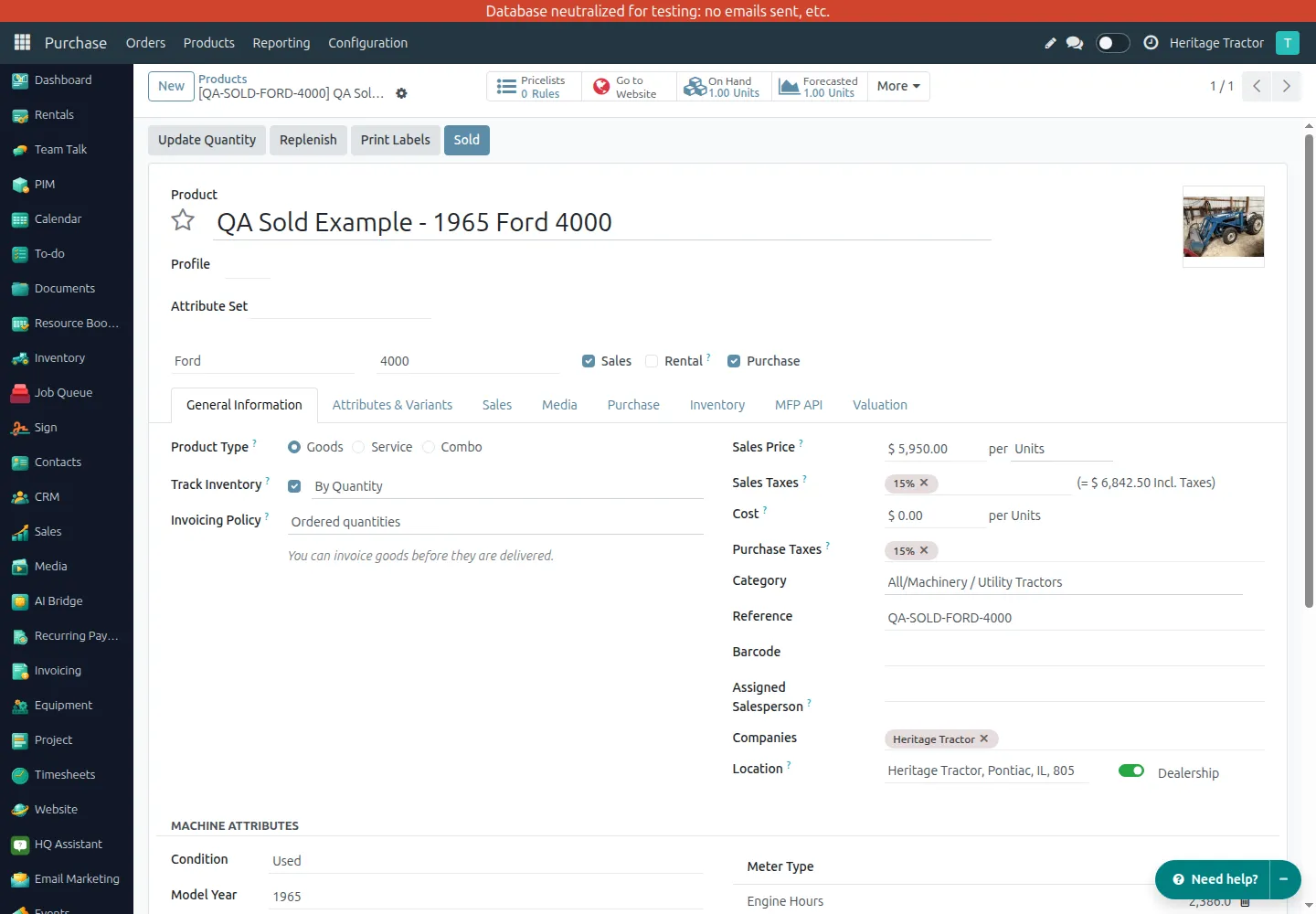
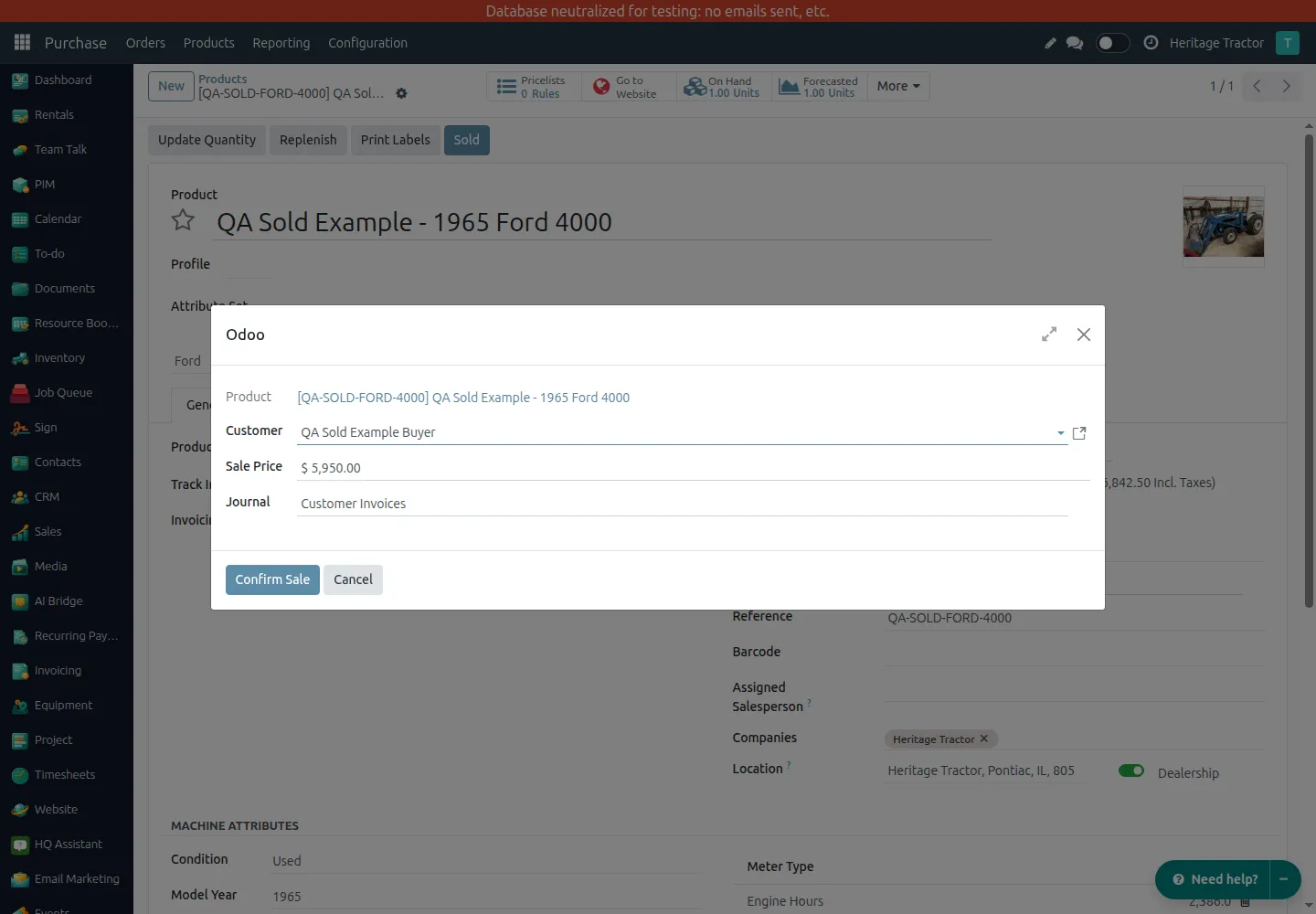
The action creates a sales order for one unit, confirms it, delivers it from the warehouse holding the stock, and creates and posts the invoice. The invoice opens automatically.
If the customer uses a pricelist in another currency, the entered amount is converted to the order’s currency. Taxes follow the order’s accounting configuration; the wizard amount is not a promise of the final tax-inclusive total.
Read the product’s Sold ribbon
Section titled “Read the product’s Sold ribbon”An active product displays a red Sold ribbon when either:
- the Sold action has linked its customer invoice; or
- MFP synchronization has marked its status as
sold, including a machine removed from the upstream listing.
This is a visual marker, not an archive action. The product and its document history remain available in the backend. An archived record shows the standard Archived ribbon instead, so the ribbons do not overlap.
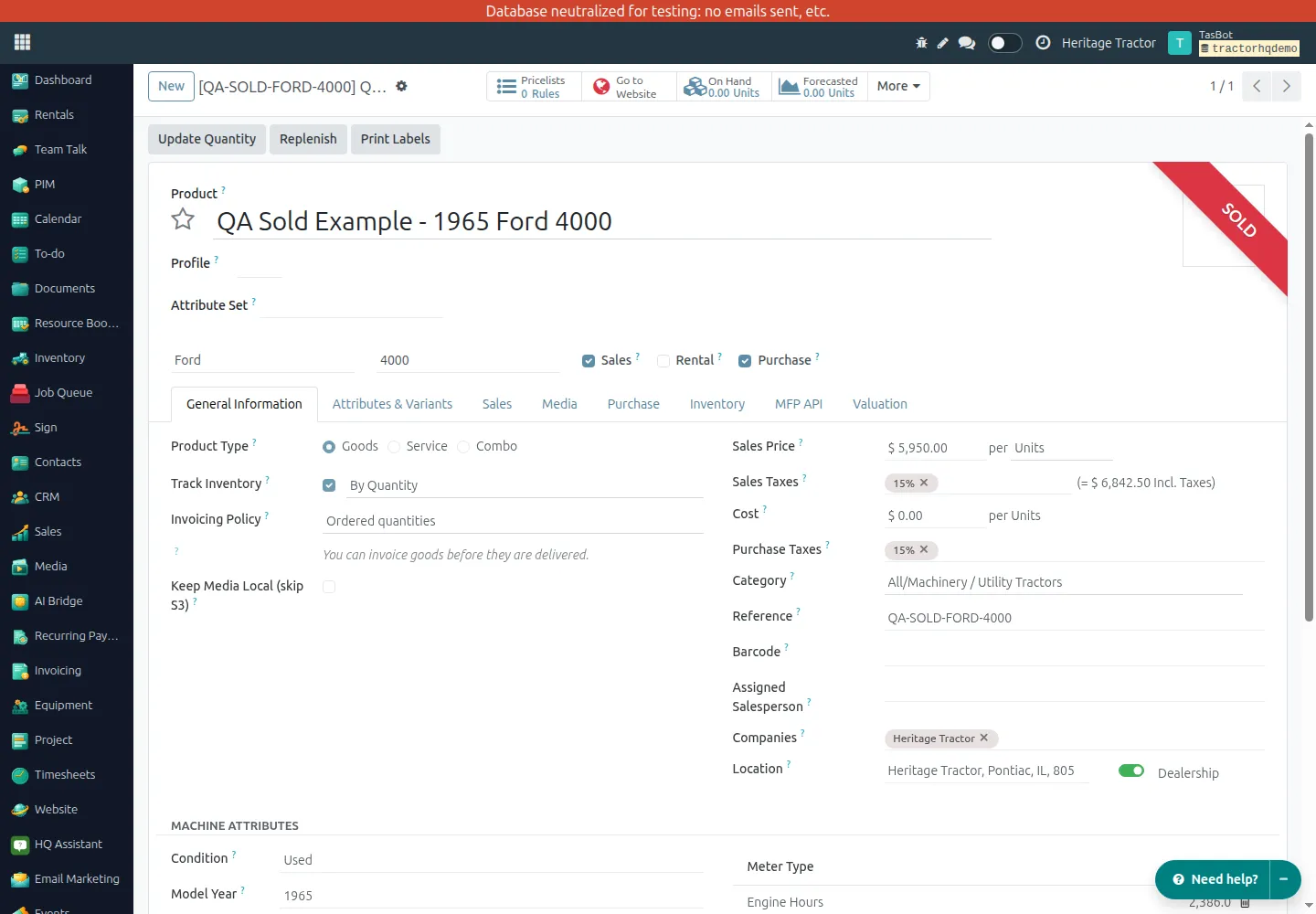
After a button-based sale, the Sold button disappears and the product’s Invoice smart button opens the linked invoice. Other smart buttons may be grouped under More when the form has limited space.
MFP removal is different from a button-based sale
Section titled “MFP removal is different from a button-based sale”When MFP delists a machine, synchronization marks its MFP status as Sold, removes website publication, and writes off its internal stock through an inventory adjustment. It does not create a customer sales order, delivery order, or invoice. The Sold ribbon is therefore also shown when there is no linked invoice.
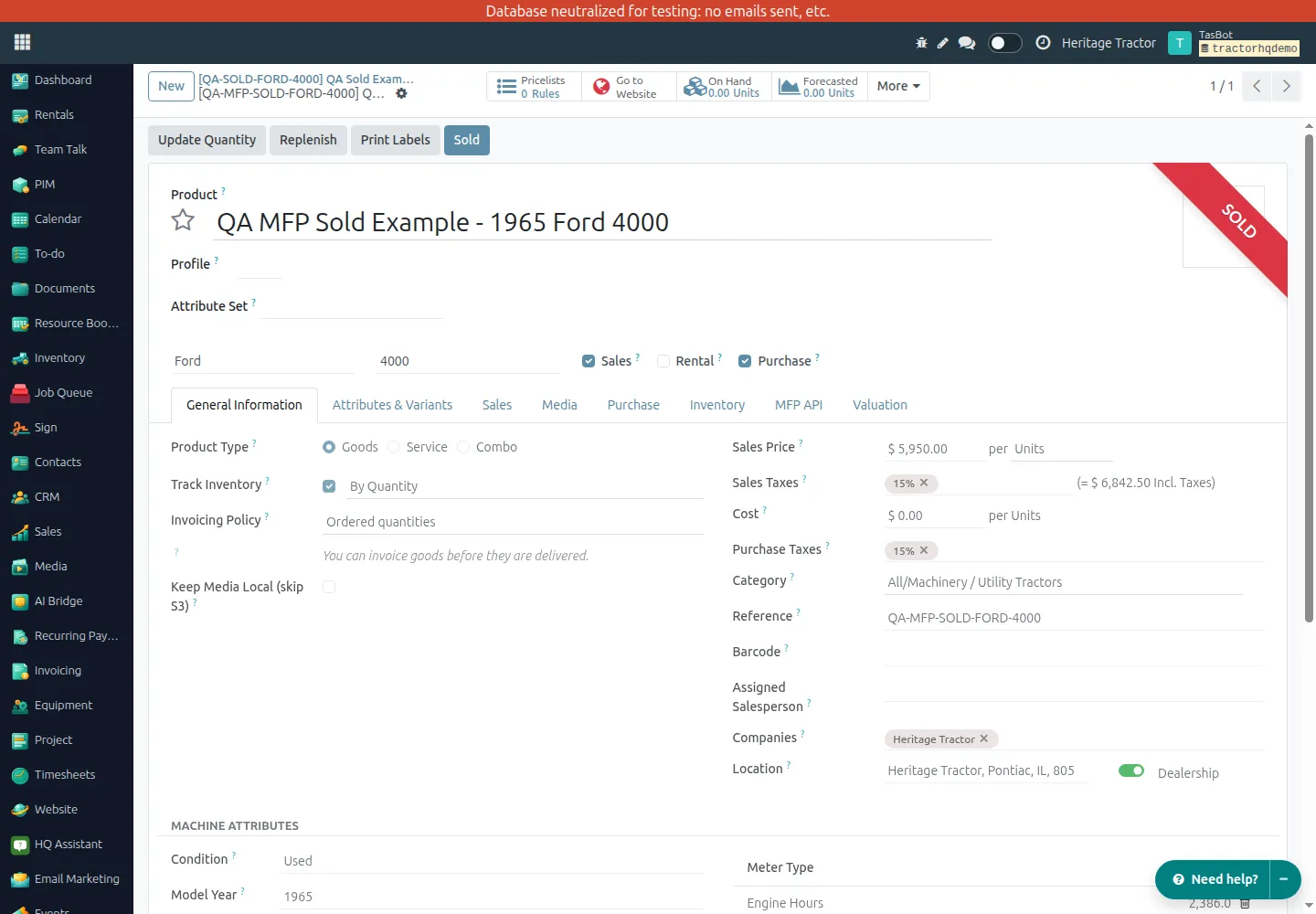
This QA screenshot uses a separate copy with the resulting mfp_status_key='sold' state. It verifies the display without contacting MFP or changing any upstream machine.
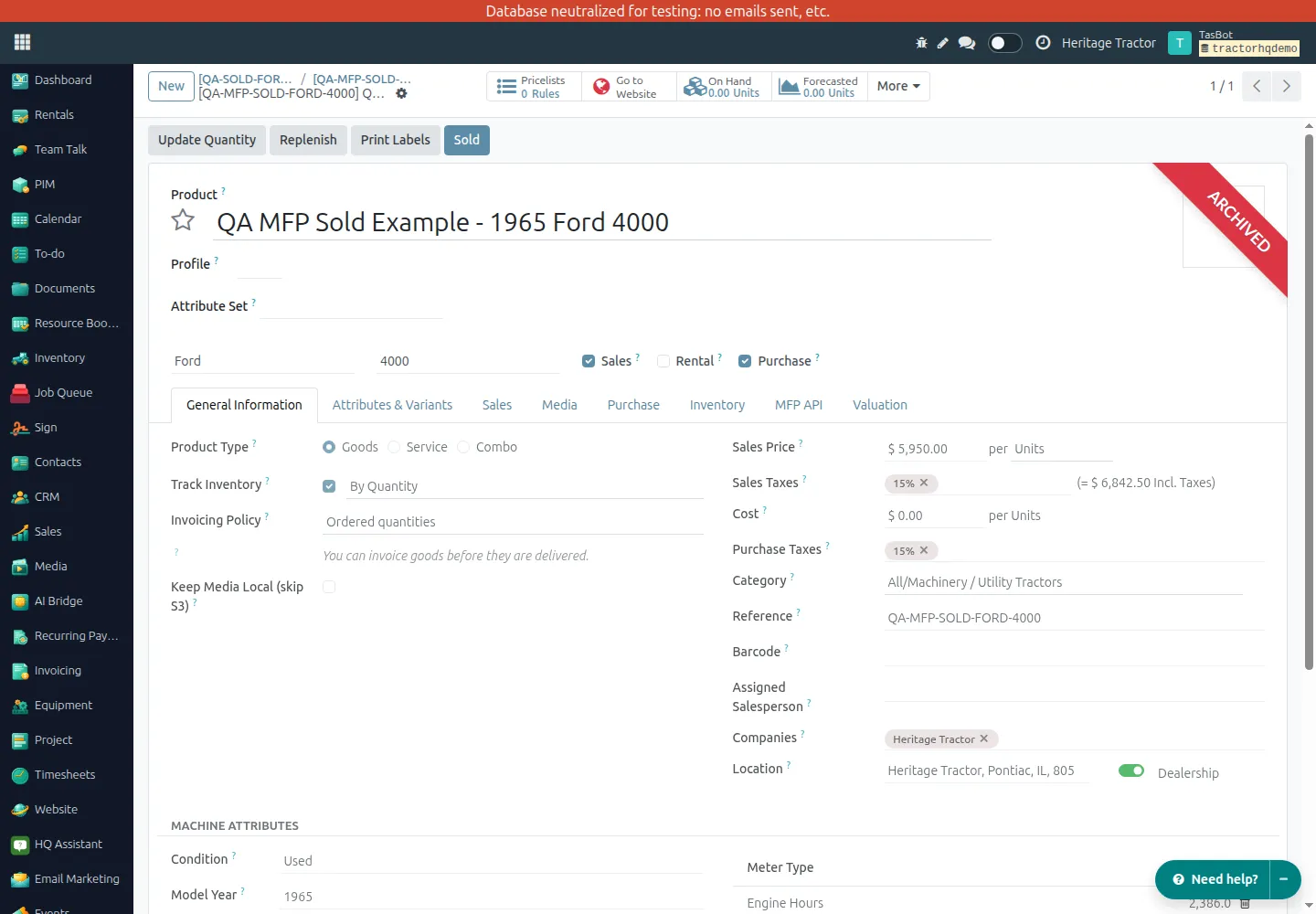
The ribbon does not change existing button eligibility or accounting behavior. A used machine marked sold by MFP may still have the Sold button under the existing rules, but selling a stock-tracked unit without stock is rejected.
Example: Heritage Tractor
Section titled “Example: Heritage Tractor”The screenshots use an isolated QA copy of 1965 Ford 4000, reference QA-SOLD-FORD-4000, in Heritage Tractor. The customer is QA Sold Example Buyer. The source machine and its inventory were not sold or altered.
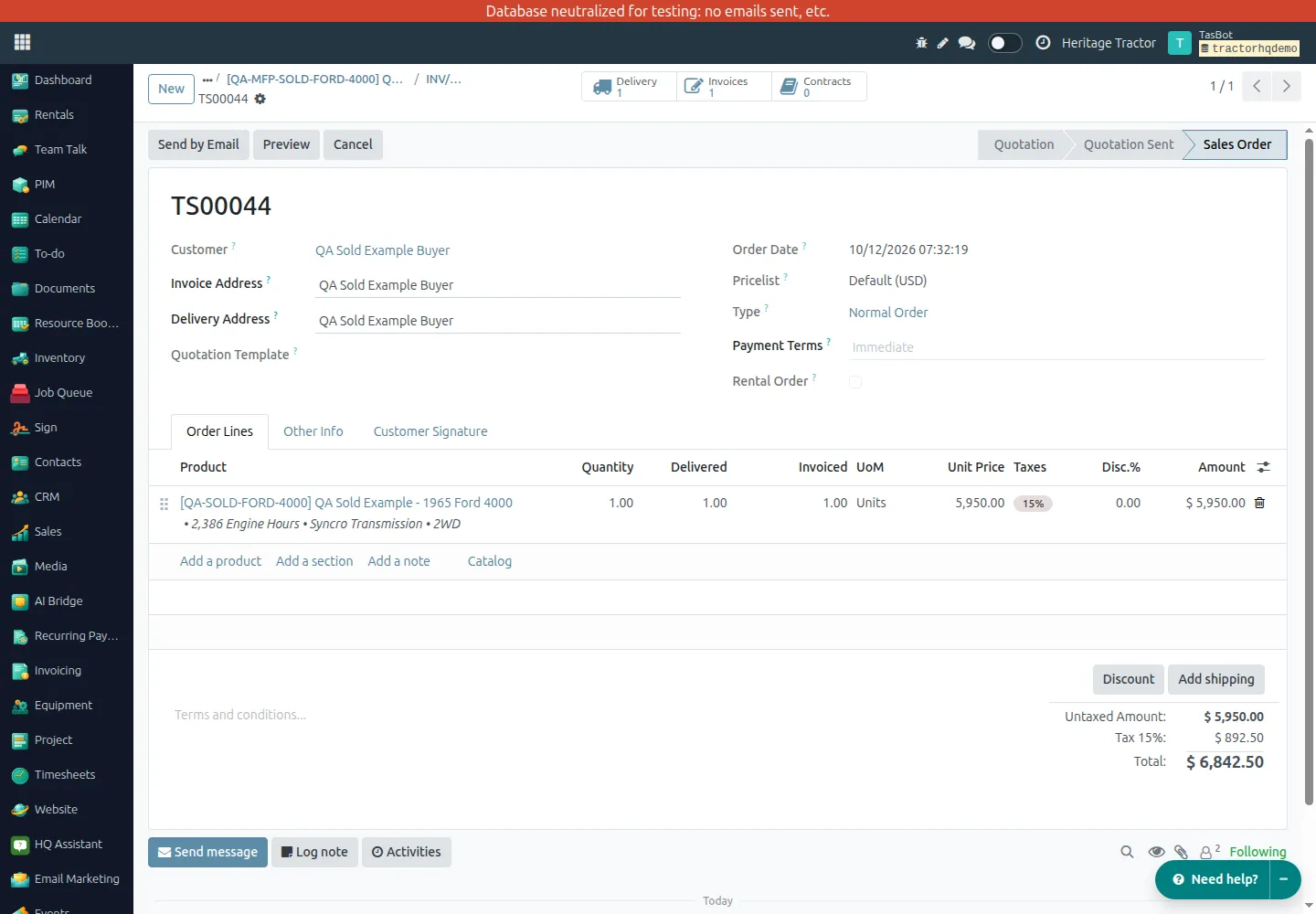
The example uses one unit at the Pontiac warehouse and a sale price of USD 5,950.00. The configured QA tax is 15%, making the example total USD 6,842.50. This is an example of that QA company’s configuration, not tax advice or a production tax rate.
Sales order
Section titled “Sales order”TS00044 is a confirmed sales order. Its product line records one ordered, delivered, and invoiced unit. Use the Delivery and Invoices smart buttons to open the resulting documents.
Delivery order
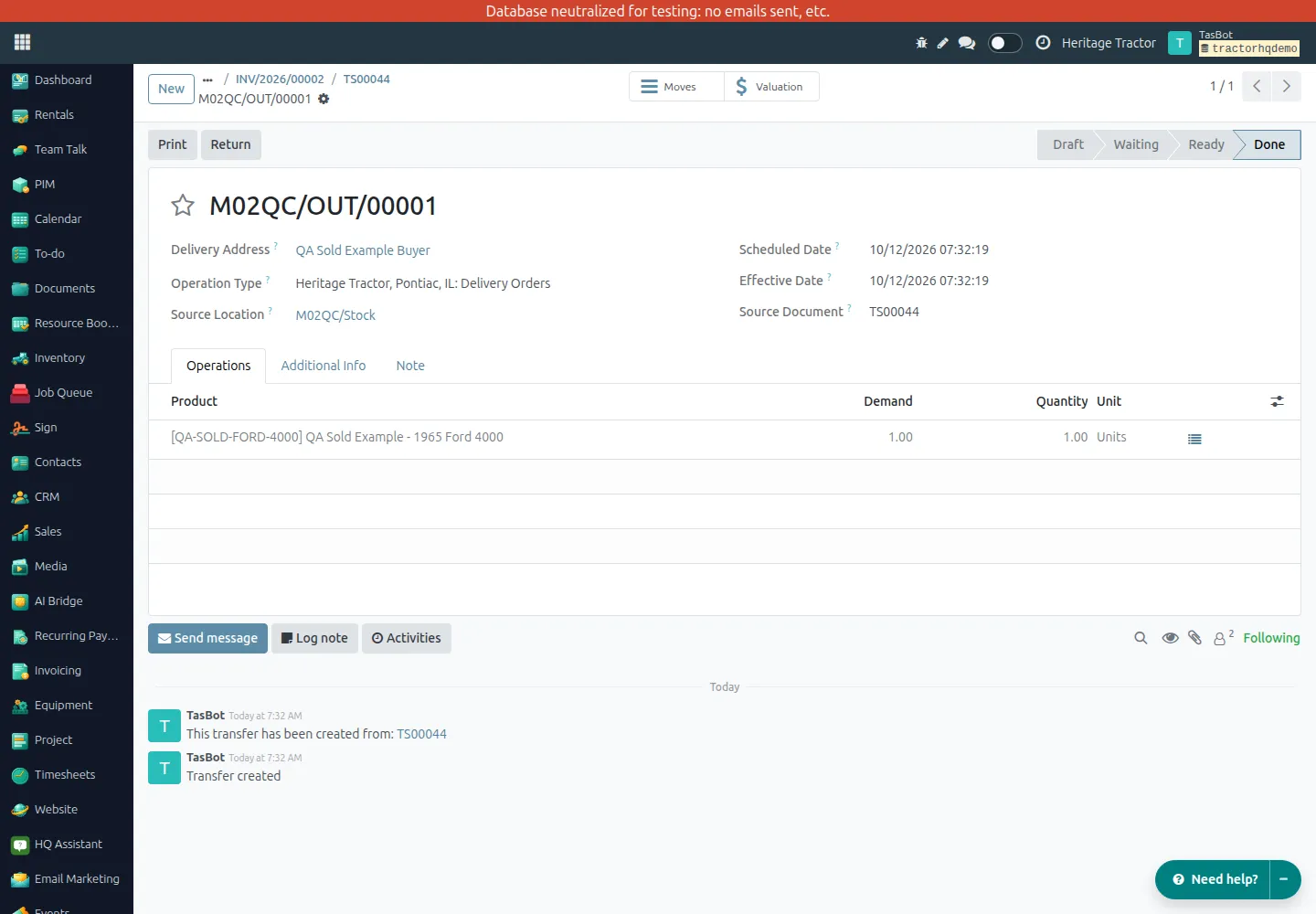
Section titled “Delivery order”M02QC/OUT/00001 is Done. It transfers one unit from M02QC/Stock to the customer location. The source document is TS00044. The test product’s internal on-hand quantity changes from one to zero.
Customer invoice
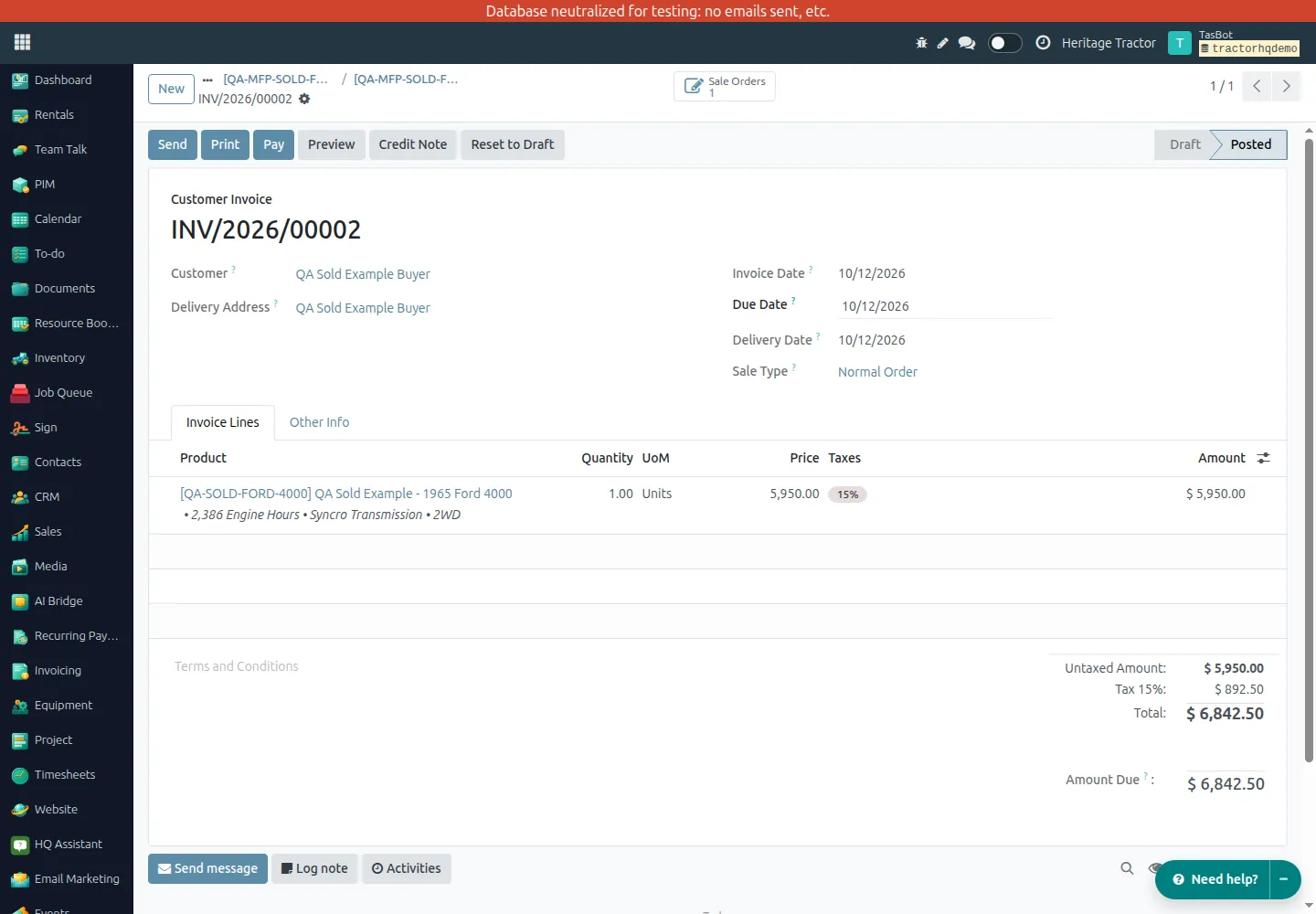
Section titled “Customer invoice”INV/2026/00002 is Posted, with USD 5,950.00 untaxed and USD 6,842.50 total. It remains Not Paid: marking a machine sold does not register a payment. Use the normal accounting payment workflow when payment is received.
Troubleshooting
Section titled “Troubleshooting”- No Sold button: check that the machine is used, that the user has sales access, and that the machine has not already been sold through this action.
- No stock or reservation failed: verify the product, warehouse, location, serial/lot, and available quantity before retrying.
- No sales journal: configure the company’s accounting and sales journal; do not select another company’s journal.
- Company mismatch: select the correct company and use a customer and journal belonging to that company or an allowed shared customer.
- Missing ribbon immediately after deployment: reload the backend form to refresh its view definition.
- Already sold: do not confirm again. Open the existing invoice and sales order instead. Correct accounting documents through the normal authorized accounting workflow; the Sold ribbon is not an undo control.
All screenshots are from the neutralized QA environment. No customer email, payment, or external MFP update was sent for this example.