Fast Page Switching on Your Website
Your website can open pages without reloading the whole page. The header, menu and footer stay in place, only the content changes, so moving around the site feels faster. This is called SPA Navigation and it is on for every website by default.
Where to find it
Section titled “Where to find it”- Open Website → Configuration → Settings.
- At the top, choose your website.
- Scroll to SPA Navigation.
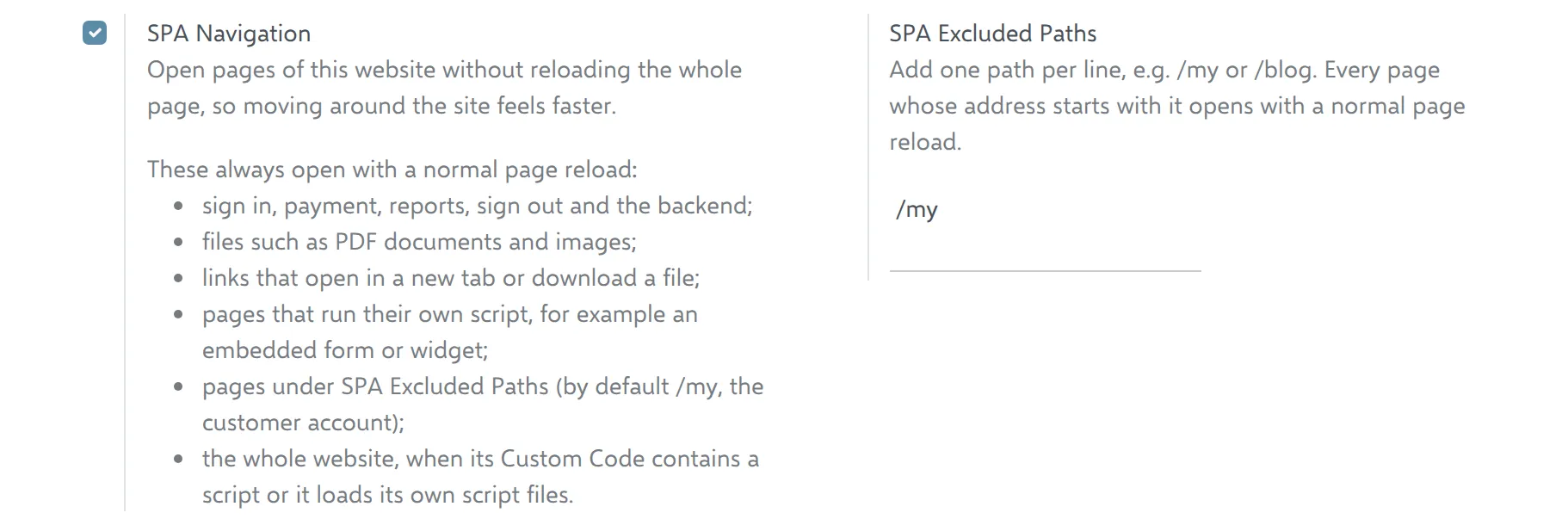
| Setting | What it does |
|---|---|
| SPA Navigation | Turns fast page switching on or off for this website. |
| SPA Excluded Paths | Pages that should always open with a normal page reload. Add one path per line. |
Press Save after a change. Visitors get the new behaviour the next time they load a page.
Pages that always reload
Section titled “Pages that always reload”Some pages always open with a normal page reload, even with SPA Navigation on. A fast switch could break them, so the website skips them on its own. You don’t need to set anything up for these:
- Sign in, payment, reports, sign out and the HQ backend.
- Files, such as PDF documents and images.
- Links that open in a new tab or download a file.
- Pages that run their own script, for example a page with an embedded form, booking widget or chat code added in the editor.
- Pages under SPA Excluded Paths. By default this is
/my, the customer account. - While you edit the website, pages always reload.
When the whole website reloads normally
Section titled “When the whole website reloads normally”Fast switching is turned off for the whole website, even if the SPA Navigation box is ticked, when:
- the website’s Custom Code contains a script (in the website editor: Edit → Theme → Code Injection), for example a tracking or chat code from another company;
- the website loads its own script files in the page header.
Such scripts are written for normal page loads and could stop working with fast switching. To use fast switching on such a website, remove the script from Custom Code or ask your developer to make it work with SPA Navigation.
Excluding your own pages
Section titled “Excluding your own pages”If a page looks wrong or a widget on it stops working after you move to it from another page, but works after you press F5, add its address to SPA Excluded Paths:
- Open the page and look at its address, for example
https://yourdealer.com/financing. - Take the part after the domain:
/financing. - Add it on a new line in SPA Excluded Paths and press Save.
A path covers the page and everything under it: /blog also covers /blog/news and /blog/news/spring-sale.
Common questions
Section titled “Common questions”“How do I know fast switching works?” Click a menu link. A thin coloured bar runs along the top of the window and the page changes without the screen going white.
“I ticked SPA Navigation, but pages still reload.” Check the website’s Custom Code for a script (see above), and check that the page is not in SPA Excluded Paths.
“Something broke on one page only.” Add that page to SPA Excluded Paths. If many pages are affected, untick SPA Navigation for the website and tell your developer which page and what broke.