Orders and the staff order board
There are two useful order screens. Franchise → Orders is the back-office list for the owner. /staff/orders is the website’s password-protected board for counter staff.
Find an order in HQ
Section titled “Find an order in HQ”- Sign in with your individual HQ login and check your company.
- Open Franchise → Orders.
- Search by order reference or customer. Review the store, fulfillment type, pickup time, total, and board status.
- Open the order to check its items, quantities, selected options, wording, and customer note.
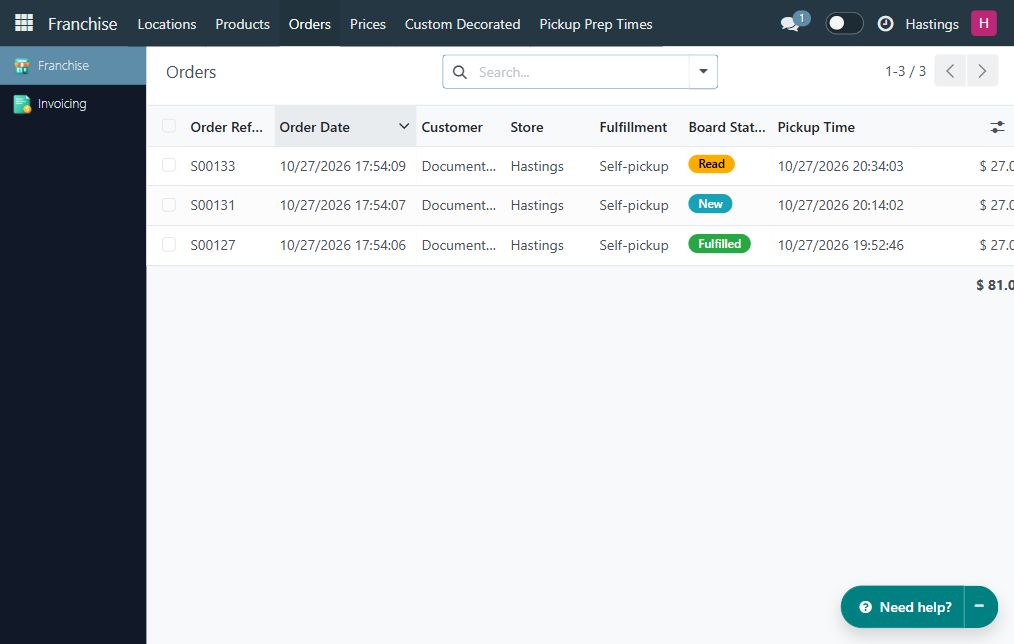
This list is for placed orders. An abandoned cart or draft quotation may not appear in the franchisee’s list. The standard franchisee role reads these orders; the staff board provides the workflow for changing their board status.
Open and unlock the staff board
Section titled “Open and unlock the staff board”- On the Eileen’s website, choose your store using Find a store / Change store.
- Open
/staff/orderson that same website. Bookmark the address on the counter device. - If no store is selected, choose one when redirected to Locations.
- The locked screen says Enter the store password below to view orders.
- Open Store staff? Show in-store designs. The shared staff panel uses this label on the order board too.
- Enter your store’s In-Store Catalog Password and choose Show designs.
- Confirm the Orders board appears. This is the same store password used for the internal design catalog, not your personal HQ password.
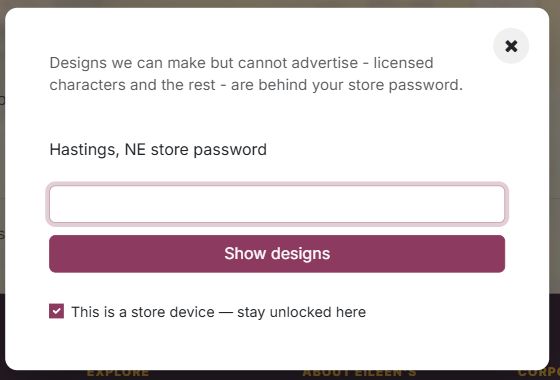
Only select This is a store device — stay unlocked here on a device controlled by the store. On a temporary or shared device, leave it unchecked. Use Exit staff view to lock staff access when finished; closing a tab is not the same as explicitly locking a remembered device.
Read the board
Section titled “Read the board”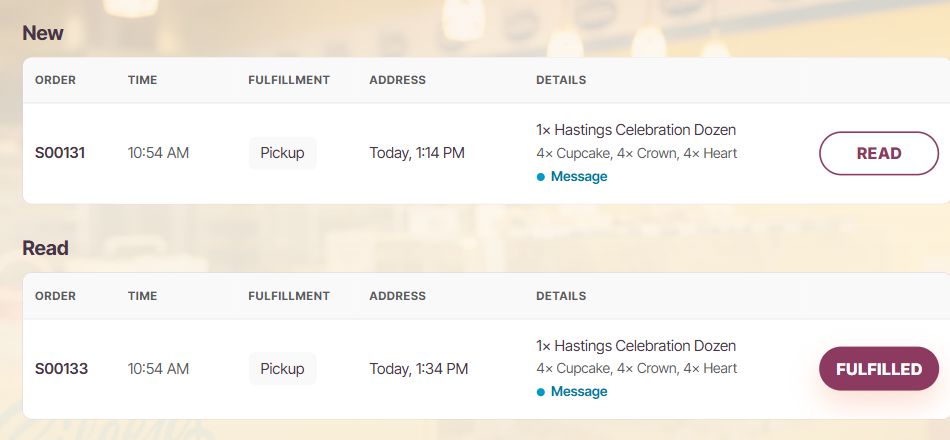
| Section / field | Meaning |
|---|---|
| New | Confirmed website orders waiting to be acknowledged by staff |
| Read | Orders staff have acknowledged and still need to prepare or complete |
| Done today | Orders marked Fulfilled today, using the store’s timezone |
| Time | The time the order was placed; check the requested pickup time separately |
| Fulfillment | Pickup or delivery, according to the order |
| Address | For pickup, the requested pickup date and time; for delivery, the destination details |
| Details | Product quantities, choices, personalization, and customer instructions |
The board refreshes automatically. An empty New section means there are no new orders within the selected store’s board scope; it does not mean the store has never received an order. The back-office Orders list is useful for looking up older records.
Work through an order
Section titled “Work through an order”- In New, read the order reference, timing, fulfillment, and details. Expand the order’s detail control if more information is available.
- Check the number of boxes or other products, the chosen mix/options, and the customer’s wording. In the example, one Hastings Celebration Dozen contains twelve cookies; order quantity one does not mean one individual cookie.
- Choose Read to acknowledge the order. It moves to Read; this does not mean the cookies are ready.
- Prepare the order and complete the store’s normal checks.
- When it is ready/completed according to your store’s procedure, choose Fulfilled and confirm the prompt. It appears under Done today.
- If marked fulfilled by mistake, open Done today, choose Return to Read, and confirm.
For a Cookie Tray, check both the dozen count and the flavor mix. For example, 2× Chocolate Chip, 1× Lemon means three dozen cookies in one tray, not three trays. Assorted means the bakery chooses the mix. Read any Enter Custom Name value exactly as saved and check the selected custom-design size. See Cookie Trays and product options for the selection workflow.
Fulfilled is an operational status, not a payment, refund, or delivery validation. Check payment separately when needed. It does not cancel an order or refund the customer.
If the website is configured to send a ready-for-pickup email, marking a qualifying pickup order Fulfilled can queue that message once. Follow your store’s agreed meaning of Fulfilled and do not use it early just to clear the queue. QA screenshots do not demonstrate delivery of a customer email.
Sound and device settings
Section titled “Sound and device settings”Use the alert-sound control at the top of the board to choose a sound or No sound for this device. Check the device’s volume and browser audio permission if alerts are silent. Do not rely on sound alone to monitor incoming orders.
If your screen offers Normal / kitchen mode, coordinate changes with the manager: a busy setting can affect the earliest pickup times offered to new shoppers. An alert-sound choice affects the device; kitchen availability is a store operation.
Troubleshooting
Section titled “Troubleshooting”| Problem | What to check |
|---|---|
| Asked to choose a store | Choose the location that will prepare the order, then return to /staff/orders. |
| Password rejected | Verify the selected store and ask the owner to check its staff password. Repeated failed attempts may require waiting before retrying. |
| Board stays locked after HQ sign-in | Unlock it with the separate store staff password. |
| Expected order is missing | Check the selected store and whether the order is confirmed; search the back-office Orders list. Drafts and cancelled orders are not the active board queue. |
| An older fulfilled order is absent | Done today is a daily view; use the Orders list for history. |
| Wrong details or a cancellation/refund request | Contact the owner/HQ using the order reference. Do not use a board status as a refund or cancellation. |
About the worked orders
Section titled “About the worked orders”The screenshots use three confirmed orders prepared specifically for documentation on QA, all belonging to Hastings and using a fictional customer with no email address. The example box price is USD 27.00; these sample lines have no tax. These are workflow examples, not evidence of a paid customer checkout, a captured Stripe payment, an invoice, or a delivered email.