Sending an Email to People Near a Tour Stop
This guide shows how to send an email only to customers who live near one of our tour stops, for example “everyone within 100 miles of the Lincoln show”.
You need two things:
- The tour stop has a ZIP code.
- You create a mailing, choose Near: Tour Date and pick that tour stop.
That’s it. The system finds the customers near the stop for you.
Step 0. Pick the right company
Section titled “Step 0. Pick the right company”Look at the company name at the top right of the screen. Make sure it is the company you are sending for (for example Prairie Ridge Equipment). If it is wrong, click it and choose the right one.
Your email will only go to the customers of this company.
Step 1. Give the tour stop a ZIP code
Section titled “Step 1. Give the tour stop a ZIP code”- Open Tours from the main menu, then Tour Dates.
- Click the tour stop you want to send about.
- Find Venue ZIP and type the 5-digit ZIP code of the place where the show happens, for example
68508. - Click the save icon (the small cloud at the top).
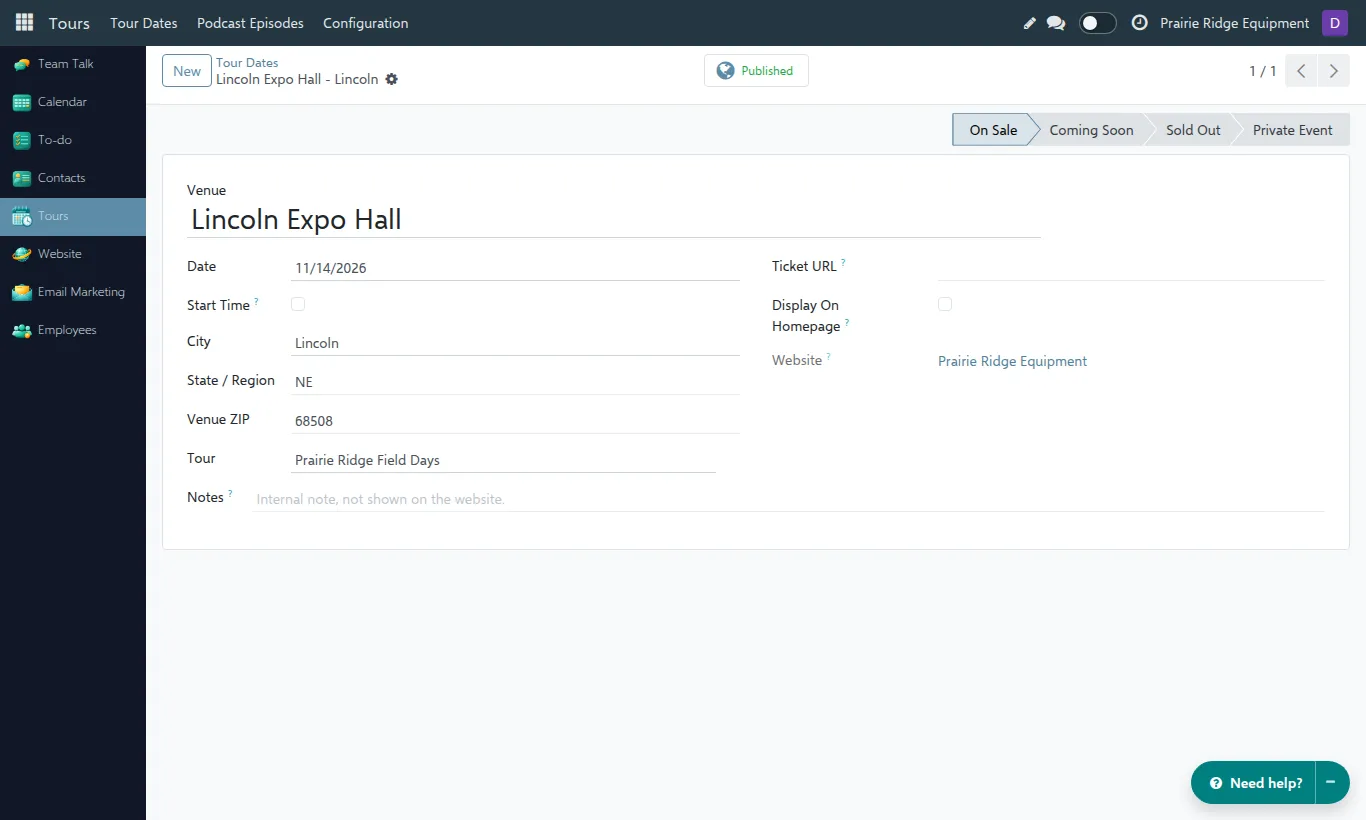
You only do this once per tour stop. In the list of tour dates you can see which stops already have a ZIP:
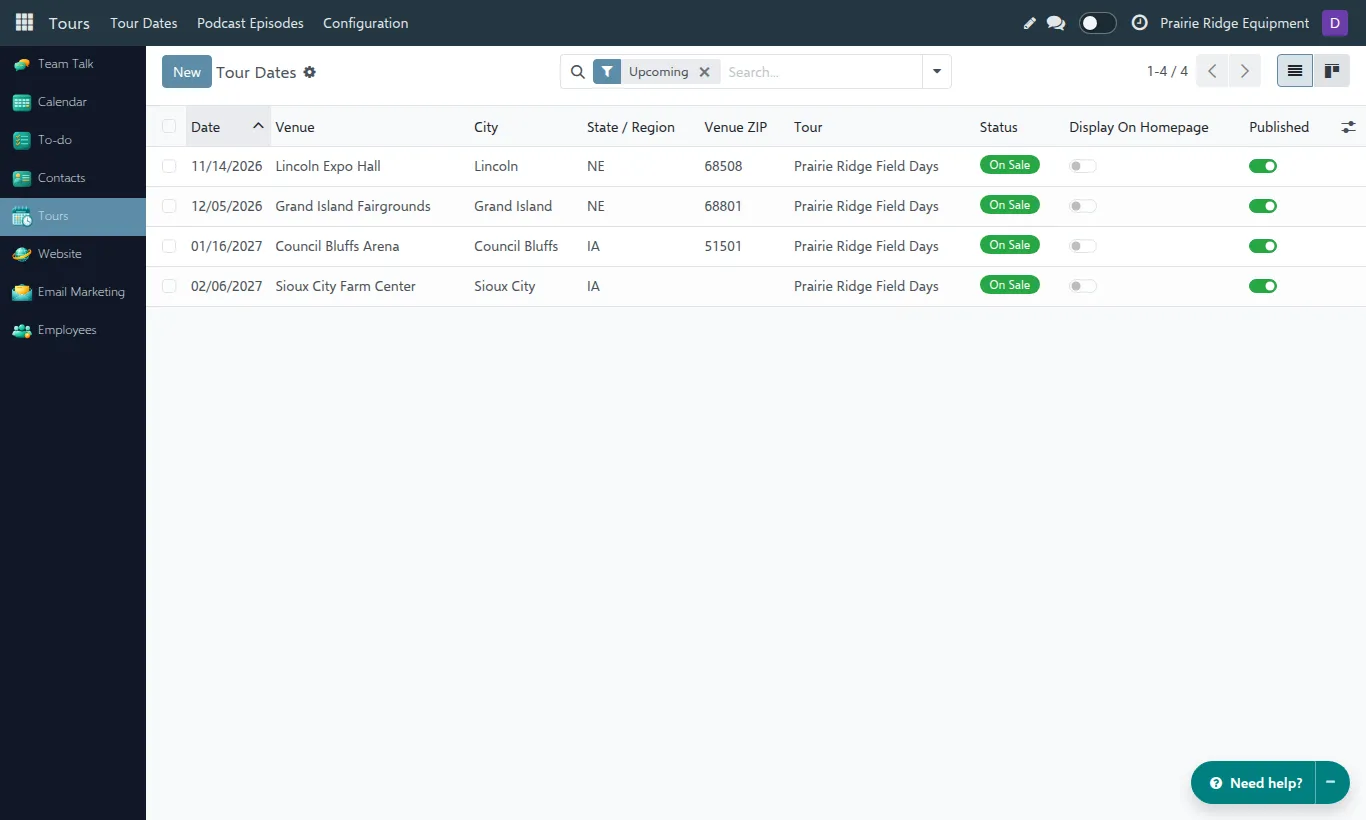
If you see a colored bar after saving
Section titled “If you see a colored bar after saving”Yellow bar: “Venue ZIP 11235 is in NY, but the state is NE.”
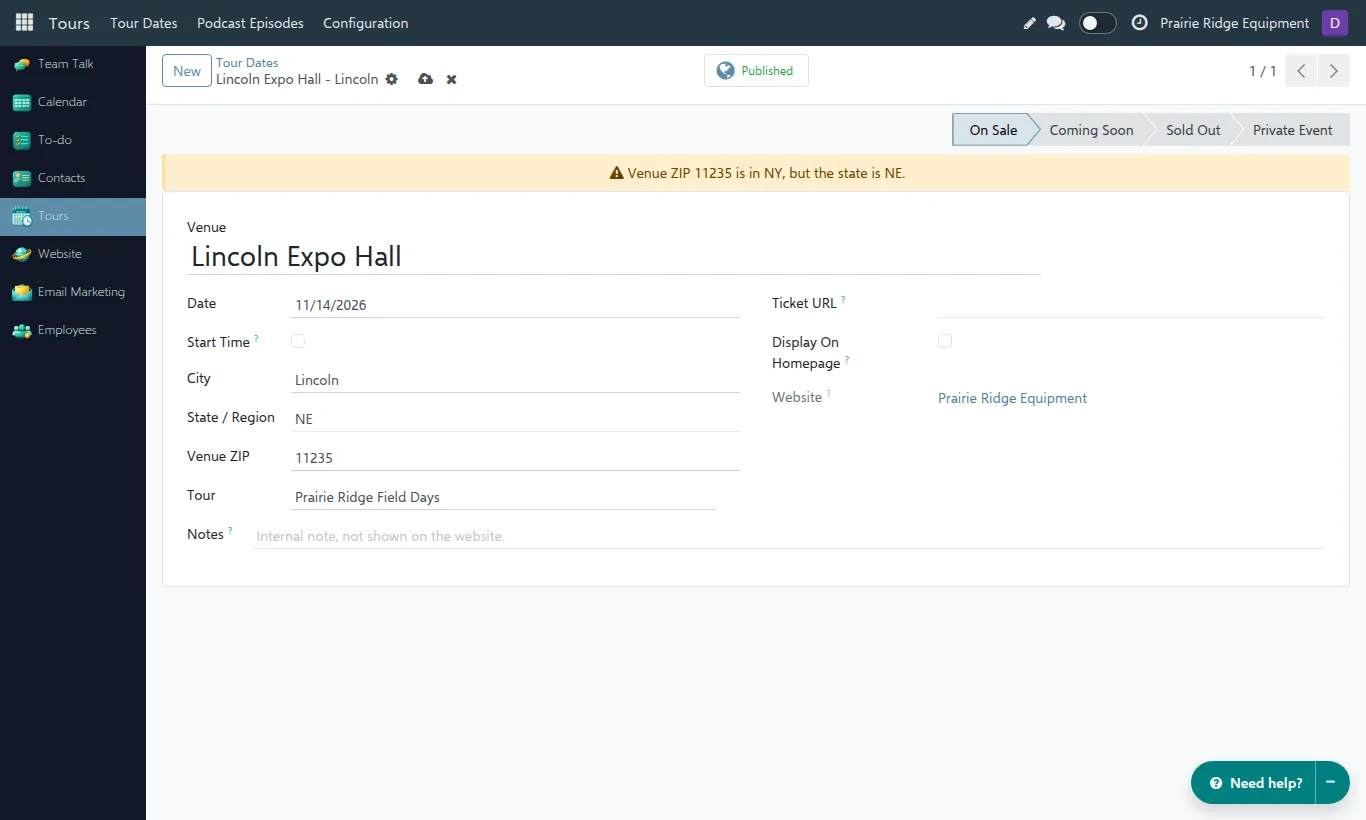
The ZIP code belongs to another state. This is almost always a typo. Check the ZIP code (search the venue address on Google Maps) and fix it. If you leave it, the email will go to people around the wrong place.
Red bar: “Venue ZIP 99999 is not in the US ZIP dataset, so geographic email targeting is not available for this tour date.”
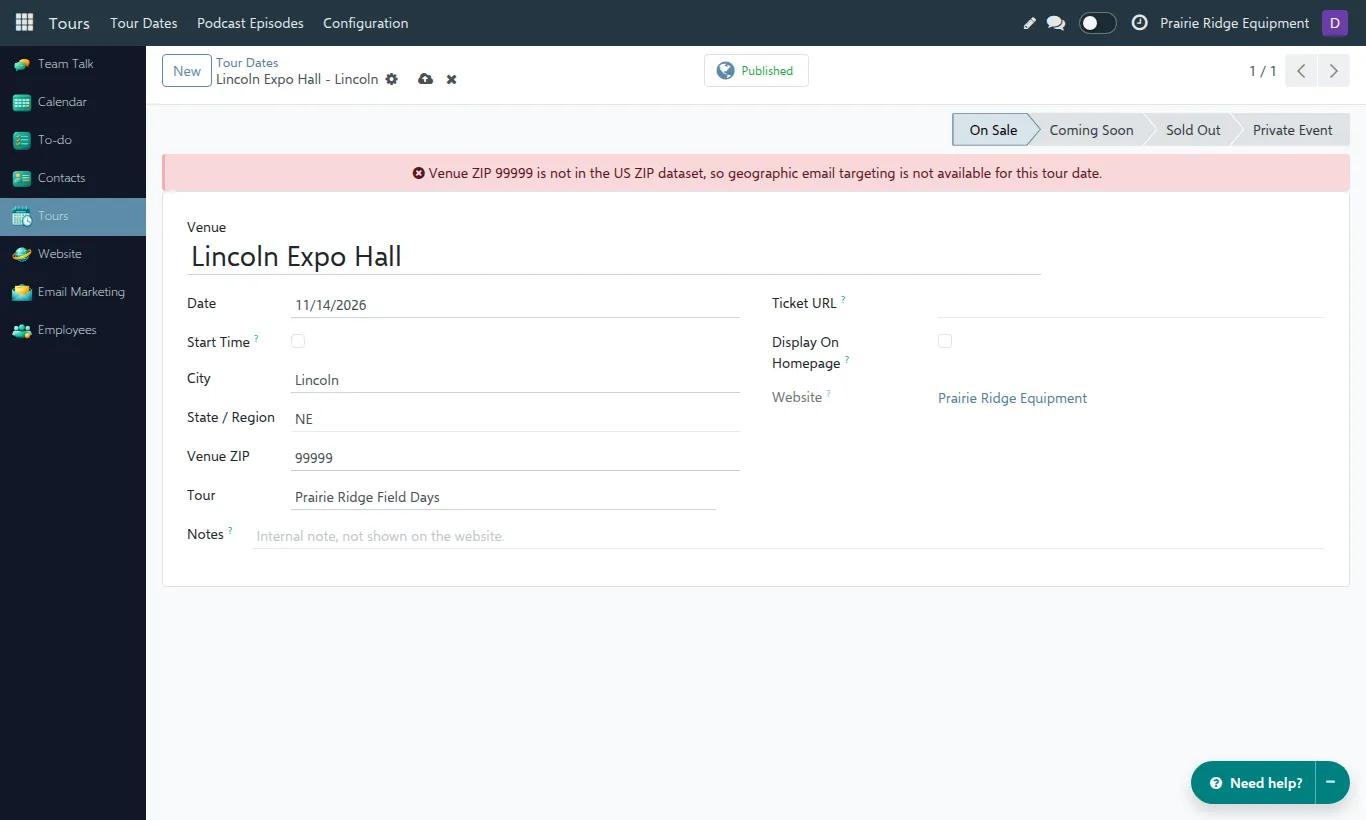
The system does not know this ZIP code. You cannot send a “nearby” email for this stop until you fix it. Double-check the number. If the ZIP is correct but is a PO box ZIP, use the ZIP of the street address of the venue instead.
Step 2. Create the mailing
Section titled “Step 2. Create the mailing”-
Open Email Marketing from the main menu and click New.
-
Type the Subject, for example You’re invited: Prairie Ridge Field Days in Lincoln.
-
Click Recipients (it shows Mailing List) and choose Contact.
-
Click Near and choose Tour Date.
-
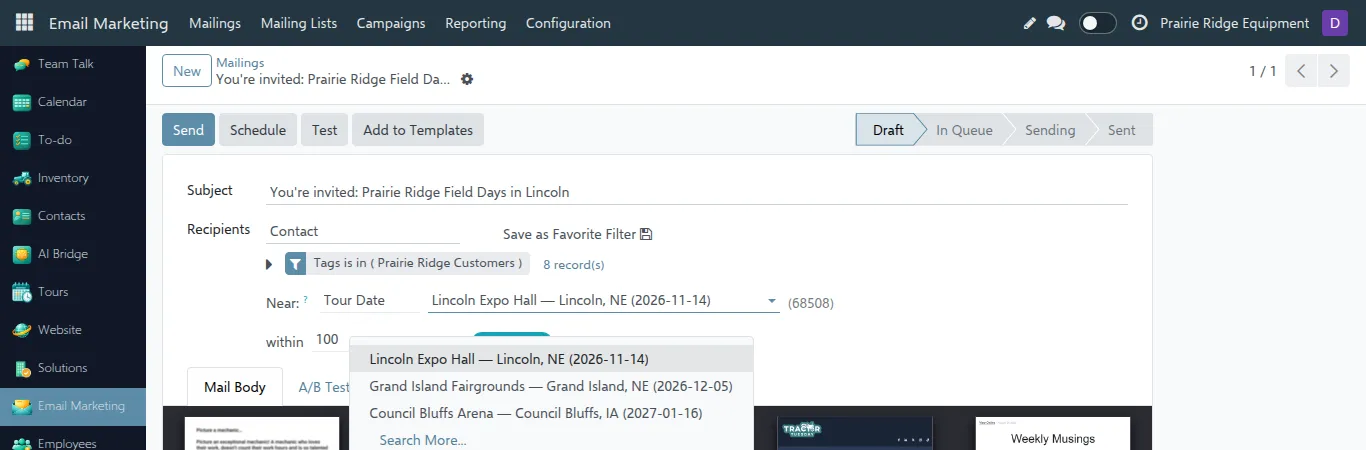
Click the field next to it and choose your tour stop from the list. The ZIP code of the stop is shown in brackets.
-
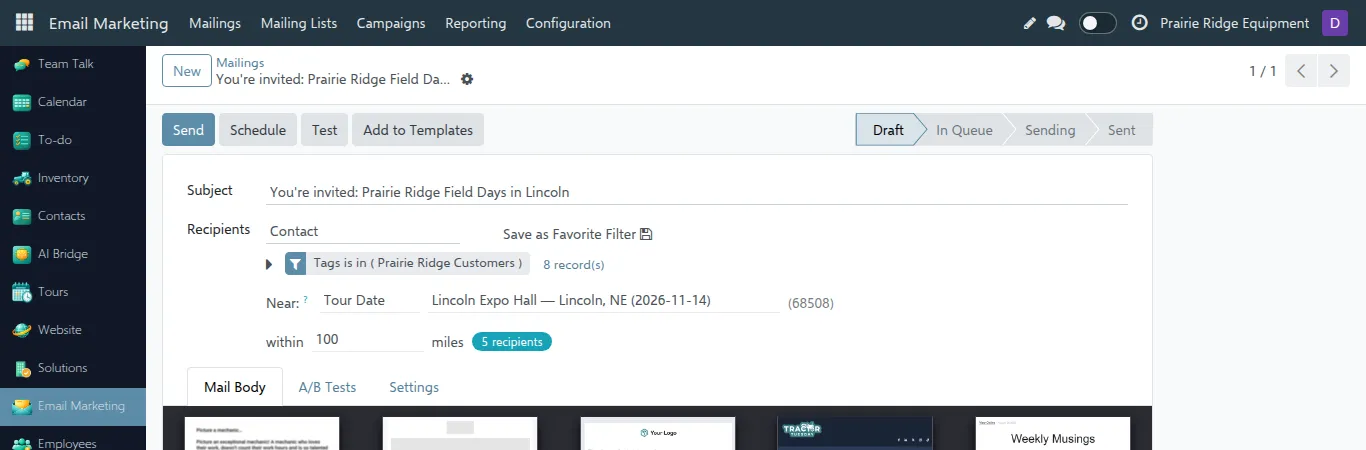
Below it, within 100 miles is filled in for you. Change the number if you want a smaller or bigger area.
-
The blue badge shows how many people will get the email, for example 5 recipients.
-
Open the Mail Body tab, choose a design and write your email.
-
Click Send (or Schedule to send it later).
Tip: always look at the blue badge before you click Send. That number is how many people will get the email.
Tip: you can also narrow the list, for example only customers with a certain tag. Add the rule in the recipients filter as usual: the email goes to people who match the rule and live near the stop.
Tip: to send to everyone again (not only nearby), clear the Near field.
Tip: to send to people near any other place, for example your store or a town, choose ZIP Code or Our Location in Near instead. See the guide Sending an Email to People in One Area.
Choosing the distance
Section titled “Choosing the distance”| Area you want | Miles to type |
|---|---|
| Same town and close neighbours | 25 |
| Short drive (about one hour) | 50 |
| Normal for a show | 100 |
| Big rural area, people drive far | 150–200 |
The distance is measured in a straight line on the map, not by road. A farm 90 miles away by road may be 70 miles in a straight line.
Common problems
Section titled “Common problems”“I can’t find my tour stop in the list.” The stop has no ZIP code yet, or it has a red bar. Go back to Step 1 and enter a correct ZIP.
“I don’t see Near at all.” Recipients is not set to Contact. A new mailing starts with Mailing List; switch it to Contact.
“The badge says 0 recipients.” No tour stop is picked yet, nobody with a ZIP code lives in that area, or your extra filter (tag, country) excluded everyone. Try a bigger distance, for example 150, or remove the extra filter.
“The badge says 60 recipients, but the filter above says 1,322 records.” That is normal. The filter number counts everyone who matches your rules anywhere in the country. The blue badge counts only the people near the stop. The blue badge is what will be sent.
“I know a customer lives near the stop, but they are not counted.” Open that customer and check the ZIP field. Customers without a ZIP code are never included. Add the ZIP and the customer will be counted next time.
“Fewer emails were sent than the badge showed.” Some customers have a ZIP code but no email address, or they unsubscribed. They are counted but cannot receive the email. Add missing email addresses on the customer card.
“I clicked Send, but the email is still In Queue.” Sending runs in the background every few minutes. Wait a bit and refresh the page. If it stays in the queue for more than an hour, ask your administrator.
“I typed 0 or a negative number for the distance and got an error.” The distance must be at least 1 mile.
Before you click Send: checklist
Section titled “Before you click Send: checklist”- The company at the top right is correct.
- Near shows Tour Date and the right tour stop.
- The distance makes sense for this area.
- The blue badge shows a reasonable number of people (not 0, not thousands).
- The subject and the email text mention the right city and date.
- You sent a test to yourself first (Test button at the top).